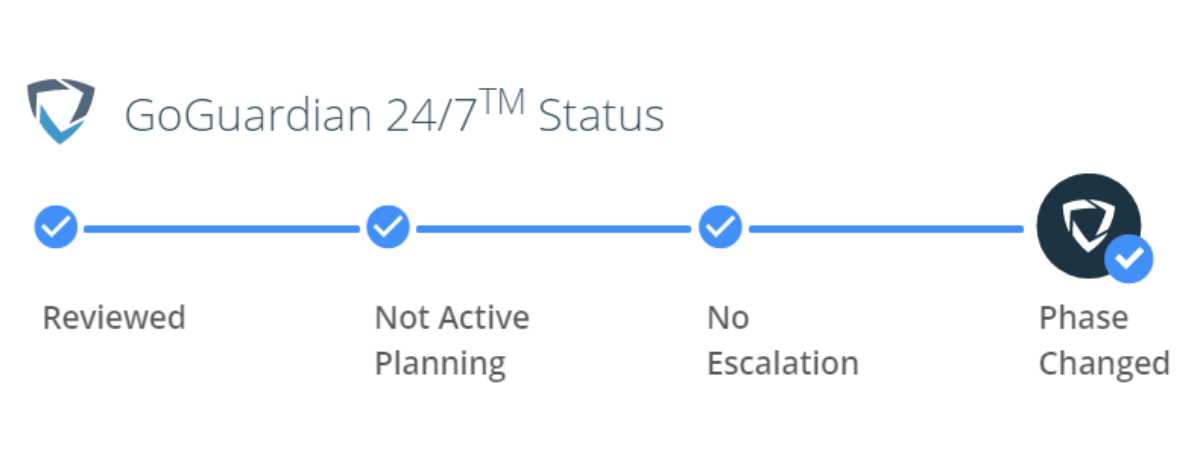
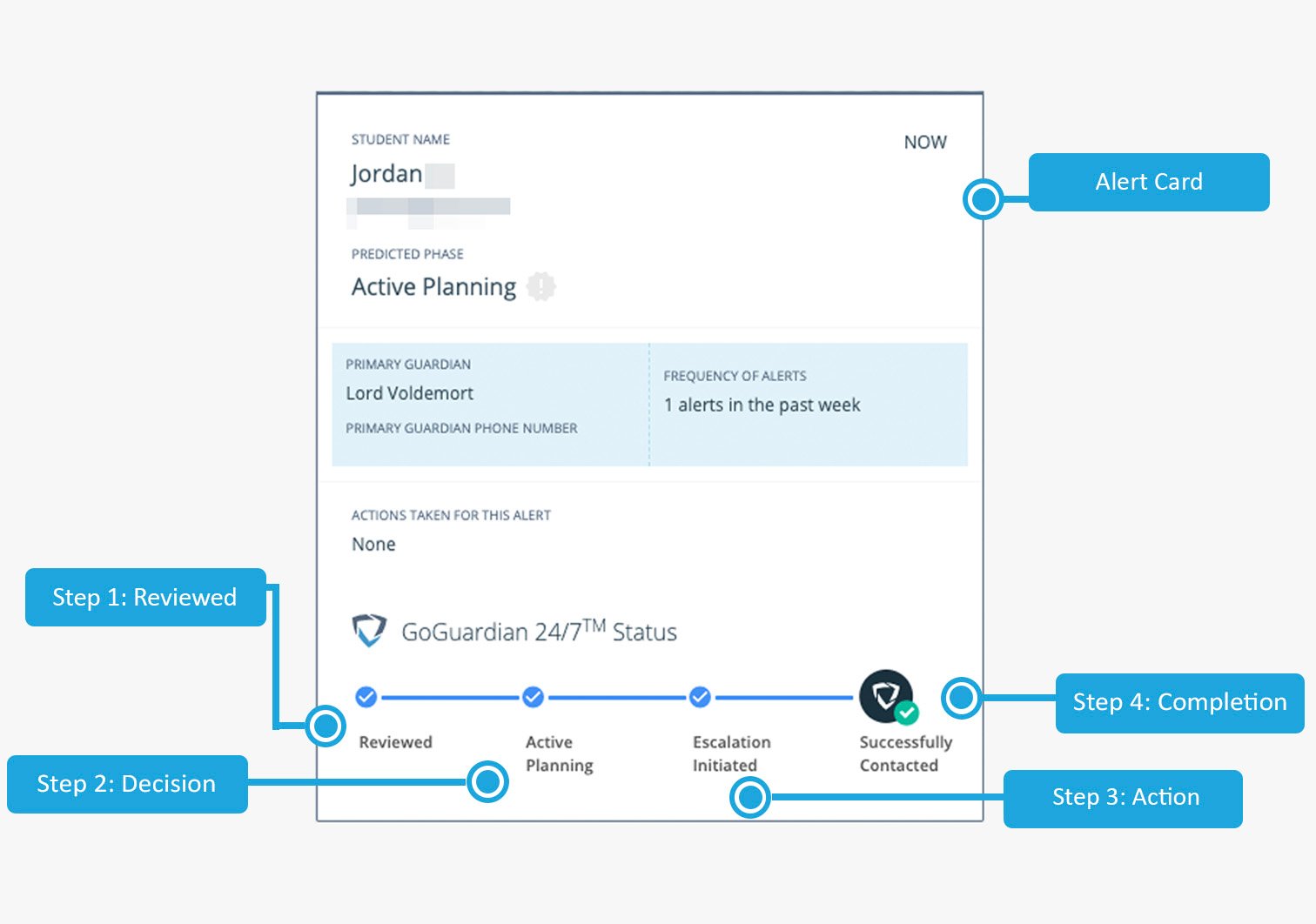
GoGuardian Beacon 24/7 alert cards display the same fields as Beacon Core alert cards, with the addition of a Status Bar that shows the Safety Support Team’s review progress. All Beacon 24/7 alerts must be reviewed in Beacon, and any messages from the Safety Support Team must be viewed and confirmed.

Review the Status Bar

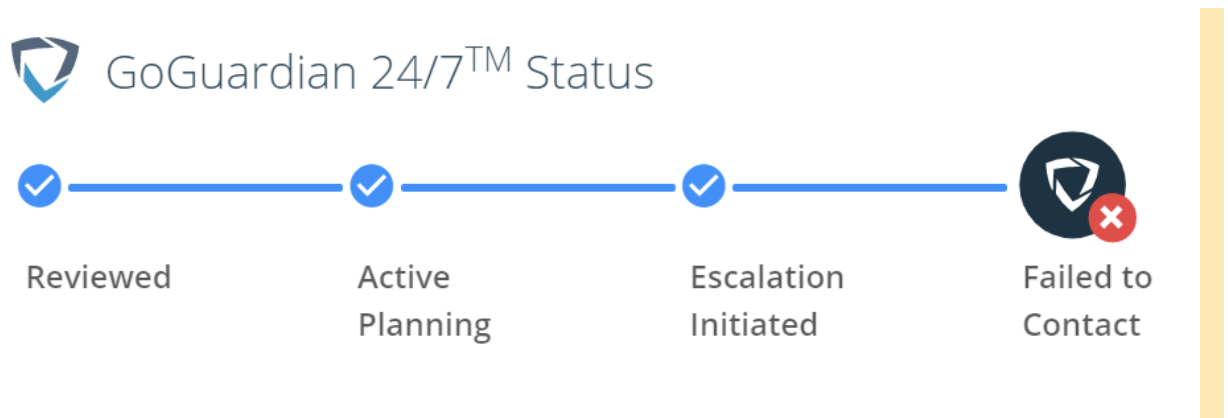
The Status Bar tracks the Safety Support Team’s review through four stages. Alert Card GoGuardian 24/7™ Status. Step 1: Reviewed, 2. Decision (active planning), 3. Action (escalation… GoGuardian 24/7™ Status. Reviewed, Active Planning, Escalation initiated, Successfully Contacted (badge shows check) GoGuardian 24/7™ Status. Reviewed, Active Planning, Escalation initiated, Successfully Contacted (badge shows check) GoGuardian 24/7™ Status. Reviewed, Active Planning, Escalation initiated, Failed to Contact (badge shows X)
Review Result Badges

Result badges appear at the Completion stage and indicate the final outcome of the Safety Support Team’s review.
A red “Failed to Contact” badge means the Safety Support Team could not reach anyone on the Escalation List. Review the alert immediately and follow your school’s response protocol.

Alert Card Anatomy

Reference for standard Beacon alert card fields.

Respond to Email Alerts

Steps for reviewing and resolving an alert from an email notification.

Understand Alert Generation

How the Rationale tab explains why Beacon generated an alert.

Beacon Dashboard Overview

Deployment- and student-level alert data across your organization.
Last modified on July 9, 2026