

Review the Alert Card Fields
Before opening the full alert card, the card summary shows the fields most relevant to triage.
For definitions of all card fields, see Alert Card Anatomy. For phase definitions, see Alert Phases.
Review the Evidence in the Rationale Tab
- Click the alert card to open the full alert record.
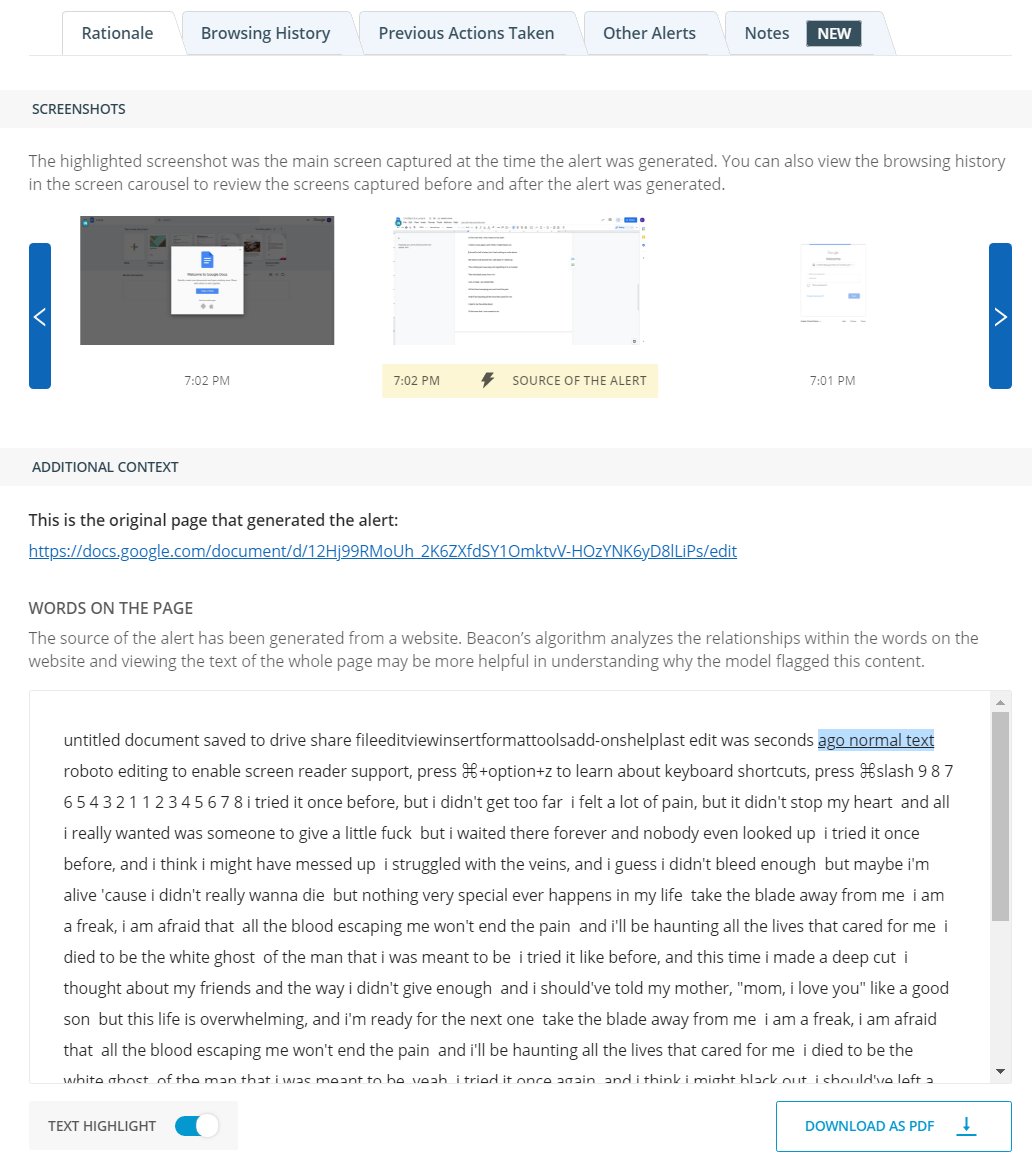
- Select the Rationale tab.
- Review the Screenshots section. Beacon captures screenshots from 15 minutes before and after the alert. The screenshot from the source of the alert is highlighted in yellow. Use the arrows to scroll through the capture window, and click any screenshot to enlarge it.
- Review the Words on the Page section. This section displays all text Beacon analyzed on the page. Flagged terms are highlighted.
-
Compare the screenshots and the Words on the Page together. If the screenshots do not show clearly concerning content, check Words on the Page before drawing any conclusion.
A screenshot that does not show explicit content does not mean the alert was generated in error. Beacon analyzes text that may fall outside the visible bounds of a screenshot. The Words on the Page section captures that text. Do not assess the alert based on screenshots alone.
- Verify the result: the Rationale tab should show at least one screenshot and a Words on the Page section with highlighted terms. If either section is missing, the alert record may still be loading.
Assess Severity
Use the following signals together to form an assessment:- Risk level: A manually assigned risk level from a prior reviewer indicates how colleagues have assessed this alert. If no risk level is assigned, the assessment is yours to make.
- Alert phase: Phases such as Active Planning and Intent carry higher specificity than broader phases. See Alert Phases for phase definitions and Risk Levels for risk level descriptions.
- Volume and specificity of flagged terms: A single flagged term in an academic paper is different from repeated, specific language across multiple pages. Review the full Words on the Page section, not just the highlighted terms in isolation.
Assess a Potential False Positive
Do not dismiss an alert without completing a full evidence review.- Review both the Screenshots and the Words on the Page sections completely.
- Look at the context surrounding flagged terms in the Words on the Page section. A single term in a news article, a textbook excerpt, or a creative writing assignment carries different weight than the same term in a search query or repeated across a browsing session.
- Document your assessment in the Notes tab before resolving the alert. Include the context you reviewed and why you concluded the alert does not reflect an elevated concern.
- If you are uncertain, consult your district’s protocols before resolving. When in doubt, do not resolve without a second review.
Document Your Review
- Click the alert card to open the full alert record.
- Select the Notes tab.
-
Enter your notes. Include:
- The evidence you reviewed (screenshots, Words on the Page findings)
- Any context you gathered (conversation with the student, guardian contact, prior alerts)
- The action you are taking or recommending
- Click Submit.
- Verify the result: the new note appears in the Notes tab with your name and a timestamp.
Snooze or Resolve the Alert
After reviewing the evidence and documenting your assessment, take one of the following actions: Snooze the alert if the student is actively being supported and you want to pause notifications for a set period (1 Hour, 1 Day, 1 Week, 1 Month, or Indefinitely). The snooze is logged and visible to other staff. Resolve the alert to close it. Resolving is logged. Use resolve when you have completed your review, taken appropriate action, and determined no further follow-up is needed at this time. Both actions are auditable. For snooze configuration and scope options, see Snooze an Alert.Understand Alert Generation
How the Rationale tab’s screenshots and Words on the Page are generated.
Alert Card Anatomy
Reference for every field on a Beacon alert card.
Snooze an Alert
Pause future notifications while a student is being supported.
Alert Phases
Definitions for each phase Beacon detects.
Risk Levels
How risk levels work and how to assign them.