

The Snooze feature is available on Beacon Core and Beacon 24/7. It is not available on Beacon Starter. Grouped alerts cannot be snoozed.Only Super Counselors and Super Users can snooze alerts.
Snooze by URL
- Select the alert card you want to snooze.
- Click Snooze Alert in the top right corner of the alert card.
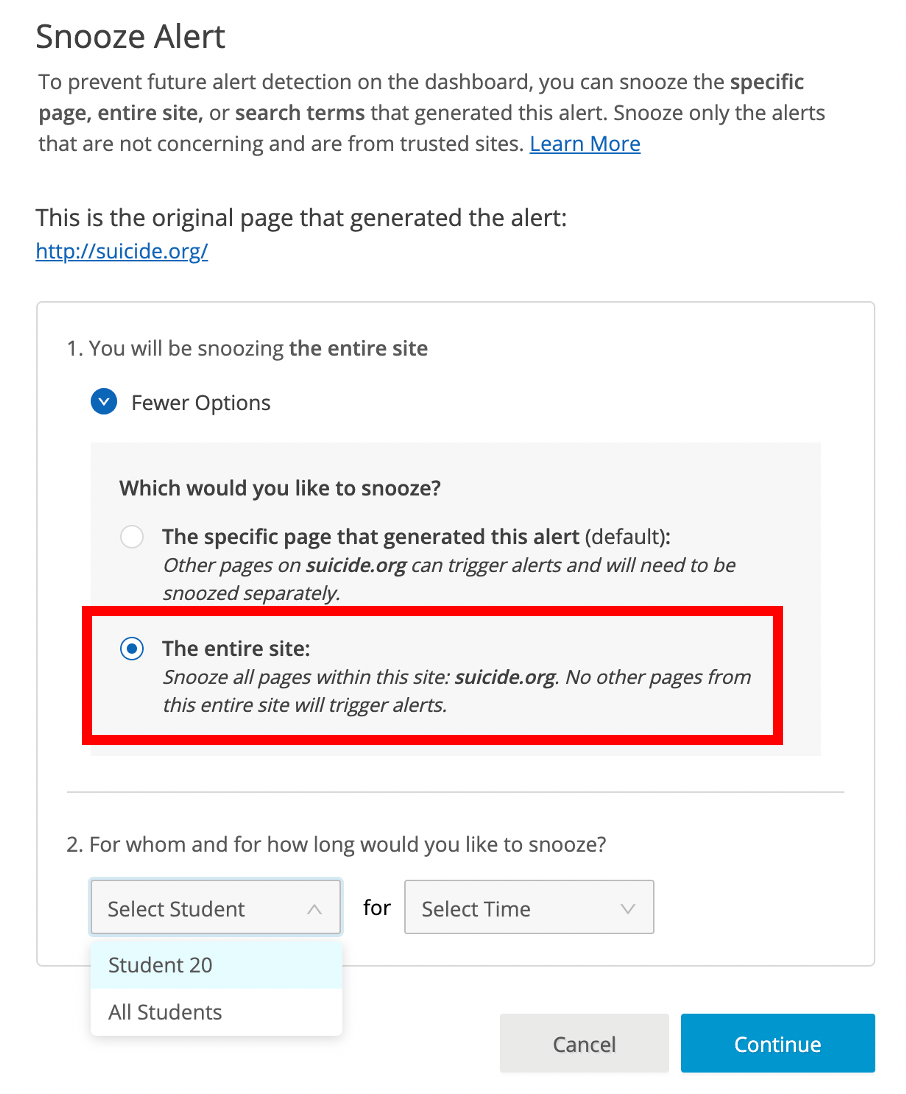
- Confirm that the URL or search term shown is the content you want to snooze.
-
Choose one of the following:
- Individual Student
- All students within the deployment
-
Choose how long the snooze should remain active:
- Indefinitely (not available for Active Planning alerts)
- 1 Hour
- 1 Day
- 1 Week
- 1 Month
- Enter any additional context about the alert, if needed.
- Click Snooze.

Snooze by Domain
Snoozing a domain pauses alerts for all pages and content under that domain. This option is appropriate for known, trusted educational or instructional sites.Major domains such as google.com and Google tools such as docs.google.com cannot be snoozed. Individual Google Doc links can be snoozed.
View Snoozed Alerts
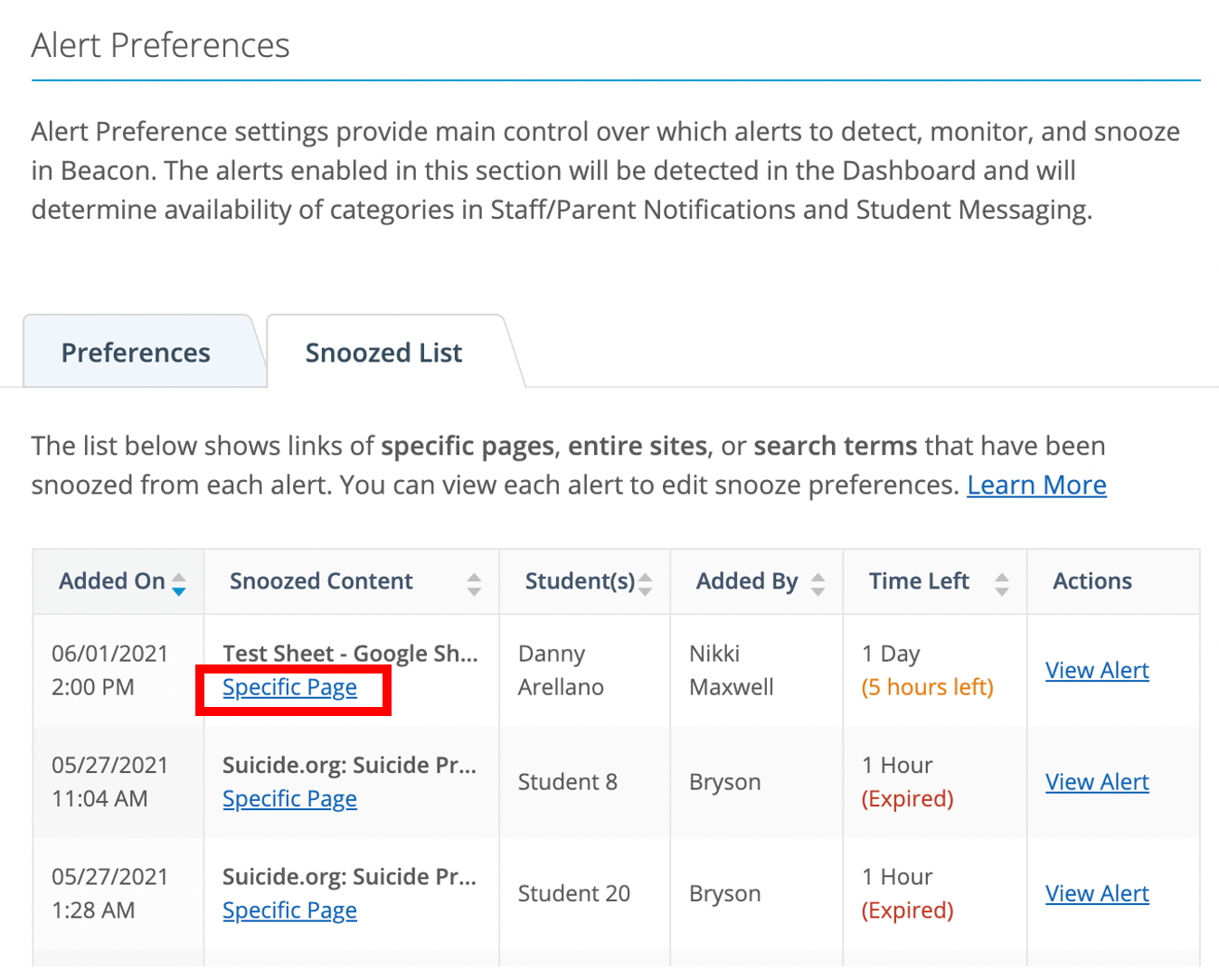
All active and past snoozed alerts are listed in the Snoozed List tab in your Beacon settings.- Go to your Beacon Settings.
- Click Alert Preferences.
- Select the Snoozed List tab.
Edit or Remove a Snooze
You can edit or remove a snoozed alert from the deployment settings or directly from the alert card.Edit or remove from deployment settings
Edit or remove from deployment settings
- Go to your Beacon Settings.
- Click Alert Preferences.
- Select the Snoozed List tab.
- Click the snoozed alert you want to edit or remove.
-
Make any desired changes, or click Delete to remove the snooze.
Once deleted, the alert is cleared from the Snoozed List.
- Click Snooze to save any changes.
Edit or remove from the alert card
Edit or remove from the alert card
- Open the alert card that has an active snooze. A yellow banner appears at the top of the card.
- Click Edit in the yellow banner.
- Make any desired changes, or click Delete to remove the snooze.
- Click Snooze to save any changes.
Respond to Email Alerts
Steps for reviewing and resolving an alert from an email notification.
Alert Card Anatomy
Reference for every field on a Beacon alert card.
User Roles and Permissions
Beacon role definitions, including Super Counselor and Super User permissions.
Configure Beacon Settings
Manage alert preferences, escalation lists, and notification settings.