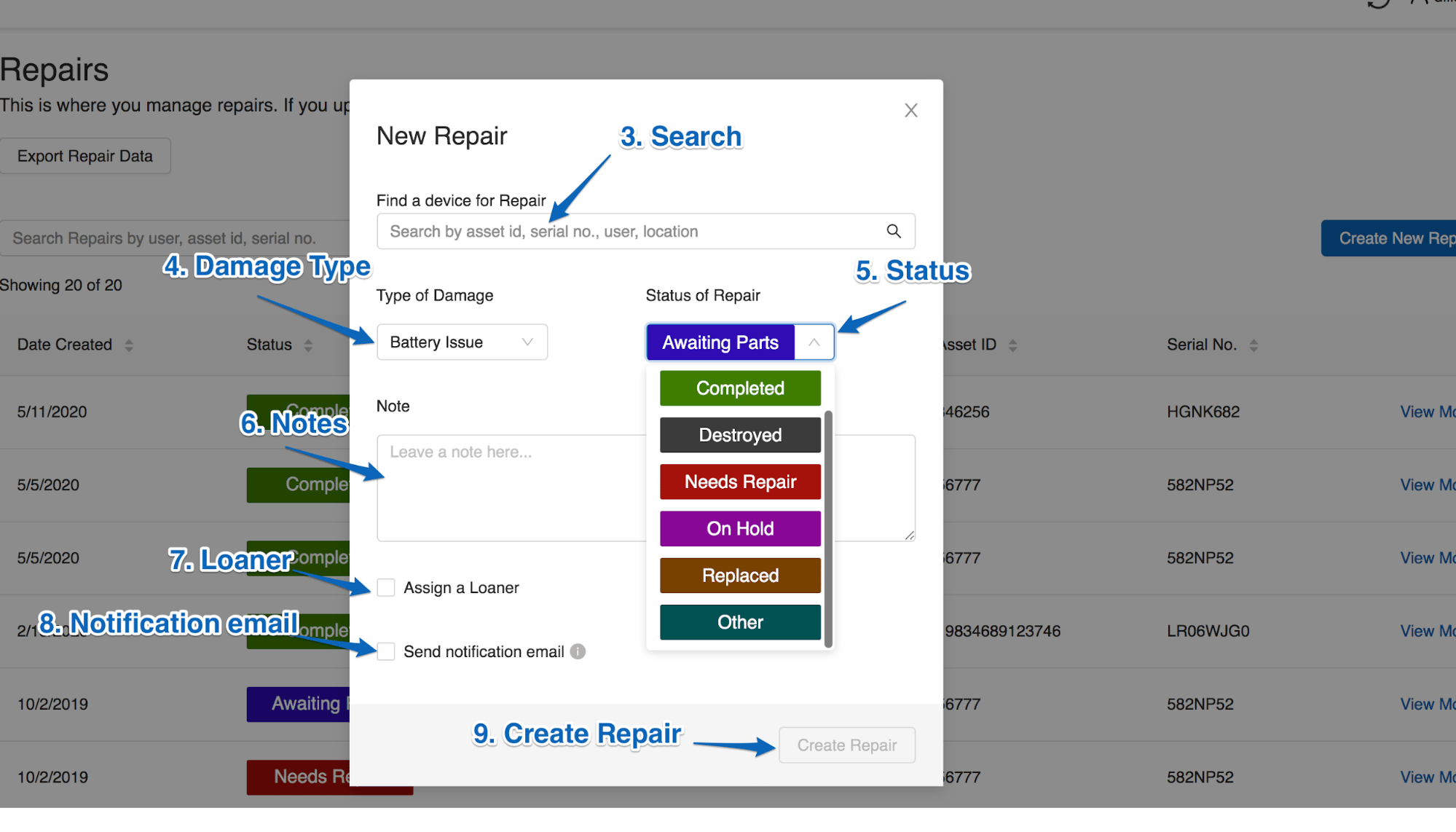
Create a repair record in GoGuardian Fleet: find the device, set the damage type and status, add notes, and optionally assign a loaner or notification.
In GoGuardian Fleet, click the Repairs tab.
Click Create New Repair.
Click the search field and enter the serial number, asset ID, user, or location of the device.
Select the Type of Damage. If the repair is not one of the available options, select Other Issue and describe it in the Notes field.
Select the Status of Repair. Devices typically start at the Needs Repair or Destroyed phase.
Enter any relevant Notes.
(Optional) Check Assign a Loaner to display available loaner devices.
(Optional) Check Send notification email to notify a specified address that the repair process has started.