Start a Repair Ticket
- Go to fleet.goguardian.com and select the Repairs tab.
- Click Create New Repair.
- Enter the device’s serial number, asset ID, user, or location in the search field and select the device.
- Select the type of damage from the Type of Damage dropdown. Select Other Issue if the damage type is not listed, and use the Notes field to describe the issue.
- Select the initial repair status — typically Needs Repair or Destroyed.
- Enter any relevant notes.
- Optional: Select Assign a Loaner to assign an available loaner device to the student while the device is being repaired.
- Optional: Select Send notification email to notify a specified email address that the repair has started.
- Click Create Repair.
- Verify the result: A repair ticket appears in the Repairs tab.

Update a Repair Ticket
Use these repair status options to reflect the current state of a device in the repair process:
To update a repair ticket:
- Select the Repairs tab and click View More to the right of the device. Use Search or filters to find it.
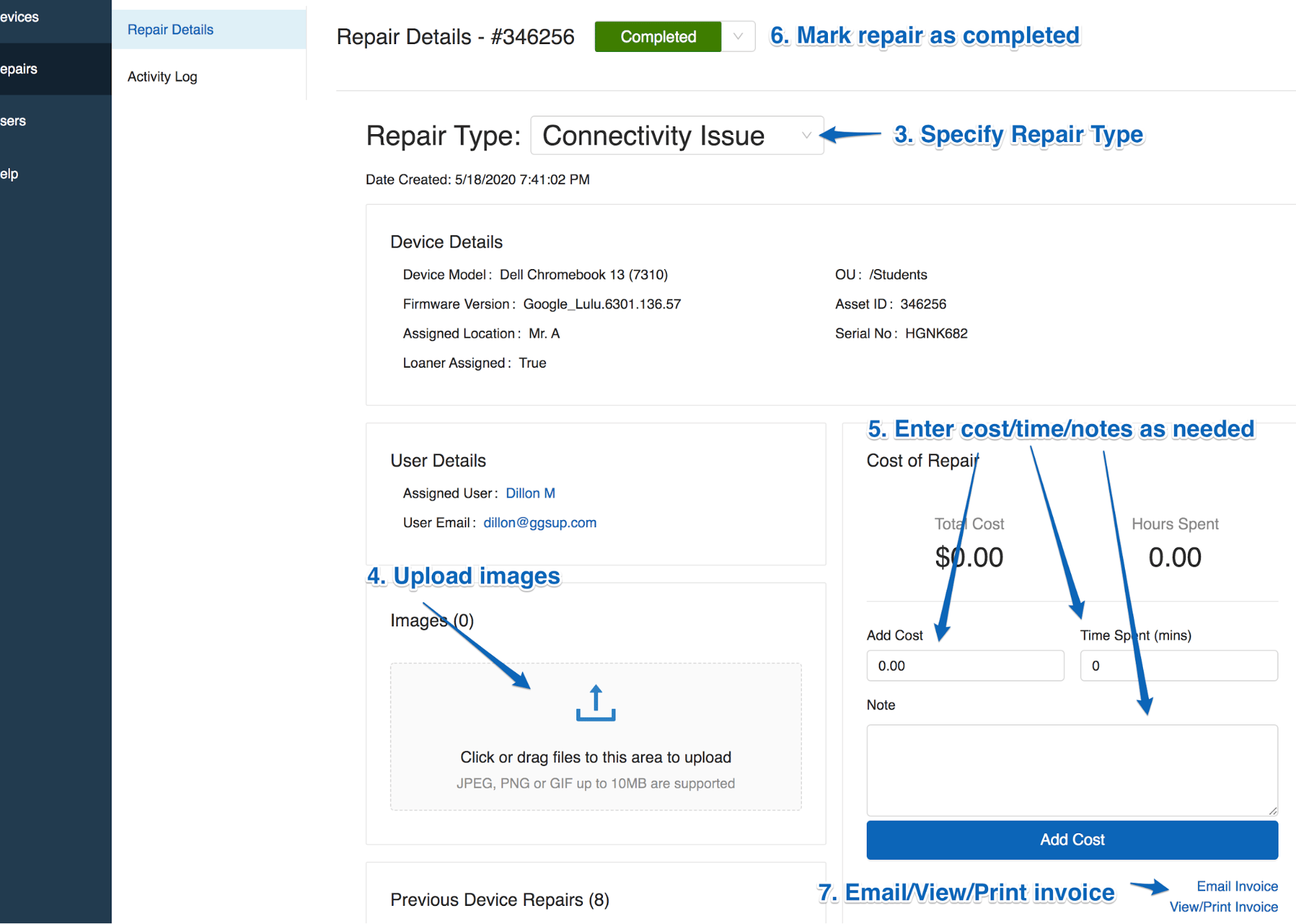
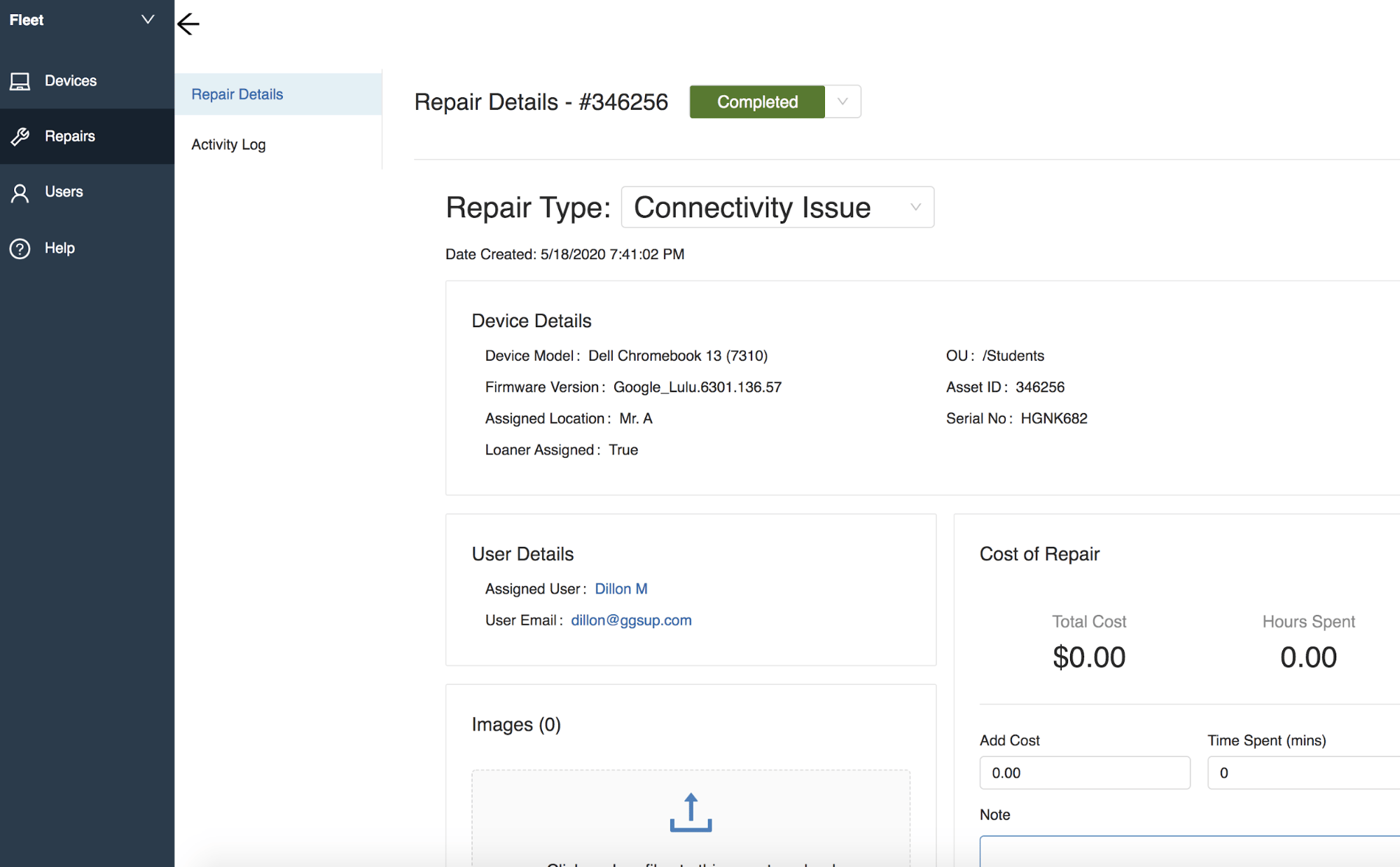
- Use the Repair Type dropdown to change the type of repair if needed.
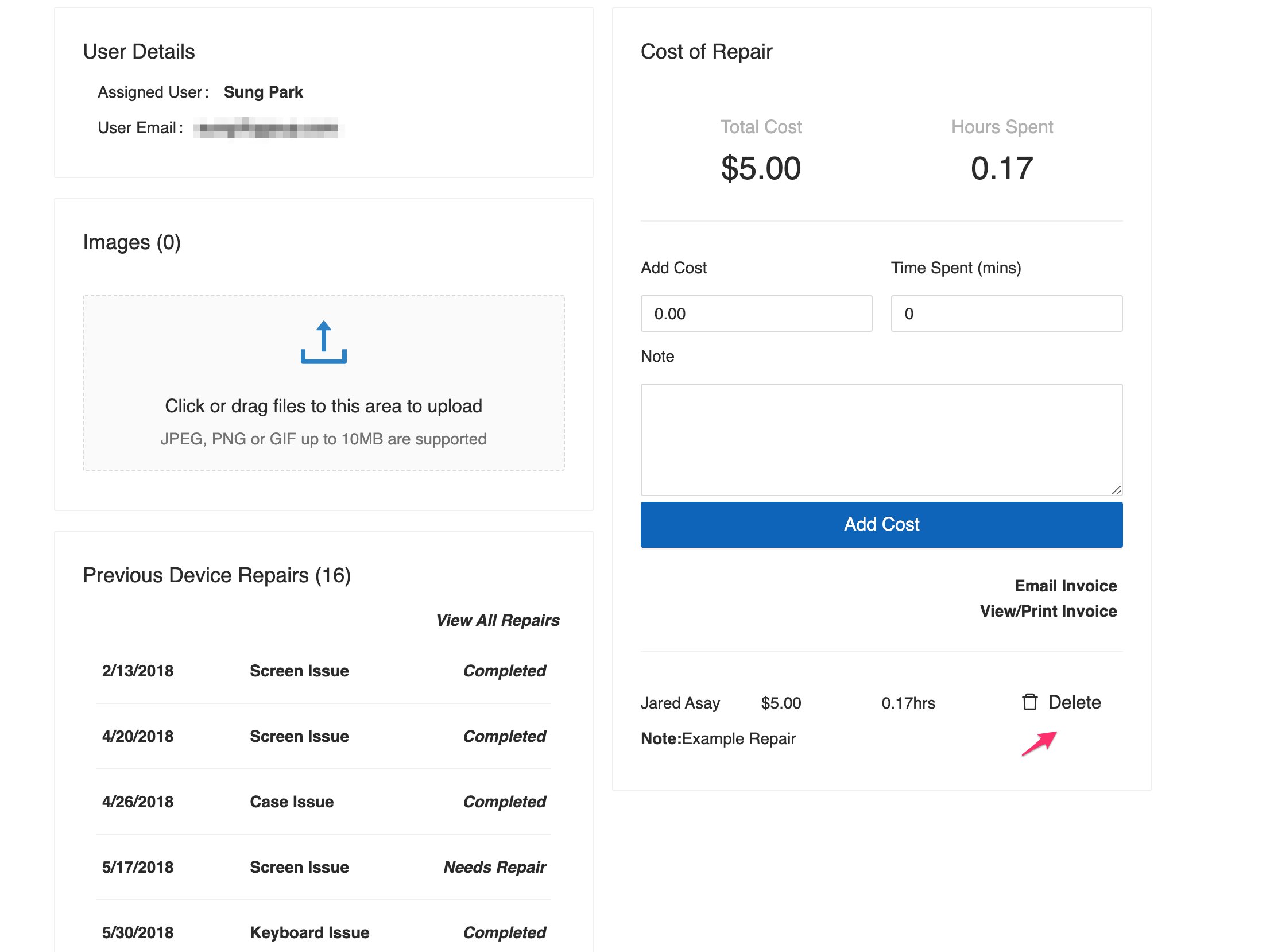
- Use the Images section to upload photos of the device or repair process (JPEG, PNG, or GIF, max 10 MB each).
- Use the Status dropdown to set the current repair status.
- Verify the result: The status updates immediately.
Record Repair Costs and Time
Tracking costs per repair ticket gives you a running total of what each device has cost to maintain over its lifetime.- Open a repair ticket by clicking View More next to the device.
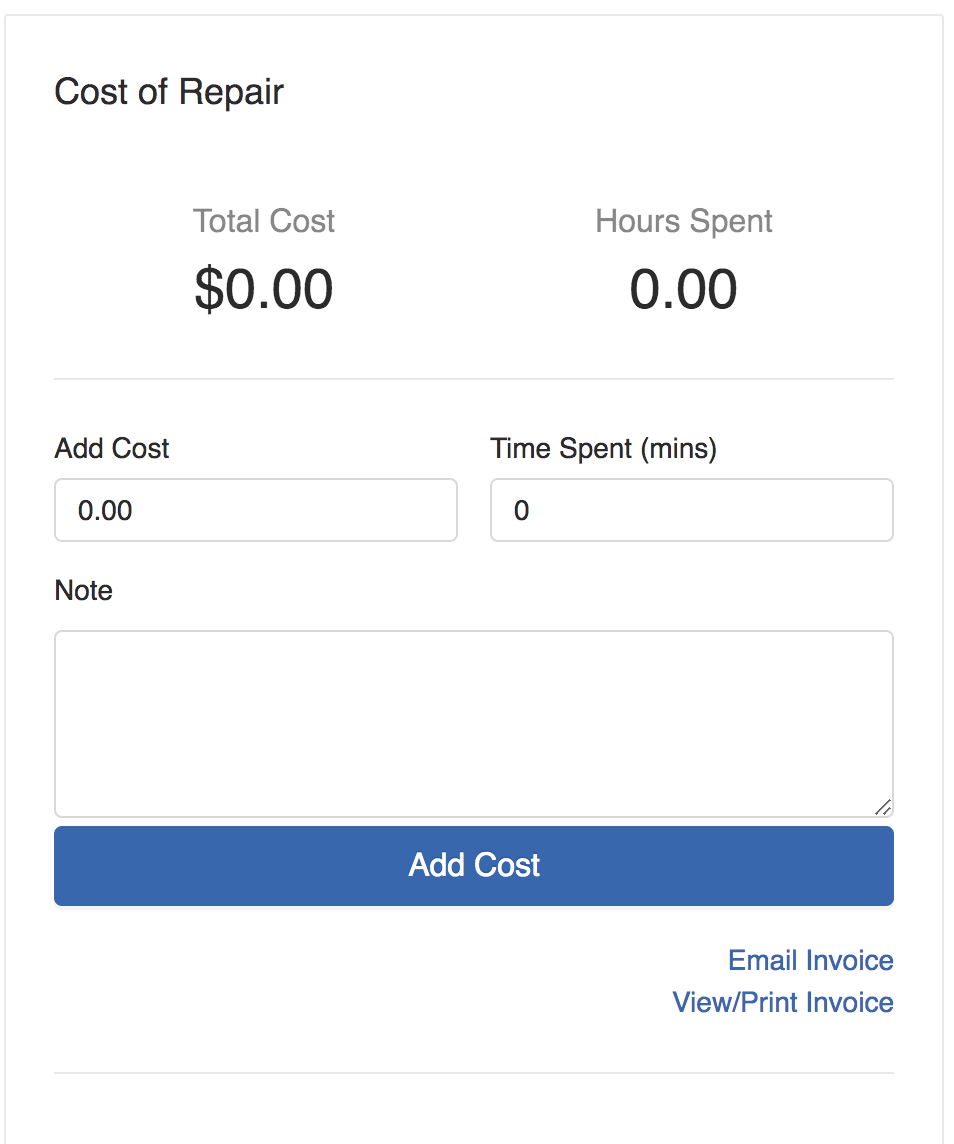
- In the Cost of Repair section, enter the cost amount, time spent (in minutes), and any notes about the expense.
- Click Add Cost.
- Verify the result: A cost line item appears in the Cost panel with the running total for this ticket.
Complete a Repair
- Open the repair ticket and set the Repair Type to what was fixed.
- Upload any repair photos.
- Enter the final repair cost, time spent, and notes, then click Add Cost.
- Set the Status dropdown to Completed or Repaired.
- Verify the result: The ticket shows Completed status and the device can be reassigned to a student or location.

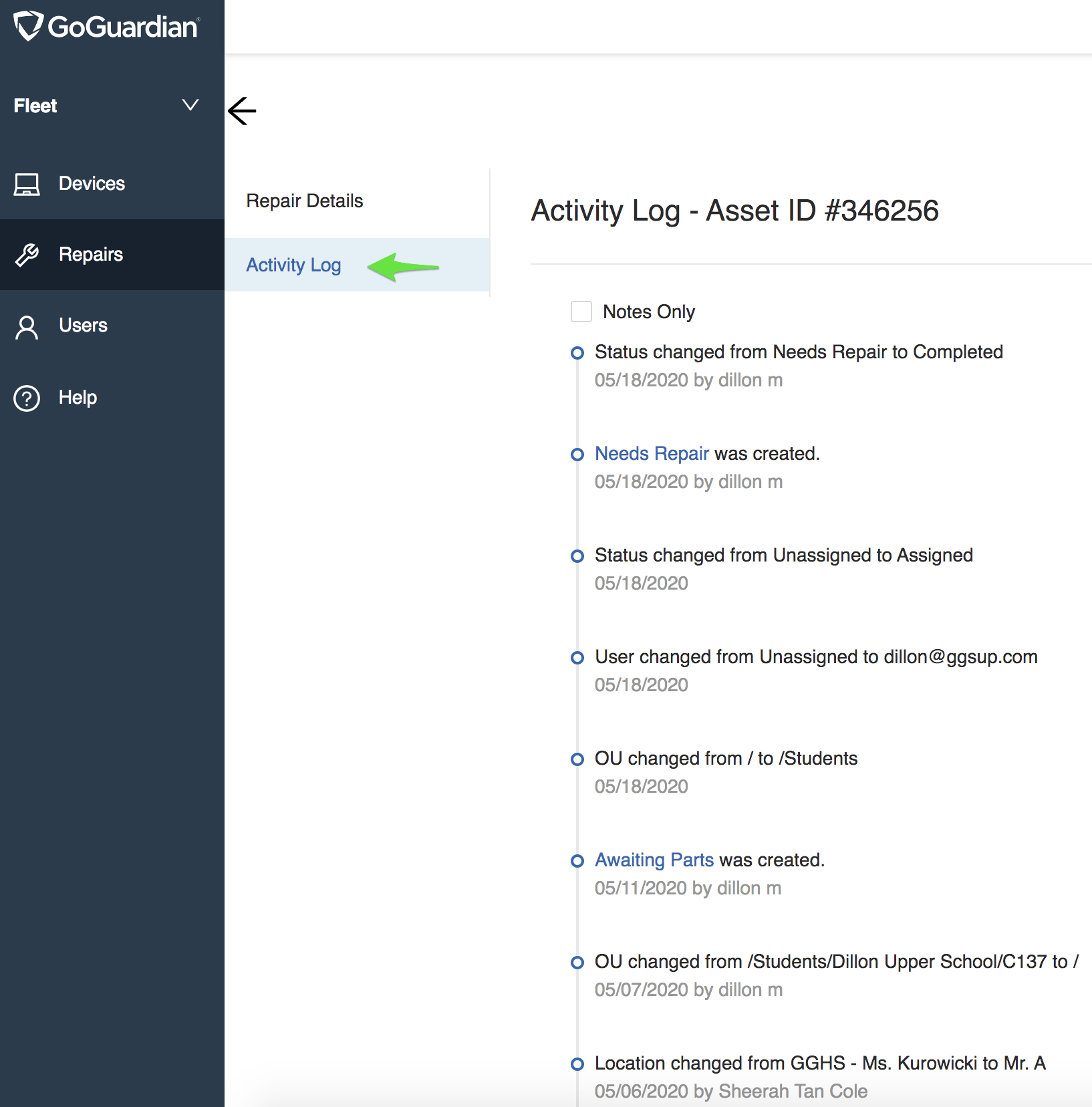
View All Repairs for a Device
Each repair ticket in the Repairs tab represents a single repair event. A device with multiple repairs will have multiple entries.- Select the Repairs tab and find any repair ticket for the device.
- Click View More to open the repair detail panel.
- Scroll to Previous Device Repairs at the bottom of the panel to see all historical repairs for that device.
- Click any previous repair to review its details.

Filter Repairs by Type or Status
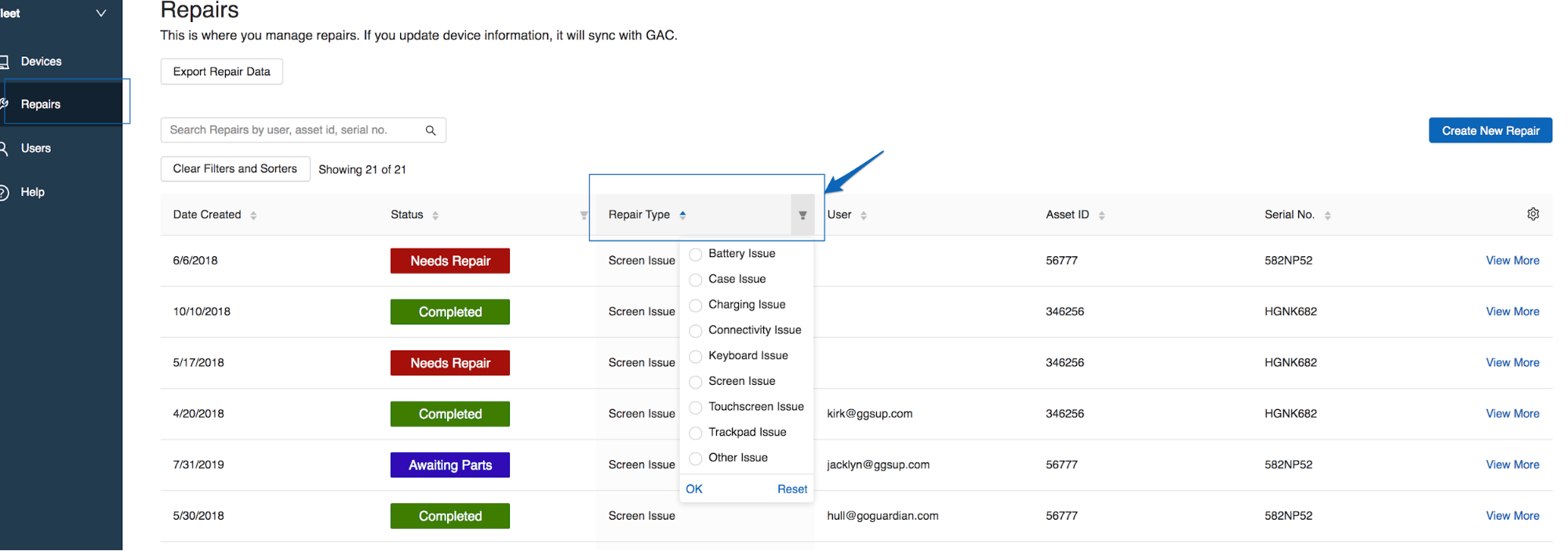
- Select the Repairs tab.