Search for a Device
Enter a term in the Search bar to search across these fields: Serial Number, Asset ID, Assigned User, and MAC Address. Enter at least 3 characters. The search matches any part of a field — for example, searching009 returns any device whose serial number contains 009.
Find a specific device: Search for its serial number, asset ID, or the assigned user’s email. If you do not know the serial number, use filters (Status, OU, Location) to narrow the results.
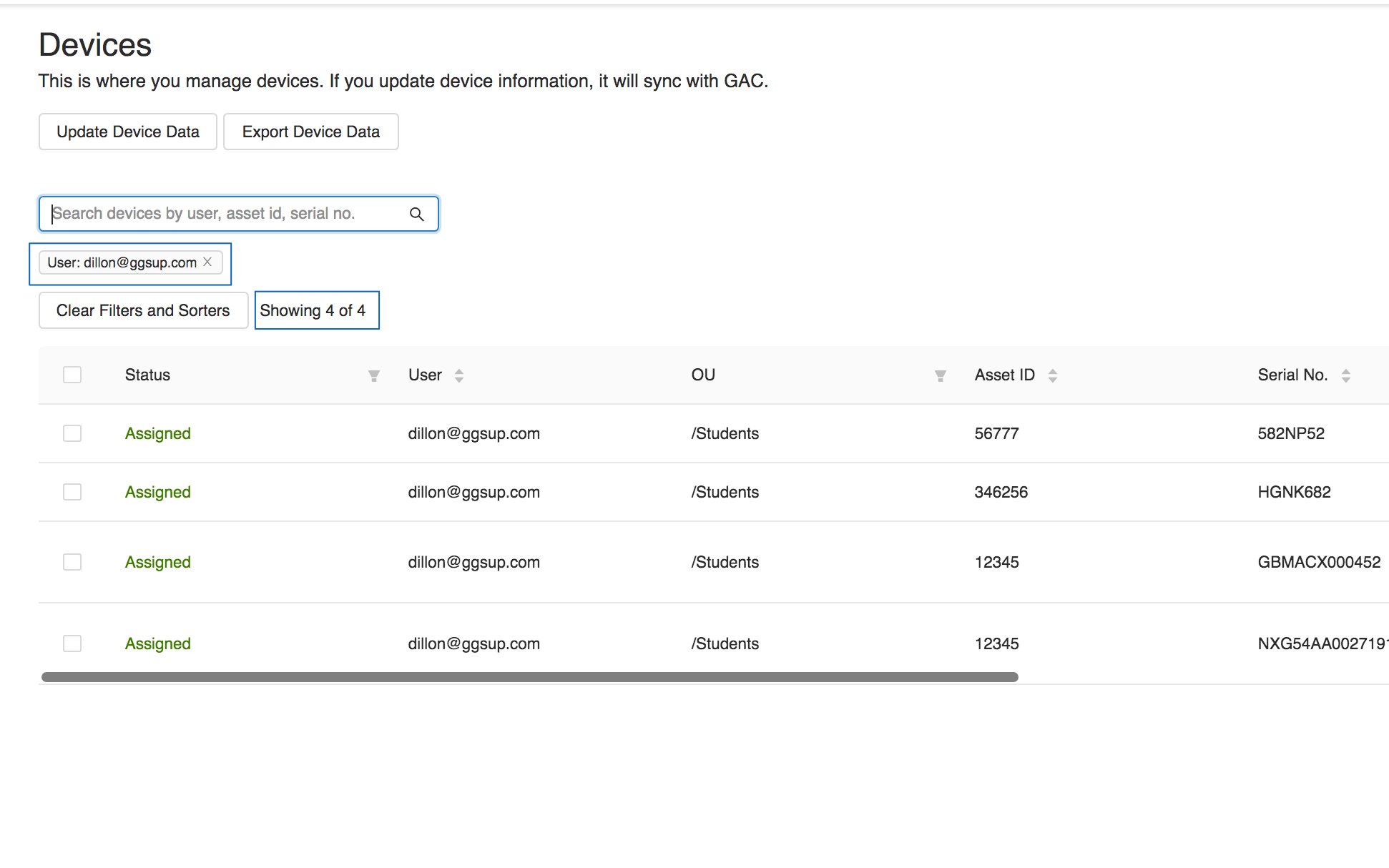
Find all devices assigned to a student: Enter the student’s email address in the Search bar. When the suggestion User: [email] appears, select it — Fleet shows all devices assigned to that user. You can also go to the Users tab, search for the student, and click View More to see their assigned devices.
Find all devices for a teacher: Teachers in Fleet are identifiable only if they are in a dedicated teacher OU or if their device Asset IDs include a consistent teacher designation. Filter by OU or search for the common Asset ID prefix to find teacher devices.
Apply Column Filters
Fleet’s column headers include filter options for Location, OU, Status, and Loaner. Click the filter icon on a column header to filter by any value that exists for that column. Filters stack — applying a second filter narrows the results from the first. To remove a filter, click the filter icon and select Reset. To clear all filters at once, click Clear Filters and Sorters below the search bar.Sort the Device List
Click any column header to sort devices by that field. Click once to sort ascending, click again to sort descending.Customize Displayed Columns
Fleet shows up to 4 columns at a time in the Devices tab. The Repairs tab supports additional columns: Cost, Time Spent, and Type.- Click the cog icon in the upper-right corner of the device table.
- Select the columns you want to display.
- Click Update.
- Verify the result: The table updates to show the selected columns.
Use a Barcode Scanner to Assign Devices
A barcode scanner connected to your computer works like a keyboard — scanning a barcode populates the active text field with the device’s serial number or asset ID. Quick assign or unassign a device:- In the Devices tab, click Quick Assign/Unassign.
- Select Assign or Unassign.
- Select the Search or scan devices field and scan the device’s barcode.
- Select the matching device from the suggestions.
- Enter the student’s email address in the user field and select the correct account.
- Click Assign.
- Verify the result: The device assignment updates in the Devices table.
- In the Repairs tab, click Create New Repair.
- Select the Find a device for Repair field and scan the device’s barcode.
- Select the matching device from the suggestions.
- Set the damage type, repair status, and any notes.
- Click Create Repair.
Check Device Software Versions
Fleet displays the OS and firmware version of every synced device, so you can identify which devices need updates.- Click the Devices tab.
- Click the column-adjustment cog icon.
- Check OS Version and Firmware Version, plus up to two other columns.
- Click the OS Version or Firmware Version heading to sort ascending or descending.
Fleet shows version numbers but cannot tell you whether a version is out of date, whether to update, whether security patches are missing, or when a device was last updated. For auto-updates on ChromeOS, see Google’s documentation on deploying automatic Chrome device updates.