

Understand Inventory Status
Assigned — the device has a user linked to it in Fleet. Unassigned — the device has no assigned user.Update Inventory Status for One or More Devices
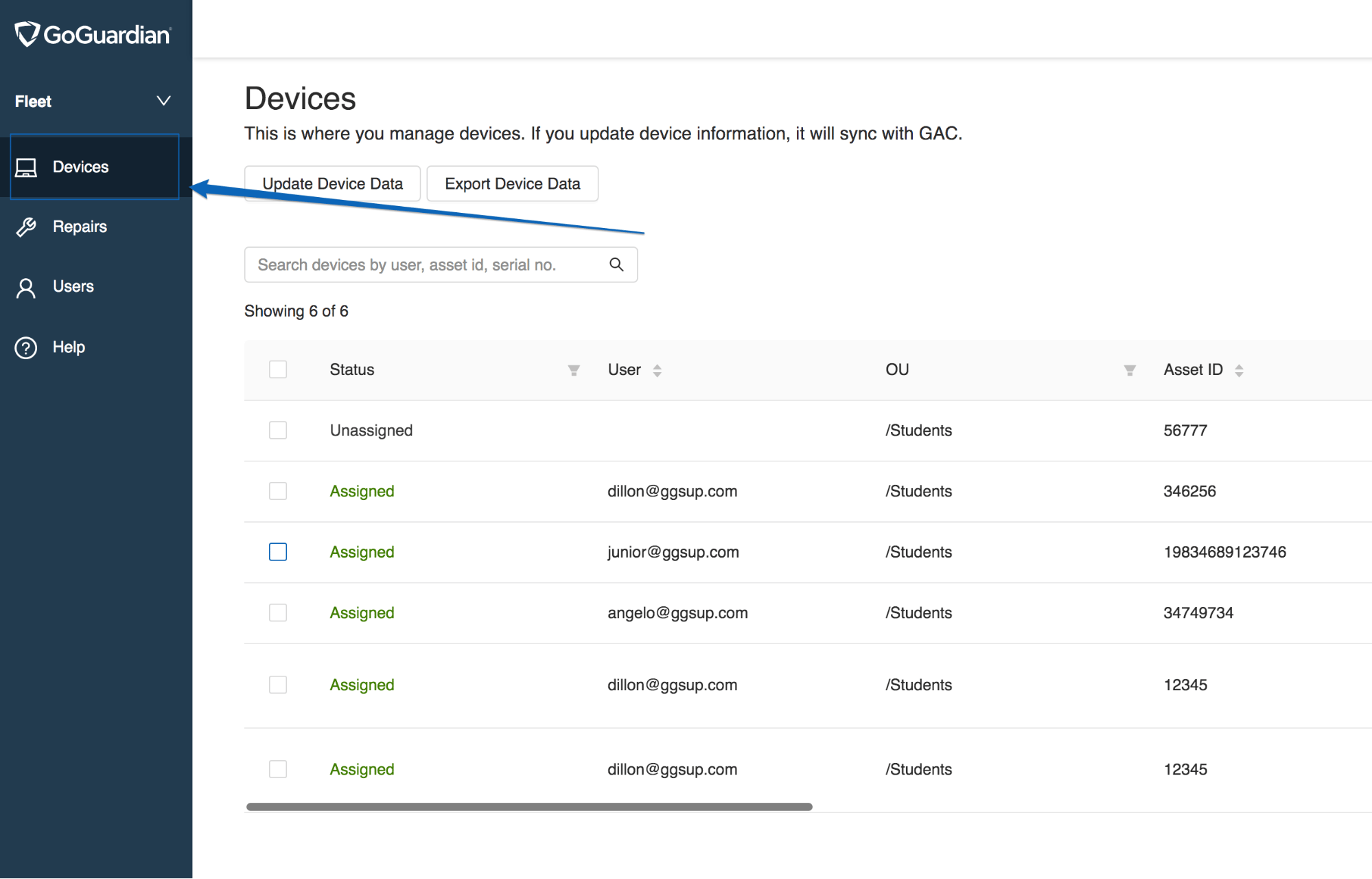
- Go to fleet.goguardian.com and select the Devices tab.
- Click on the device you want to update. Use Search or filters to find it quickly.
- Edit the desired fields in the device detail panel.
- Optional: Click Unassign All to set the device to Unassigned.
- Click Bulk Edit to save changes.

Check Which Student a Device Is Assigned To
Click on the device in the Devices tab. The assigned user’s name and email appear in the User Details card in the side panel.Check Device OS and Firmware Versions
- In the Devices tab, click the cog icon in the table header.
- Select OS Version and Firmware Version from the column options, then click Update.
- Click the OS Version or Firmware Version column header to sort devices by version number.
- Verify the result: Devices are sorted so you can identify which ones have older version numbers.
Fleet displays OS and firmware version numbers but does not indicate whether a device is out of date or requires a security update. Update devices through Google Admin Console or enable automatic updates — see Google’s documentation on deploying auto-updates for Chrome devices.