

Understand How Sync Works
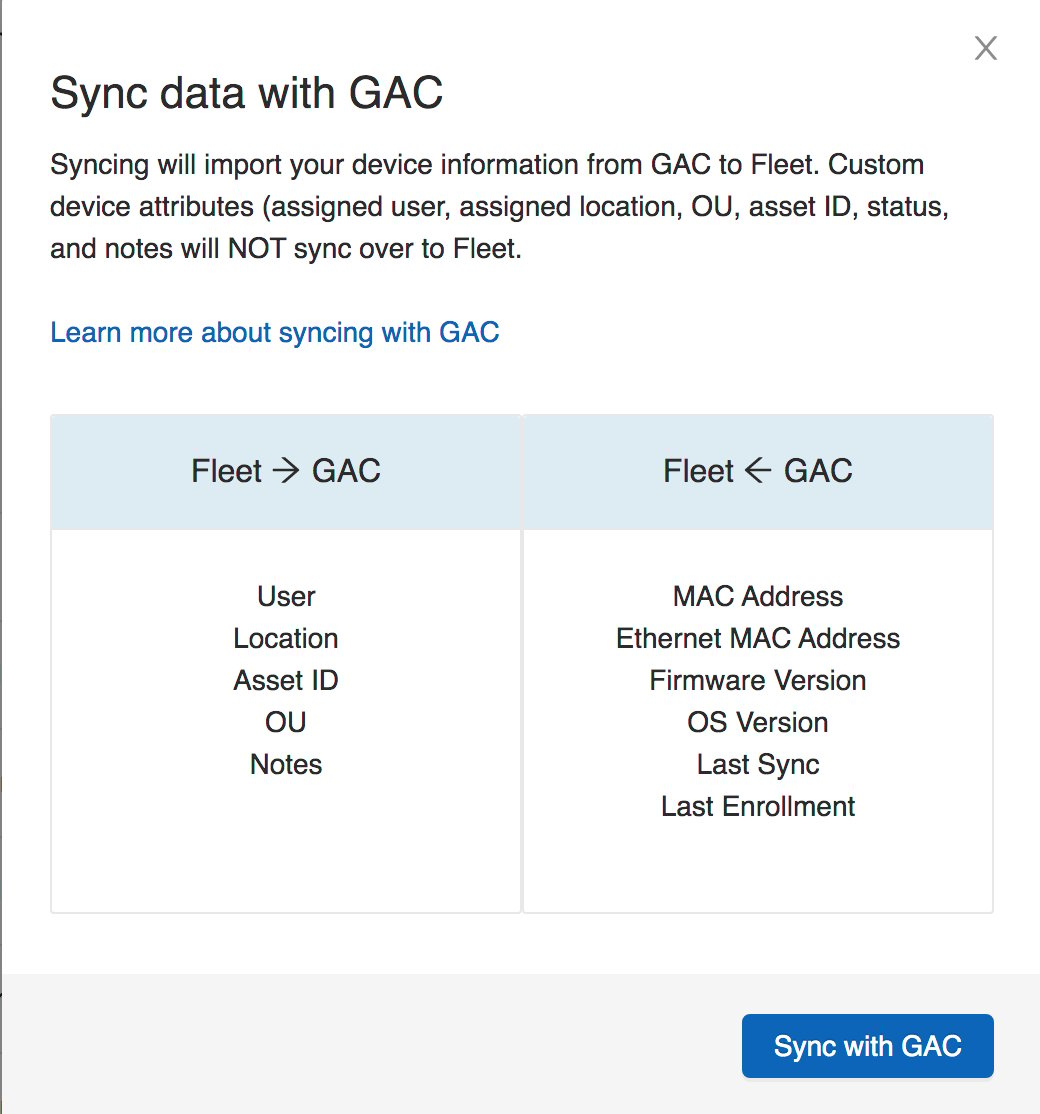
Force Sync ensures Fleet and Google Admin Console are in parity. Both directions update when you sync:- Google Admin Console → Fleet: Last sync date, OS version, firmware version, MAC address, model, and other device metadata from Google Admin Console update Fleet.
- Fleet → Google Admin Console: User, Location, Asset ID, Status, and Notes in Fleet update Google Admin Console.
User, Location, Asset ID, Status, and Notes are only pulled from Google Admin Console during the initial sync. After the initial sync, Fleet is the source of truth for these fields. If Google Admin Console has newer values for these fields, use a CSV import to push the correct values — see Import Devices.
Run Force Sync
- Go to fleet.goguardian.com and select the Devices tab.
- Hover over the sync icon at the top of the page and click Sync with GAC.
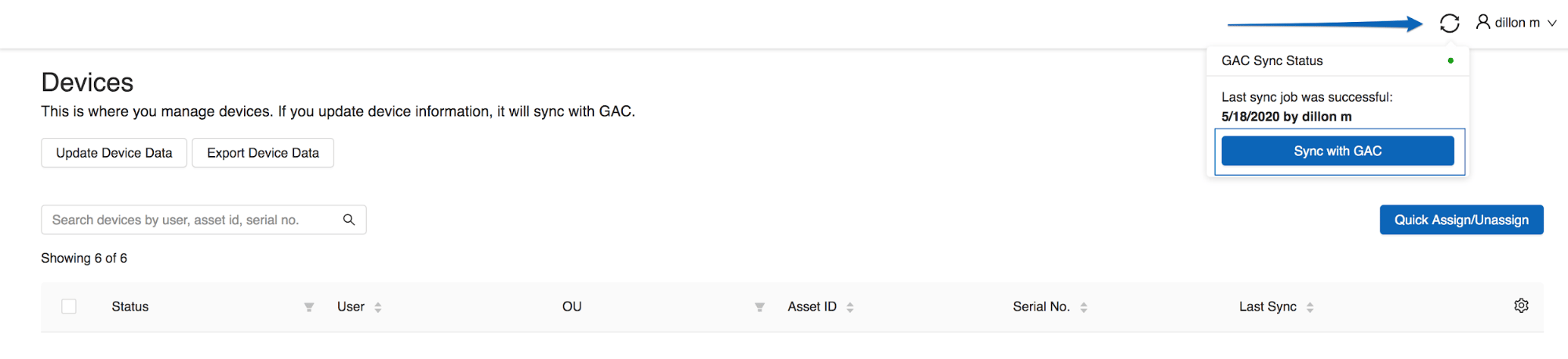
If Force Sync fails, re-authorize your Google account at fleet.goguardian.com/connect and try again.
Verify Device Count After Sync
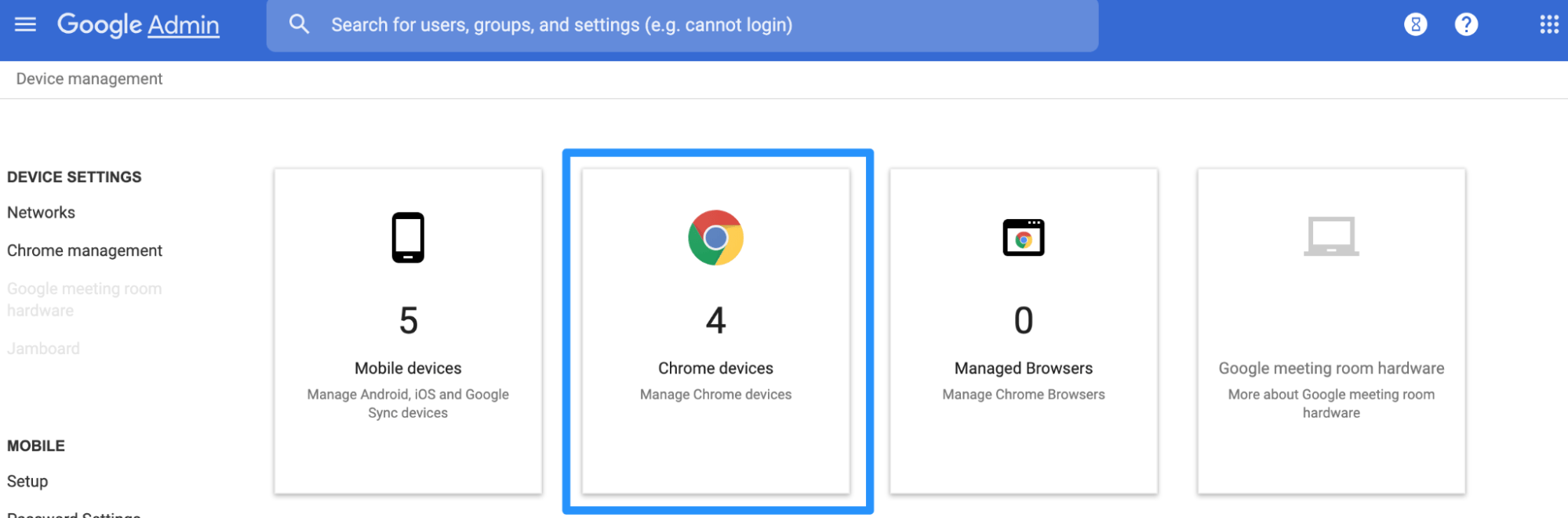
After syncing, confirm the device count in Fleet matches Google Admin Console.- In Google Admin Console (
admin.google.com), go to Devices → Chrome Devices. - Click the Status dropdown and select Provisioned.
- Note the total number of provisioned devices.
- In Fleet, select the Devices tab.
- Verify the result: The device count shown above the Devices table matches the provisioned count in Google Admin Console.



Reconcile Google Admin Console Values with Fleet
If fields such as OU, Asset ID, user email, or location have been updated in Google Admin Console but not yet in Fleet, use this process to sync them.- Export your devices from Google Admin Console: go to Devices → Chrome devices, check the box to select all OUs, then click the export icon and open the CSV in a spreadsheet editor.
- Delete all columns except: Serial Number,
orgunitpath,annotatedAssetId,annotatedUser,annotatedLocation. Add aLoanercolumn and rearrange to match Fleet’s CSV template order: Serial Number, Asset ID, OU, Location, Student (email), Loaner. - Make two copies of this file.
- In one copy, zero out the fields you want to reset (e.g. set all OUs to
/or Asset IDs to0). Upload this file to Fleet — this pushes the zeroed values to Fleet and back to Google Admin Console. - Upload the original file (with the correct GAC values). This overwrites the zeroed values in Fleet and Google Admin Console with the correct data.