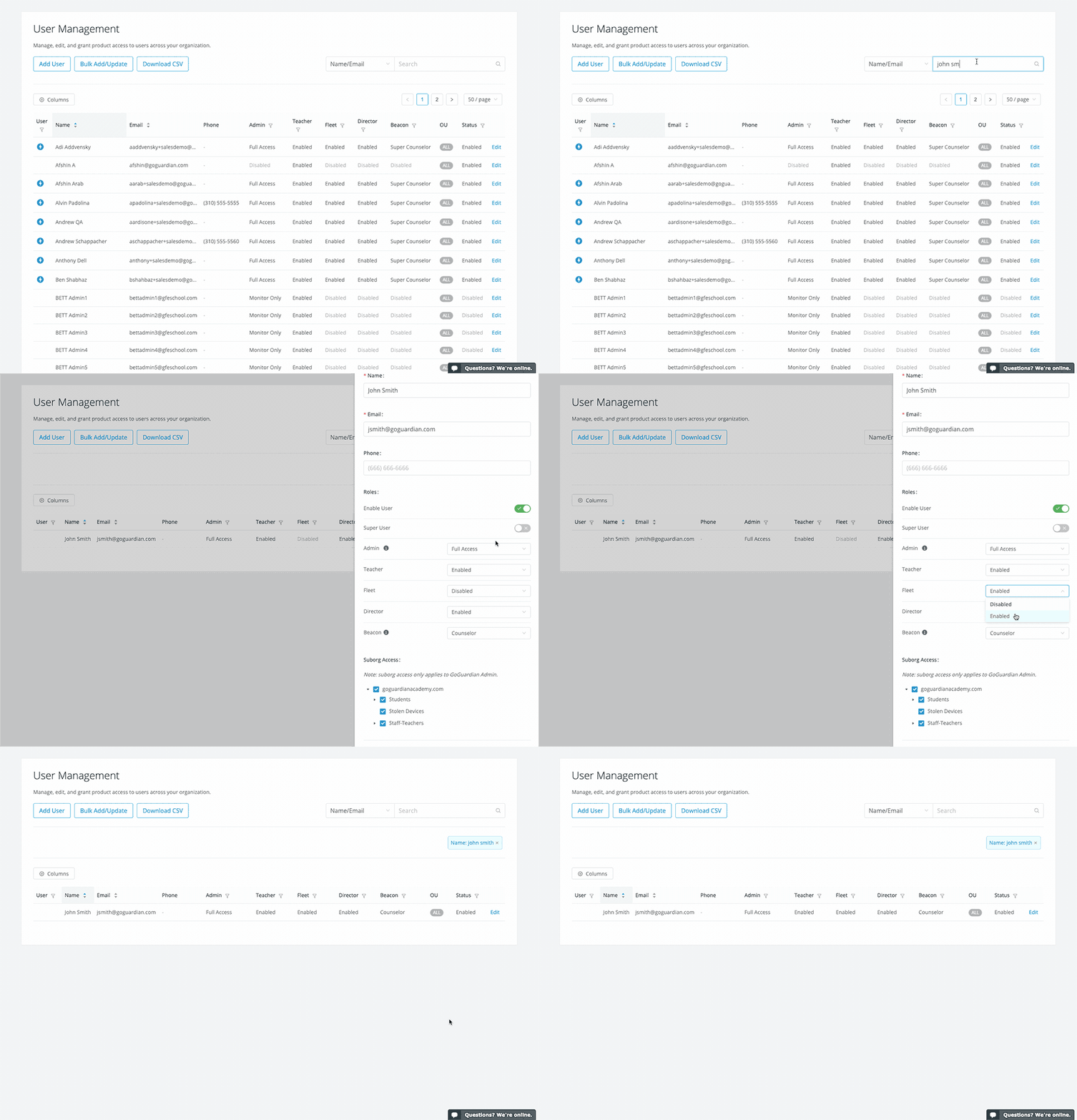
Why an authorization error appears in GoGuardian Fleet and two ways to fix it — enabling Fleet access for a user or creating a new user with Fleet access.
An authorization error means the account you are signed in to does not have access to GoGuardian Fleet. This happens in two ways:
During initial Fleet setup, all users in an organization can have their Fleet access set to Disabled. Fix this with Method 1.
An account other than the one used to administer your Google Admin Console or GoGuardian account was used to sign up for Fleet. Fix this with Method 2.
This lets you access Fleet using a different account. You can also grant your primary Google Admin Console administrator account access using Method 1.
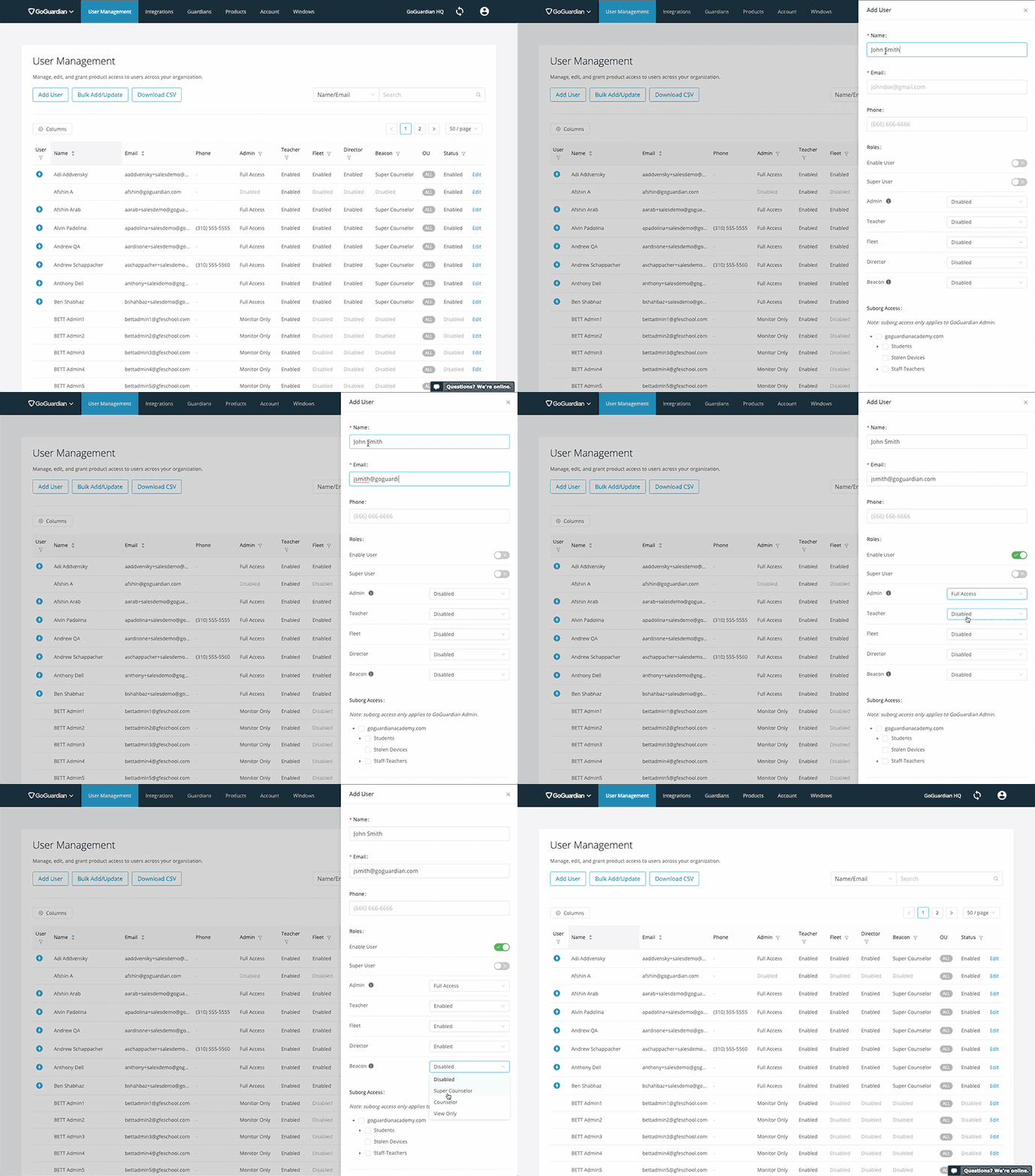
Go to manage.goguardian.com, sign in to your administrator-level account, and click User Management.
Click Add User.
Enter your name and email address. Under Roles, click the drop-down next to GoGuardian Fleet and select Enabled.