

Add a New School to Your Account
These steps are only available to teachers without active classes.- Click My Profile in the navigation menu.
- Click Add School in the My Schools row.
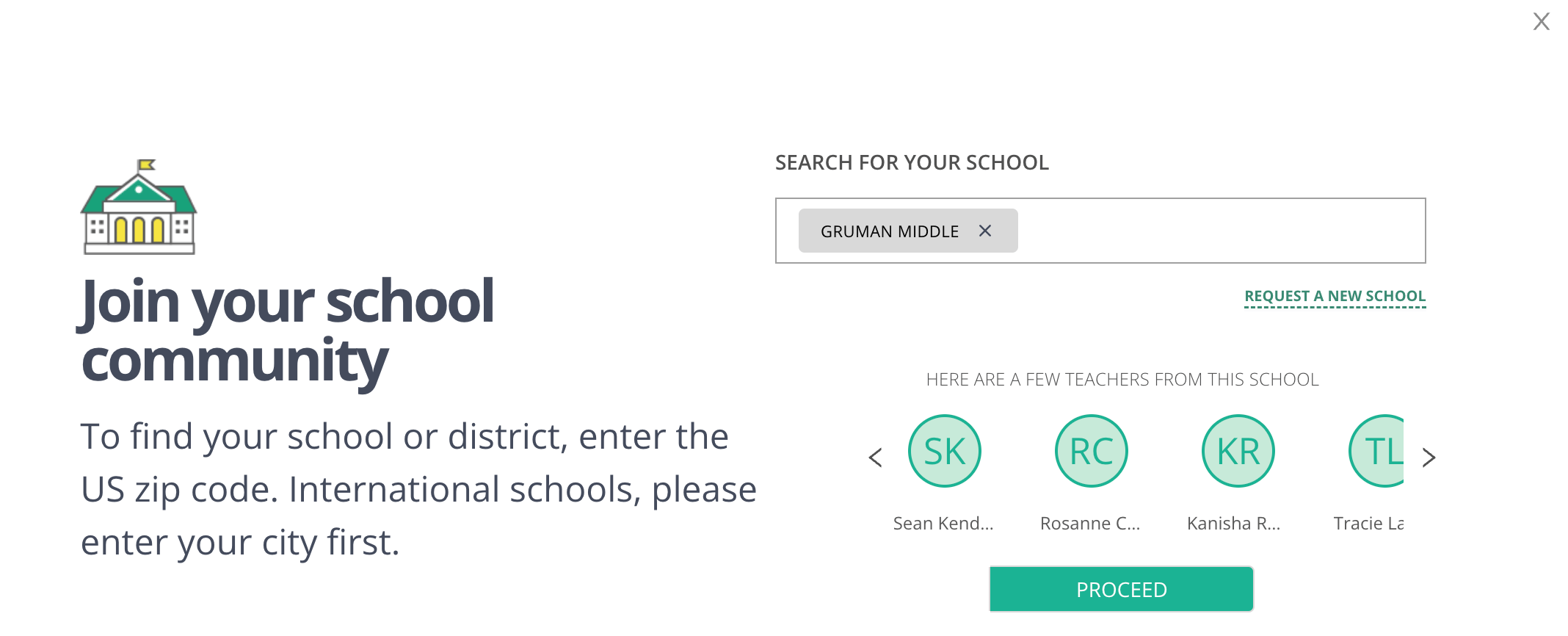
- Enter your school or district name to search for it. If your school does not appear, click Request a New School and complete the fields.
- Review the existing teachers at the school or district and confirm it is the correct destination.
- Click Proceed. You can find your new class under the Manage Class section in the navigation menu.

Remove Your Old School from Your Account
- Click My Profile in the navigation menu.
- Click the X button next to your old school’s name in the My Schools row.
- Enter REMOVE when prompted to confirm your changes.
- Click Yes, Remove.
- Confirm the removal notification in the lower-left of your screen and verify the school no longer appears under My Schools.


Resources
Pear Assessment Overview
Learn about Pear Assessment features and how to get started.