

Sign up for an Account
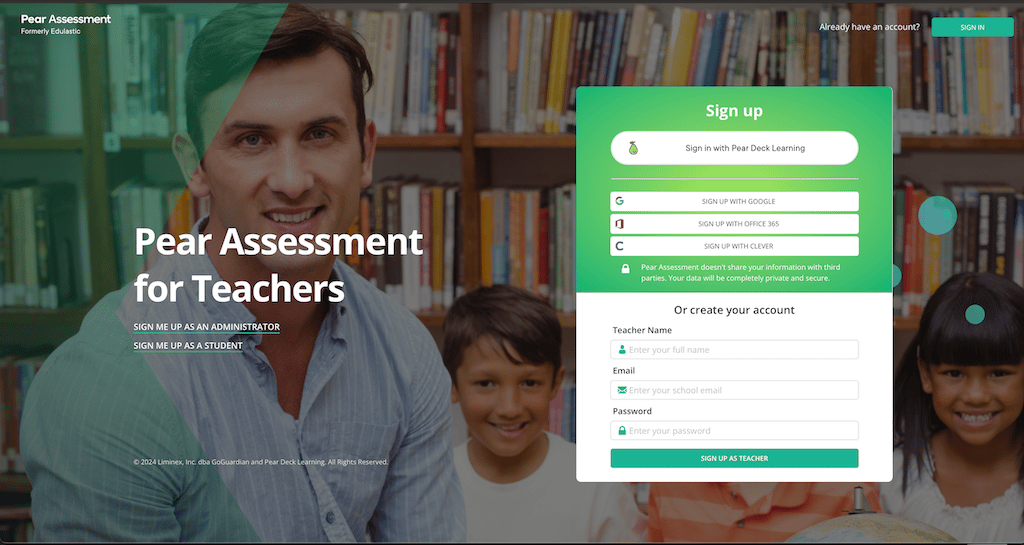
- Go to the Get Started page.
- Enter your school email address and a password of at least four characters, or select one of the available SSO options.
- Accept the terms of service, user license agreement, and privacy policy.
- Click Next on the “Let’s get started…” screen and follow the on-screen instructions.

Set up Your Profile
- Search for your school by entering the school name or zip code, then select it from the results. The district name appears below the school name after you select it.
- If you are not affiliated with a school, select I want to homeschool.
- Choose the subject and grade that best represents your primary class. You can set up additional classes with different subjects or grades later.
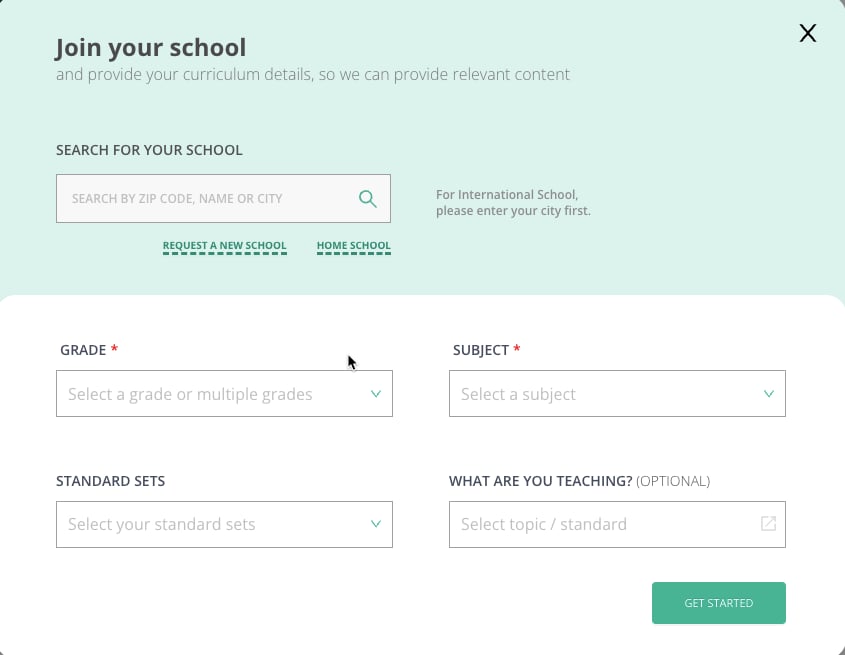
- Click Get Started.
Verify Your Account
- Check your school email inbox for a verification message from Pear Assessment.
- If you do not see the email, check your spam and other folders.
- Follow the instructions in the email to verify your account.
Frequently Asked Questions
Why Doesn’t My School Appear in the Search Results?
Contact Pear Assessment Support at support@assessment.peardeck.com.My School and District Are New to Pear Assessment. What Do I Do?
Submit a request to add a new school.Resources
Request a New School
Add your school to Pear Assessment if it does not appear in the search results.
Standard Sets
Learn how to select and manage standard sets for in-depth report analysis.