

Classes imported from Clever or ClassLink cannot have their name updated in GoGuardian Teacher. Contact your IT department or GoGuardian administrators for help renaming Clever or ClassLink classes. You can still edit the class Description as a workaround.
Info Fields
The following fields are available when editing a classroom:- Classroom Name (required)
- Subject (optional)
- Description (optional)
- Classroom Icon (optional)
- Default Scene (optional)
- Classroom Tile Color (defaults to blue)
Edit Classroom Information
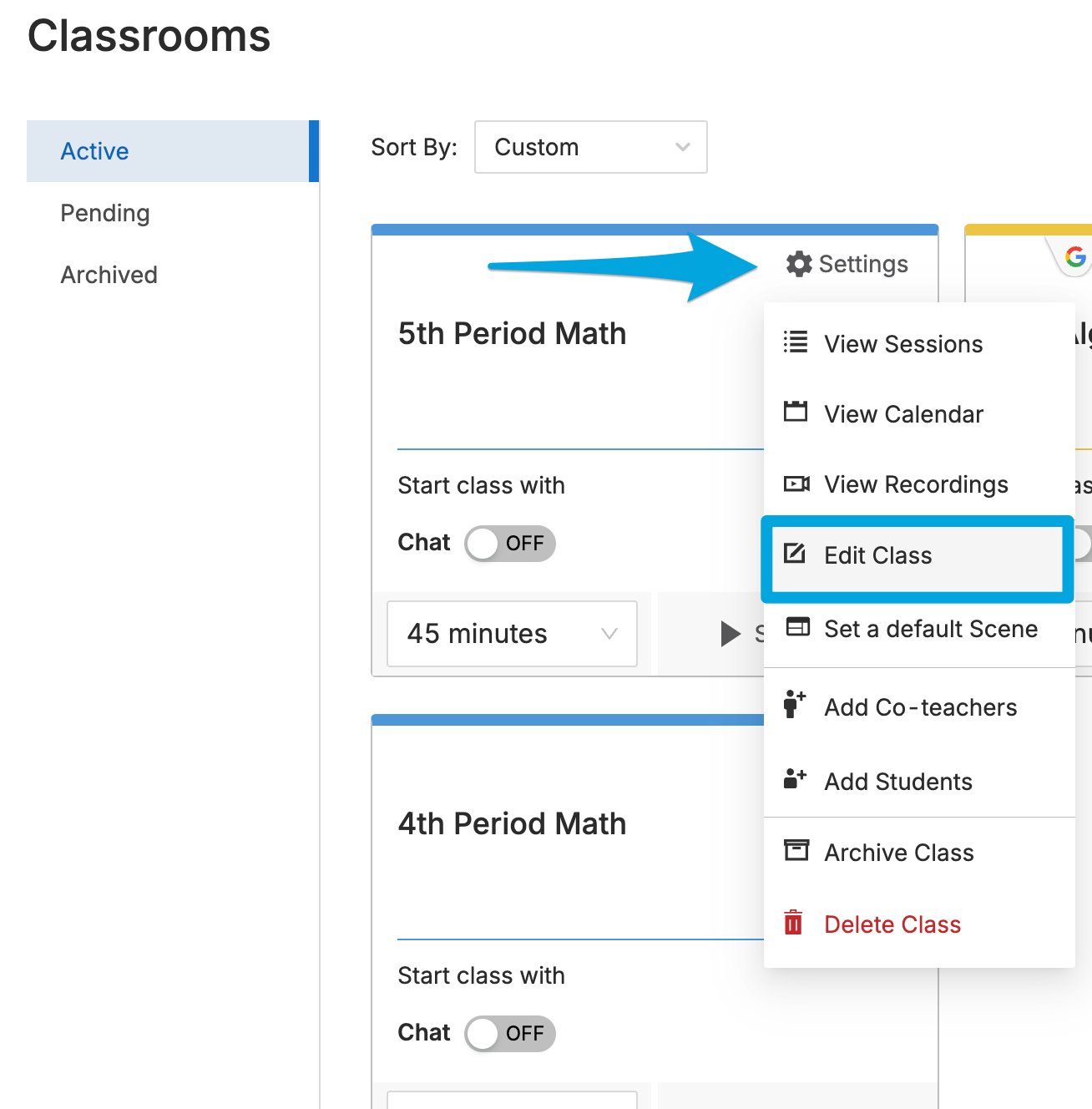
- Select a classroom, then go to Settings > Edit Class.
- Edit the Name, Subject, Description, Tile Color, or Default Scene as needed.
- Click Update Classroom to save your changes. Confirm that the updated information appears in the classroom.
If you can’t save your changes, make sure all required fields, including Classroom Name, are filled in.
Resources
Create and Apply a Scene
Set up and assign Scenes to control what students can access during a session.
Scenes Overview
Learn how Scenes work and how to manage them in Teacher.
Add Students to a Class
Manage the student roster for your classroom.
Archive, Restore, or Delete a Classroom
Manage the lifecycle of your classrooms in Teacher.