

- Classes created directly in GoGuardian Teacher can be edited freely.
- Classes synced from a student information system (such as Clever or ClassLink) or imported from Google Classroom must have their roster edited in the original class source, then synced back to GoGuardian Teacher.
Two roster limits apply to every class:
- A classroom session will not start until at least one student is enrolled.
- Class rosters are limited to a maximum of 115 students.
Choose an Enrollment Method
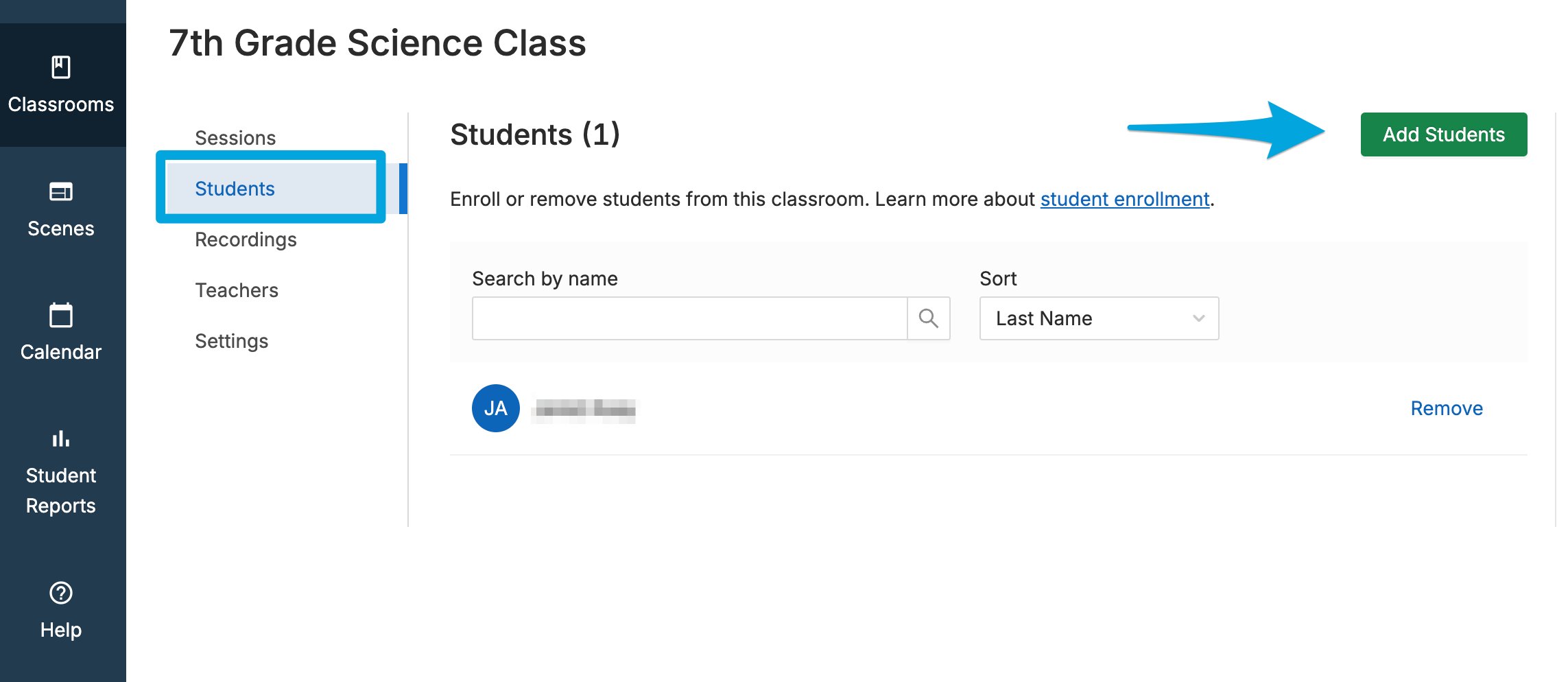
To enroll students in a class created in GoGuardian Teacher, select the classroom you want to edit, then click the Students tab. Click Add Students to choose one of three options: by enroll code, by email address, or by CSV file upload.Add Students by Enroll Code
The enroll code is a good option for students who are currently in class and using their devices.- In the Students section of a class, click Add Students.
- Click Use code. A six-digit alphanumeric code unique to your classroom appears.

If a student sees a “We don’t recognize this Chromebook” page while enrolling, GoGuardian is not yet installed on that account. Ask your GoGuardian Administrator or IT department to confirm GoGuardian is installed for each student.
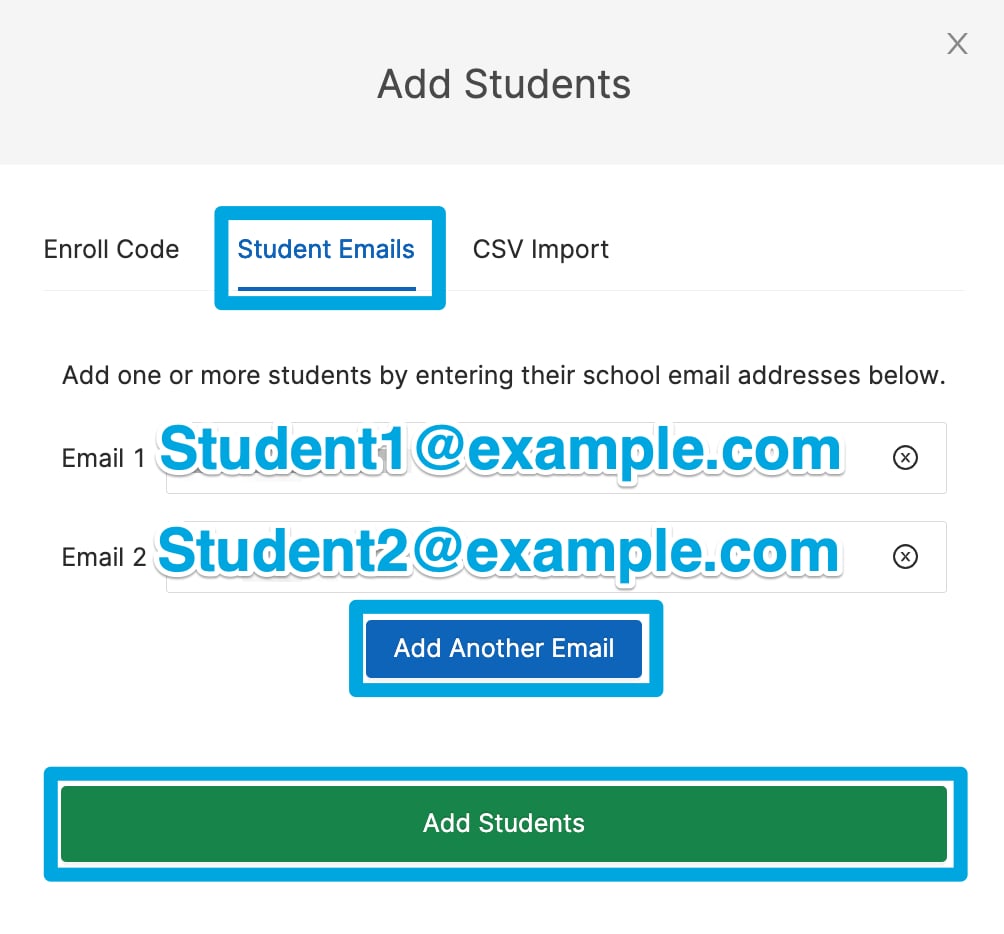
Add Students by Email Address
You can add students by email address whether or not they are logged in to their devices.- In the Students tab, click Add Students.
- Click Add emails.
- Enter an email address.
- Click Add Another Email or press Enter to add more addresses.
- Click Add Students.
Add Students by CSV File Upload
You can add up to 115 students at once with a CSV file.- In a spreadsheet editor (such as Google Sheets or Excel), create a file with one column and no header.
- Enter your students’ email addresses in the column, then export the file as a
.csv. - In the Students section of the classroom, click Add Students, then choose the CSV upload option and select your file.
