

Manually Created Classes
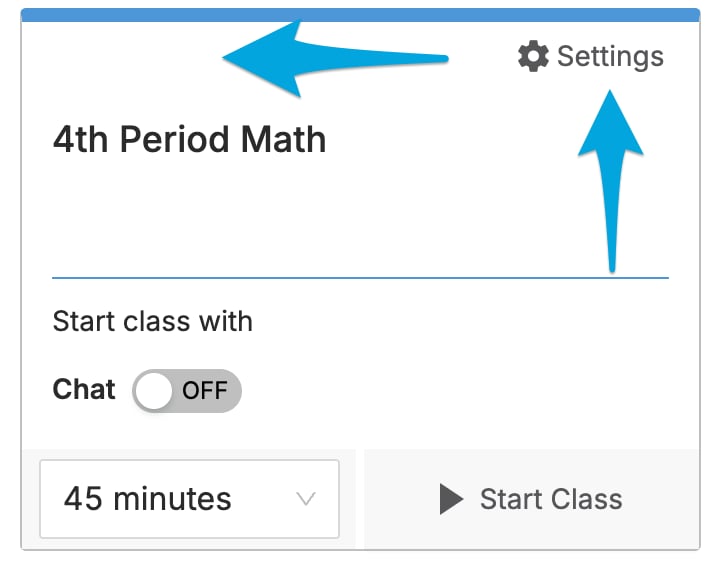
Classes created directly in GoGuardian Teacher have no integration symbol in the upper-left corner of the class tile.- Click the class tile, or click the Settings cogwheel and select Edit Class.
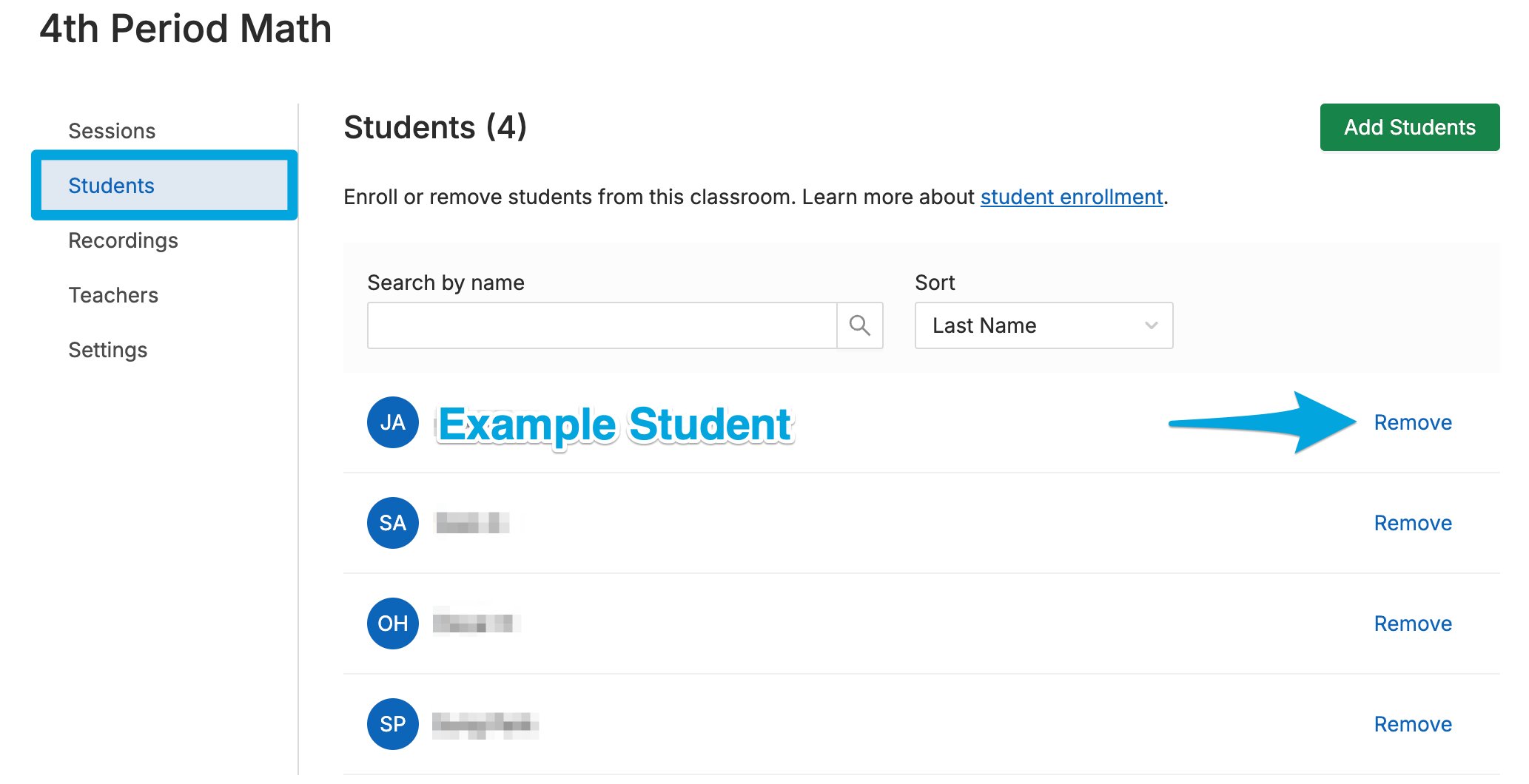
- Select the Students tab.
- Click Remove next to the student’s name.
- Select Remove Student in the confirmation pop-up to apply the change.
Google Classroom Classes
Classes imported from Google Classroom are identified by the Google G symbol in the upper-left corner of the class tile. Roster changes must be made in Google Classroom, not in GoGuardian Teacher.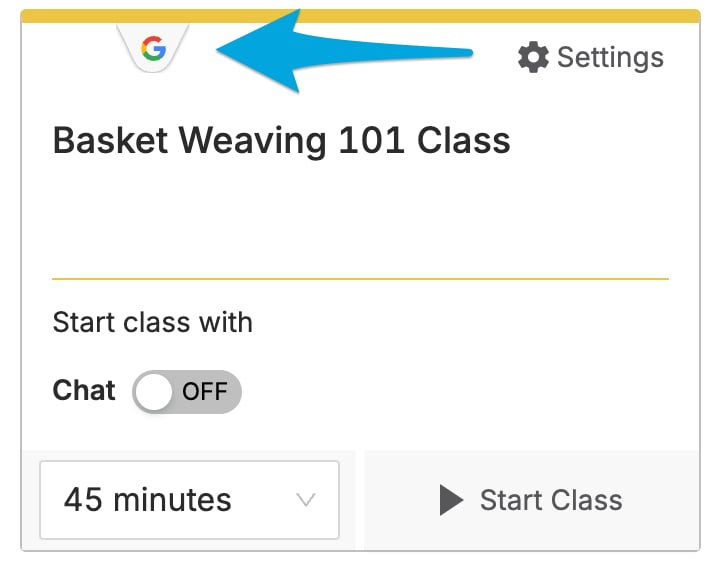
- Go to classroom.google.com.
- Click the class you want to edit.
- Select the People tab.
- Under the Students section, click the 3-dot menu next to the student’s name, then click Remove and confirm by clicking Remove again.
GoGuardian syncs with Google Classroom every 2 hours. Roster changes apply automatically after each sync. To apply changes immediately, complete the manual sync steps below.
Manually Sync Google Classroom
- Go back to GoGuardian Teacher.
- Click the Google Classroom class you edited.
- Select the Students tab.
- Click Sync Students From Google to apply roster changes immediately.
Clever and ClassLink Classes
Classes synced from Clever or ClassLink are identified by the Clever or ClassLink integration symbol in the upper-left corner of the class tile. Teachers cannot edit these rosters directly in GoGuardian Teacher. Roster changes must be made in Clever or ClassLink. Updates sync back to GoGuardian Teacher after the next scheduled sync.If you don’t have access to Clever or ClassLink, contact your IT department or GoGuardian administrator for help with roster changes.
Resources
Add Students to a Class
Add students to a manually created class roster.
Archive, Restore, or Delete a Classroom
Manage classrooms you no longer need.
Start a Classroom Session
Begin a session with your updated roster.
Manage Users and Settings
Admin-level controls for teacher and student accounts.