

Sort Classrooms
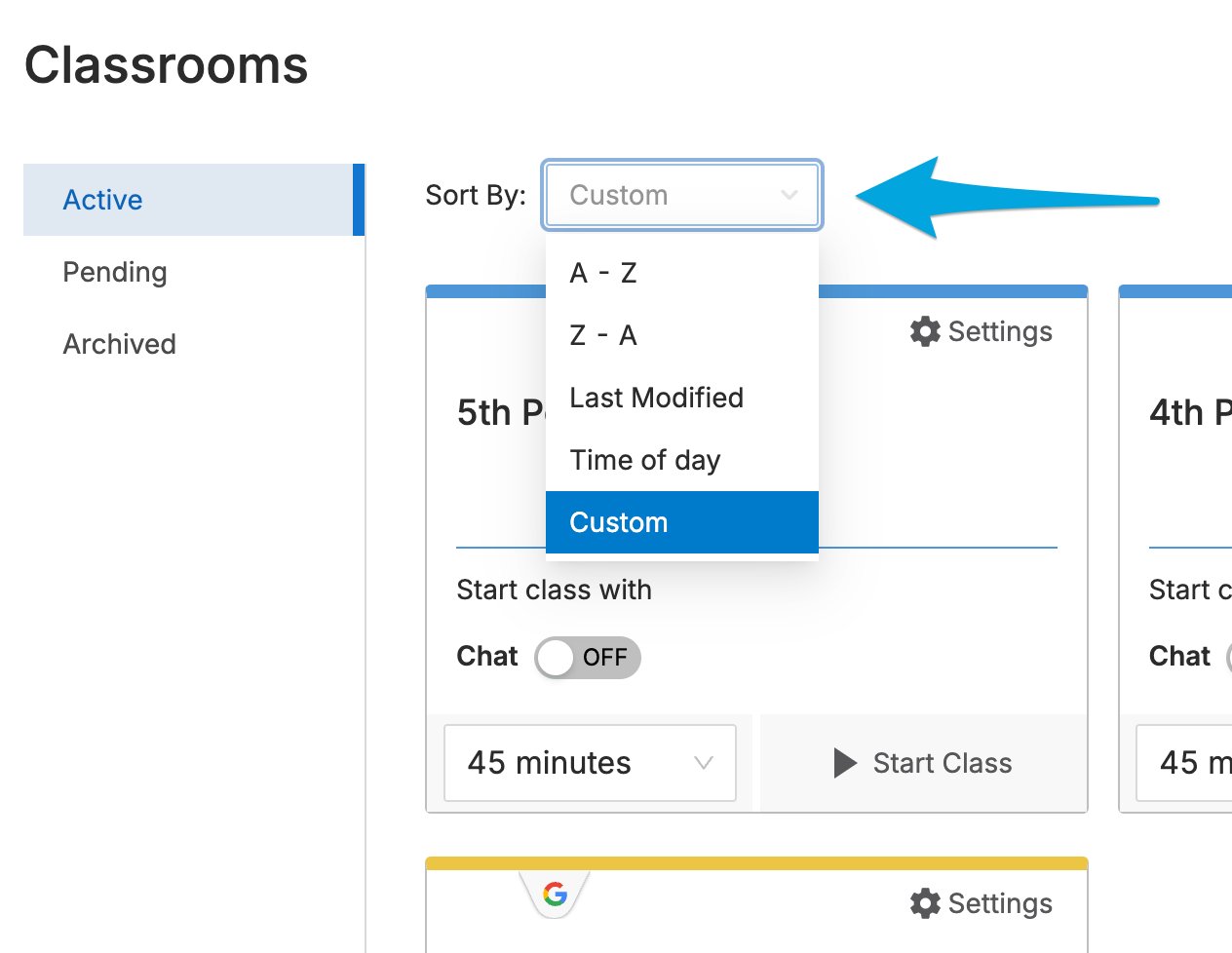
- Go to the Active Classrooms page in GoGuardian Teacher.
- Select the Sort By drop-down menu.
-
Select a sort method.
Drag and Drop Tiles
With the Drag and Drop feature, teachers can drag class tiles to any order they’d like. To move a tile, hover over blank space on the class tile, then click and hold to drag it to a new position.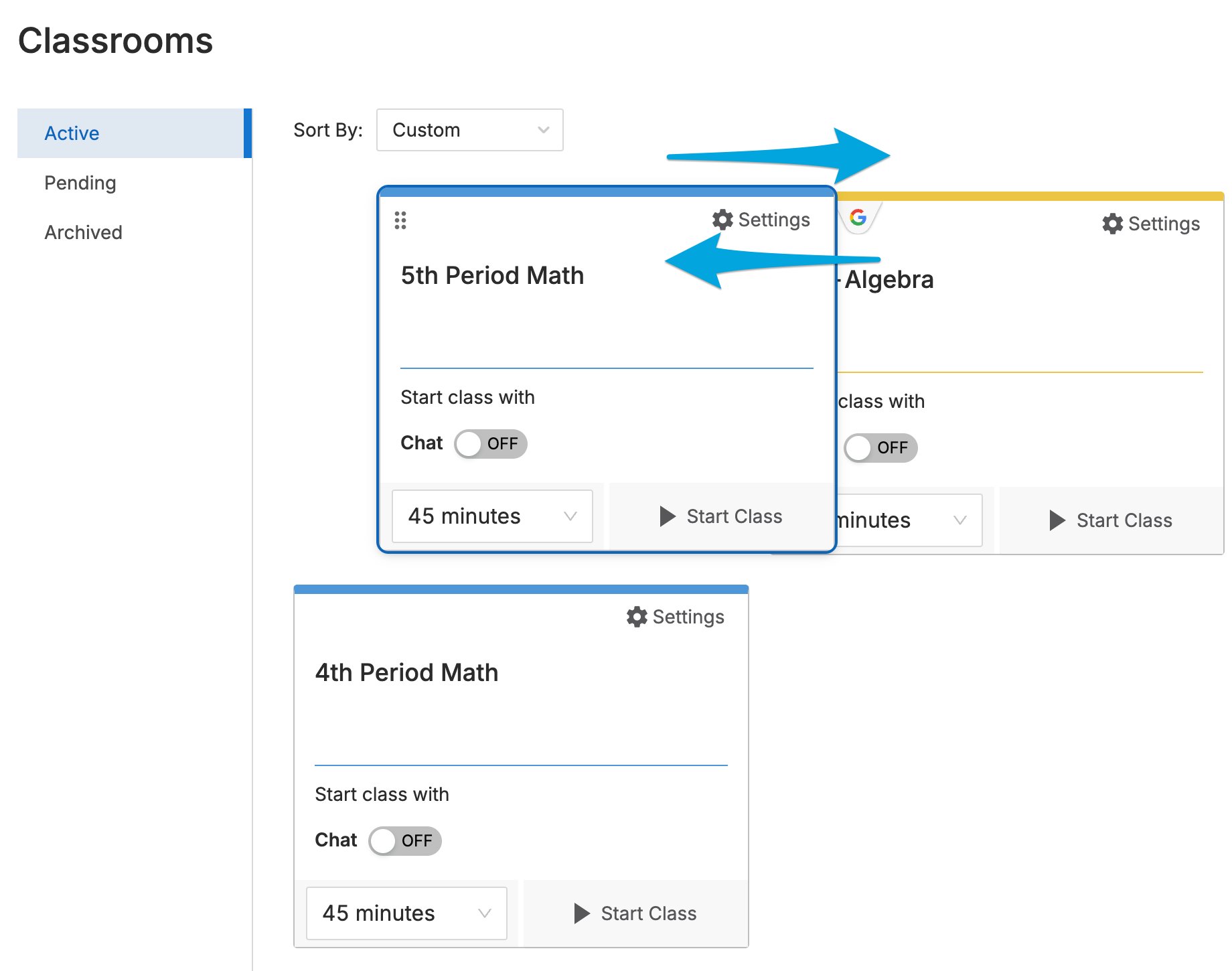
Resources
Schedule Classroom Sessions
Set recurring or one-time session schedules for your classrooms.
Archive, Restore, or Delete a Classroom
Manage classrooms you no longer need or want to reuse.
Add Students to a Class
Update your student roster from the classroom settings.
Start a Classroom Session
Begin a live session with your students.