

The maximum number of students per GoGuardian Teacher classroom is 115.
Create a Classroom in Teacher
-
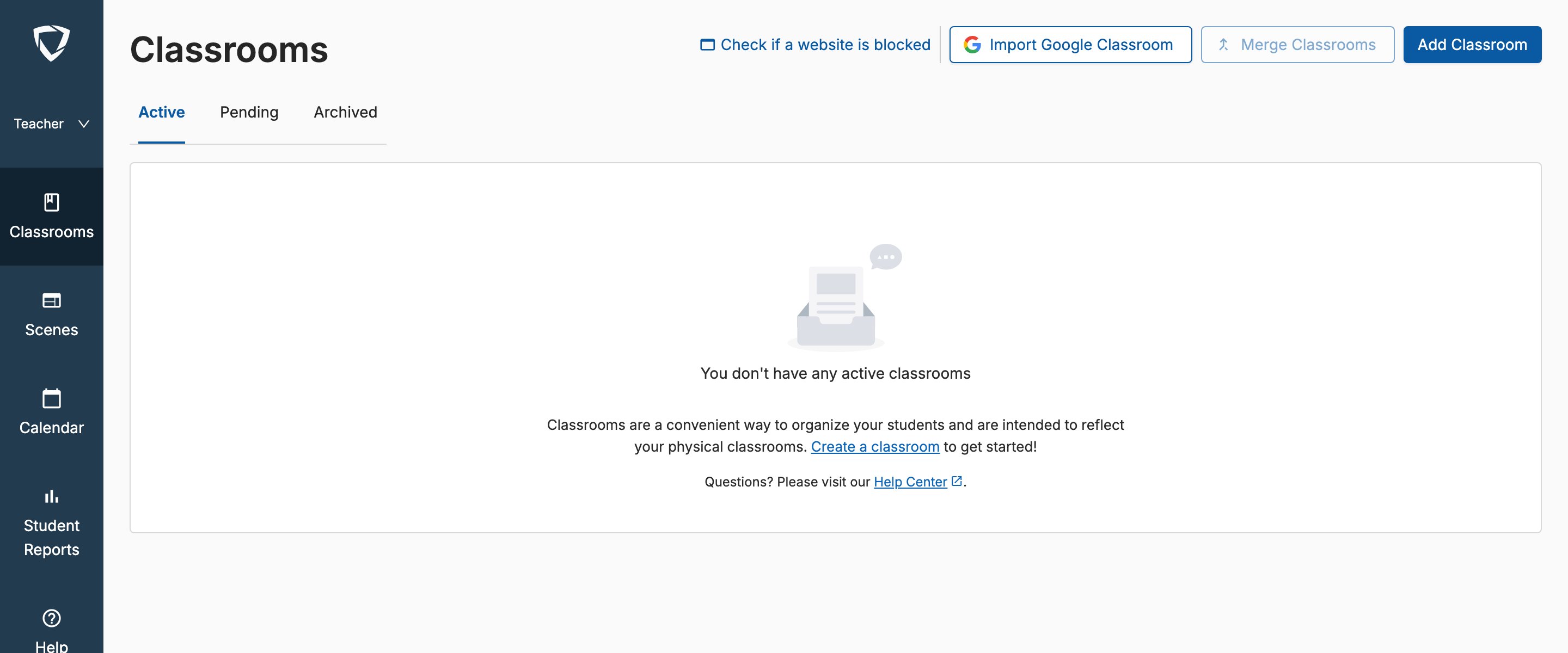
Go to the Active Classrooms page and click Add Classroom.
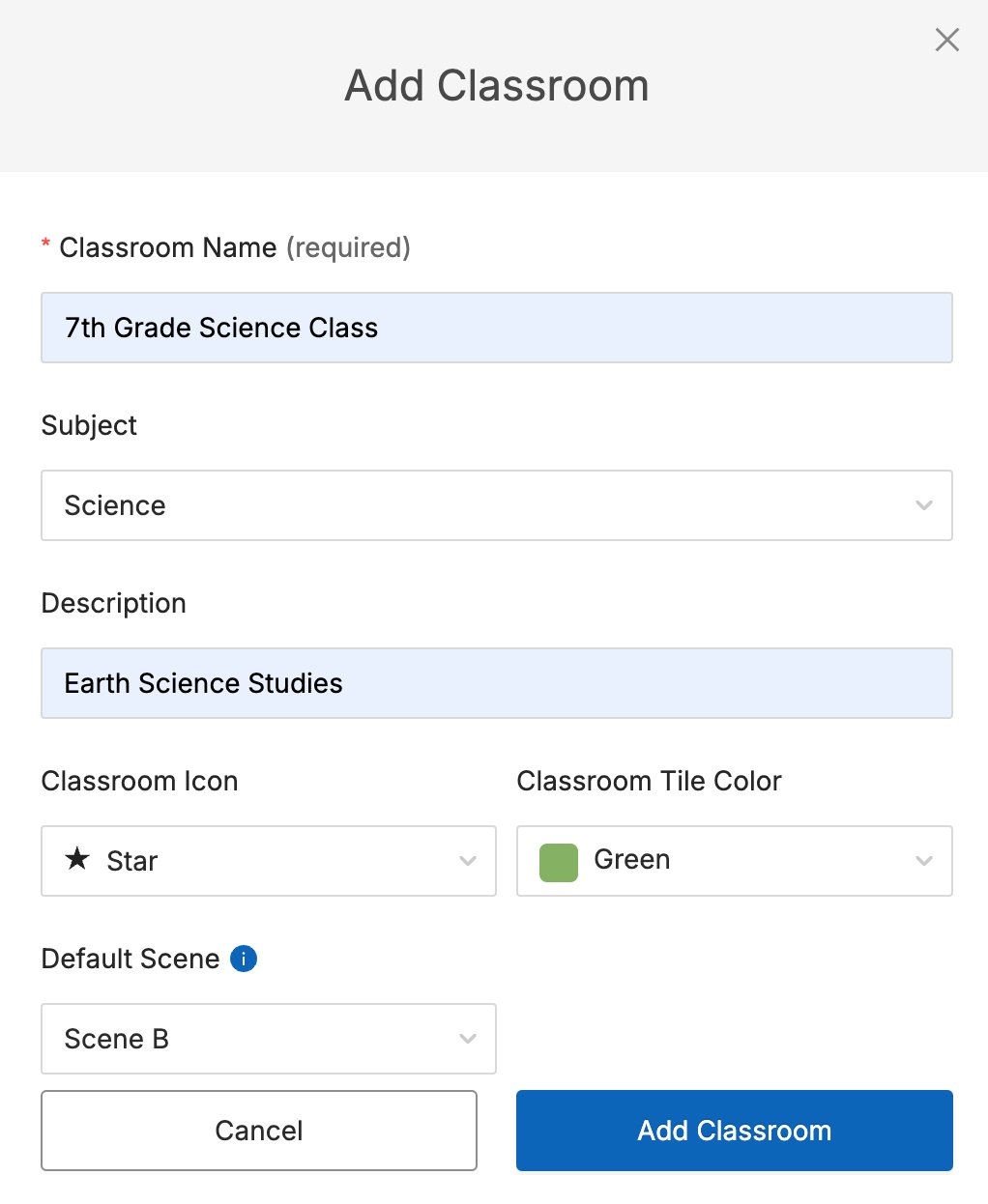
- Enter a name for your classroom. This field is required.
- Optionally, select a subject from the Subject dropdown, add a description, choose a color, and add a default filtering Scene.
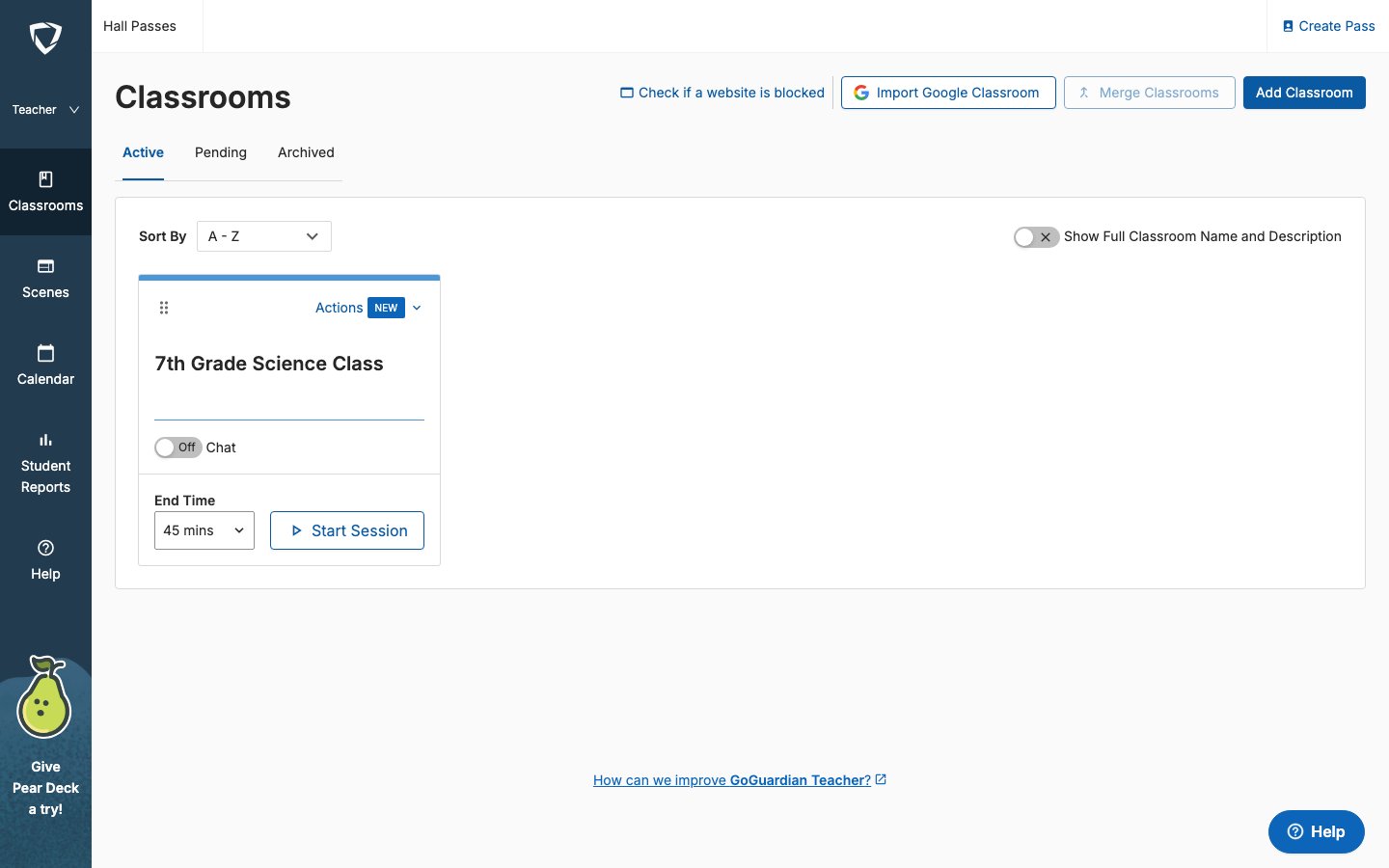
- Click Add Classroom to confirm. A prompt to enroll students appears. You can enroll students now or close the window and add them later.
Import Classes from Google Classroom
Google Classroom classes and their rosters can be imported directly into GoGuardian Teacher.Co-teachers in Google Classroom are not automatically added as co-teachers in GoGuardian Teacher. They must be added manually after import.
-
Go to the Active Classrooms page and click Import Google Classroom.
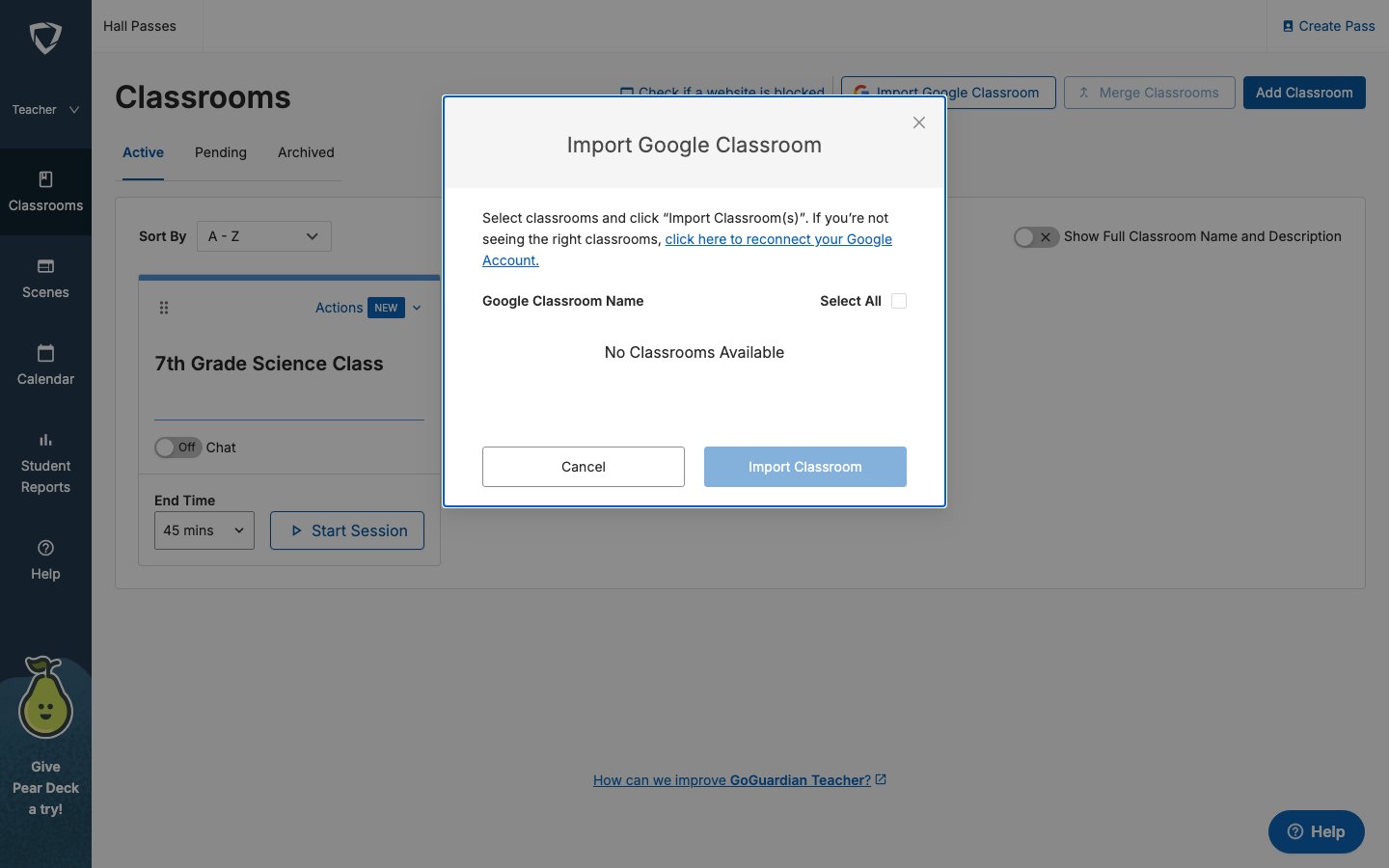
- For new users, or to refresh the class list, click Reconnect your Google Account and sign in to your Google Classroom account.
- On the GoGuardian wants to access your Google Account page, select All, or check each individual box, then click Continue. Depending on your organization’s Google Workspace settings, this page may show only an Allow button with no individual checkboxes.
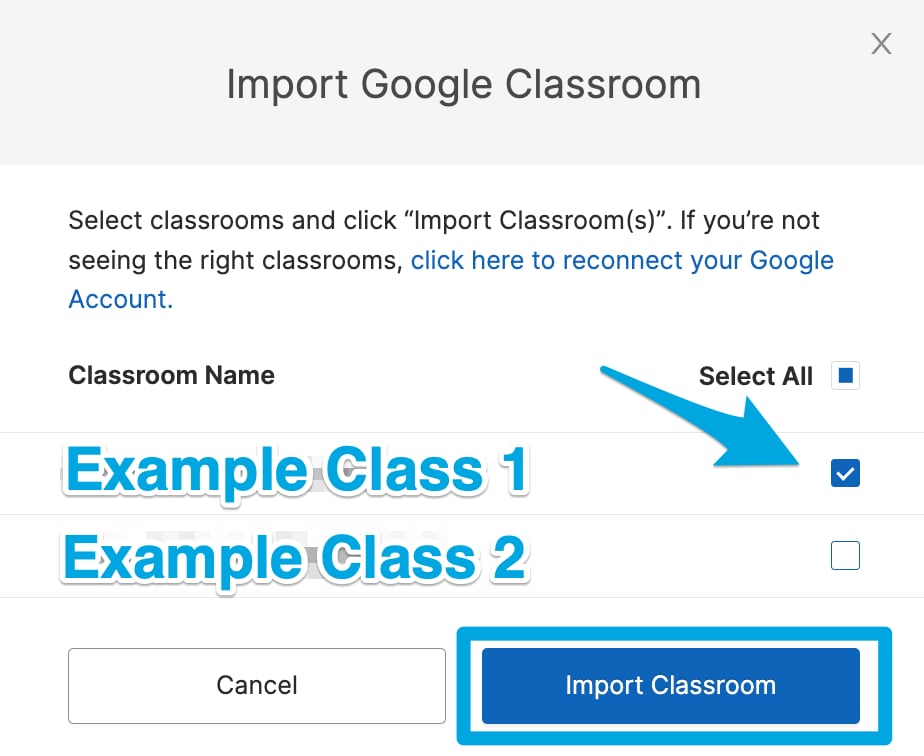
- Choose All or select specific Google Classroom classes, then click Import Classroom.

Manage Google Classroom Rosters
For classes imported from Google Classroom, Google Classroom remains the source of truth for student rosters. Make all roster changes, such as adding or removing students, in Google Classroom, not in GoGuardian Teacher. GoGuardian automatically syncs with Google Classroom every 24 hours. To sync manually, navigate to the Students tab of any Google Classroom class and click Sync Students From Google.Trouble With Google Classroom
For issues including missing classes, missing students, or syncing problems, refer to the Troubleshooting Google Classroom article for guidance.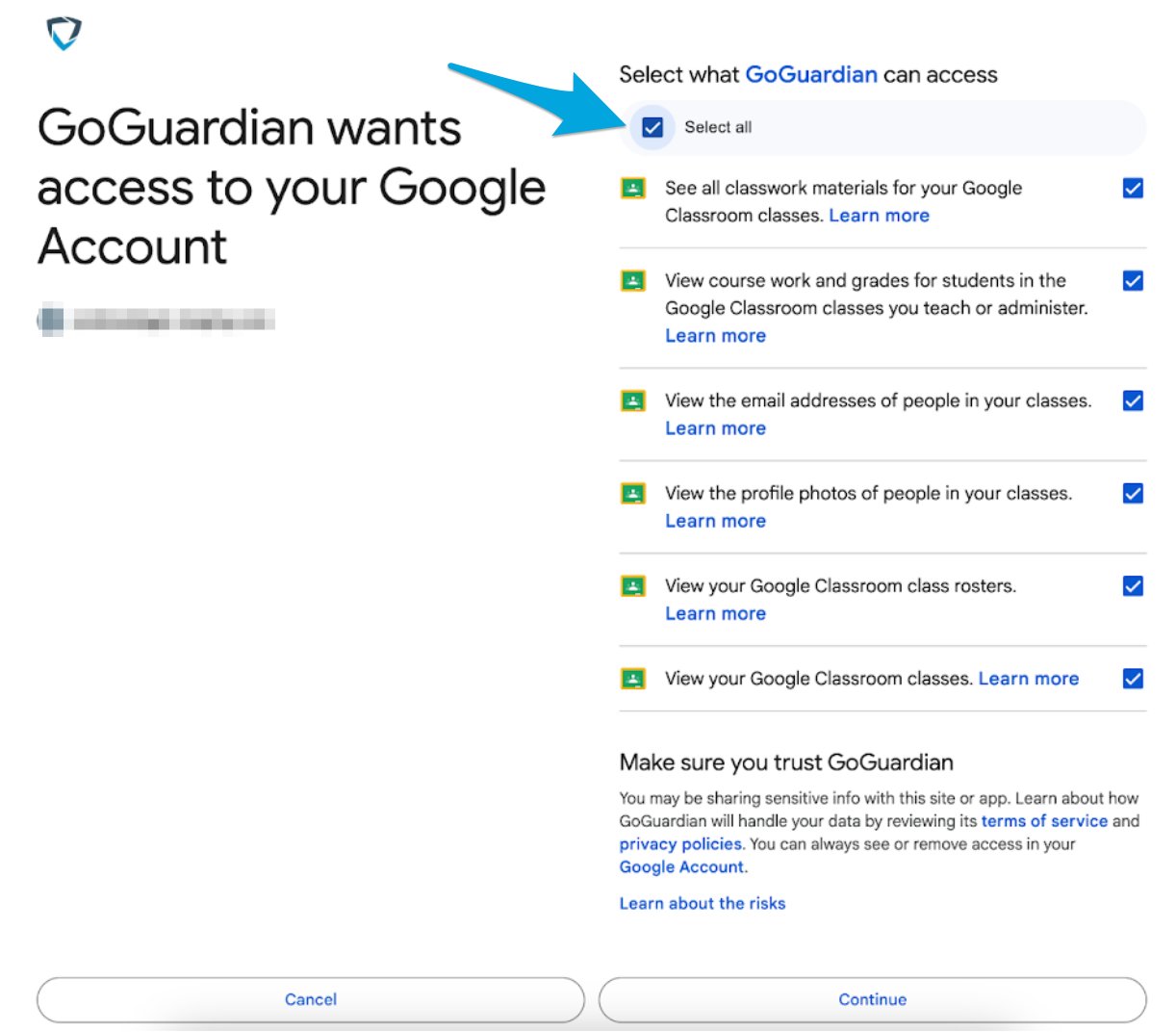

Sync Classrooms from Clever, ClassLink, or OneRoster
If your organization integrates GoGuardian with Clever, ClassLink, or OneRoster, classes sync automatically. Newly synced classes are automatically added to the Active Classrooms page. Each new class displays a New badge, and a banner announces the sync: “[Number] Classes Added: Your administrator synced new classes to your Active list.” For more information, refer to the Manage Classes Integrated from Clever and ClassLink article.For GoGuardian administrators: Syncing classes from Clever, ClassLink, or OneRoster requires enabling the integration source in GoGuardian first. See the articles on integrating with Clever, ClassLink, or OneRoster for setup instructions.
Merge Classrooms
Teachers can combine up to 5 classes into 1 merged classroom. Refer to the Merge Classrooms in GoGuardian Teacher article for more information.Resources
Add Students to a Class
Enroll students in a classroom after setup.
Scenes Overview
Learn how filtering scenes work with your classrooms.
Start a Classroom Session
Run your first class session after creating a classroom.
Archive, Restore, or Delete a Classroom
Manage classrooms you no longer need.