

Add an Allowlist Rule
- Go to Smart Alerts in GoGuardian Admin, then select the Allowlist tab.
- Click Add Rule.
- Enter the domain, subdomain, or path you want to allow. To add multiple rules at once, enter each on a new line.
- Click Add Rule(s) to confirm and save.
- The new rule appears in your Allowlist. GoGuardian Admin will no longer scan the specified resource for alert-triggering content.
Allowlist rules are global: each rule applies to all users across your organization and prevents Smart Alerts from generating for all alert types: Explicit, Image, Proxy, and Games. An Allowlist rule also prevents scanning of all embedded content, including text and images, on the allowed page. Use the narrowest rule that covers the trusted resource. For example, allowlist the specific page or subdomain for an approved educational game instead of its entire parent domain. Avoid adding major domains such as
google.com to the Allowlist, as this prevents scanning across all pages on that domain.

Review Allowlist Syntax
Allowlist rules support full domains, individual paths, subdomains, and wildcards. The following table usesgoguardian.com as an example only.
Add a Rule from a Smart Alert
You can add an Allowlist rule directly from any existing alert, including a Games alert, without navigating to the Allowlist tab.- Go to Smart Alerts in GoGuardian Admin and find the alert you want to allowlist.
-
Add the rule using one of the following methods:
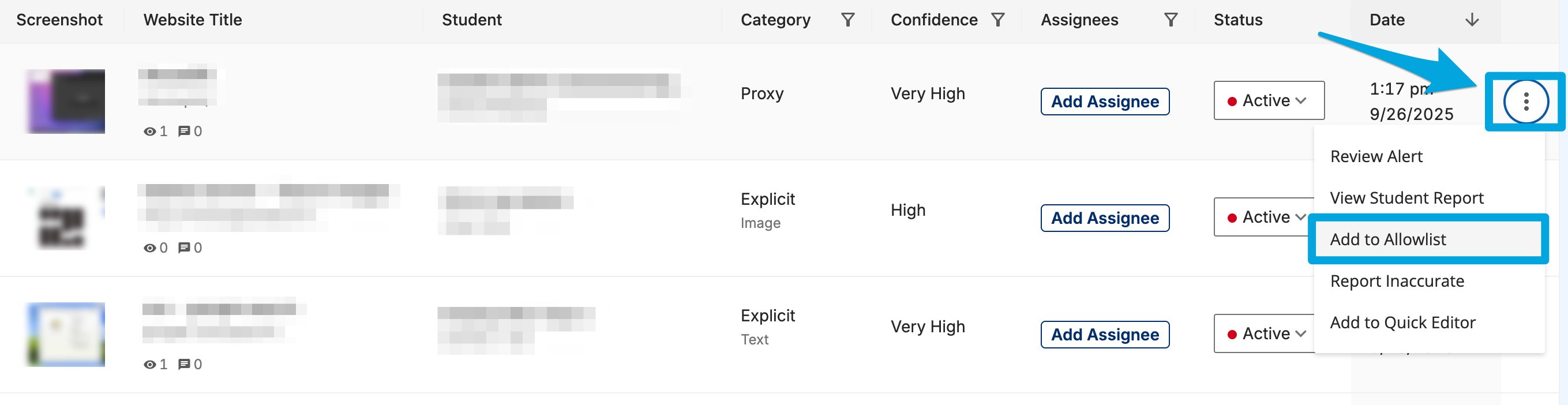
- From the alert row: Open the dropdown menu next to the alert row and select Add to Allowlist.
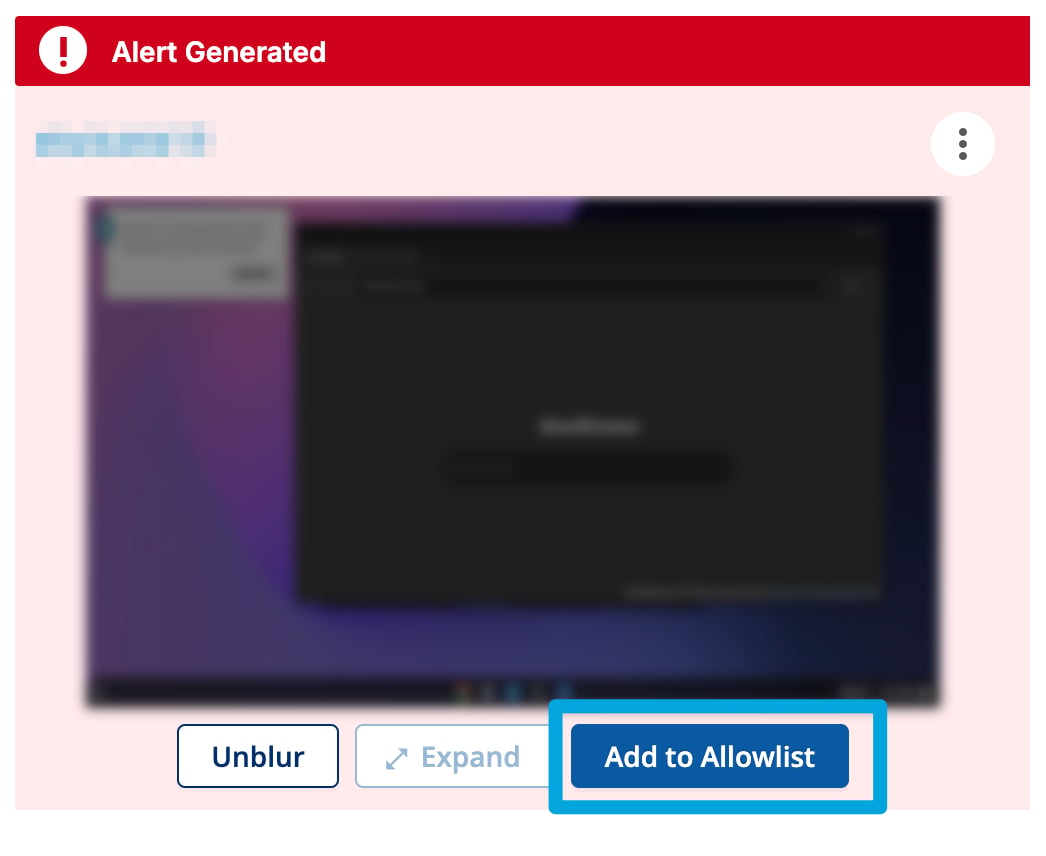
- From the alert detail page: Click the alert to open its detail page, then click Add to Allowlist near the associated image.
- Confirm the rule appears in the Allowlist tab. GoGuardian Admin will no longer scan the associated resource.
Remove an Allowlist Rule
Allowlist rules can be removed at any time. Each addition and removal is recorded in the GoGuardian Admin Audit Log.- Go to Smart Alerts in GoGuardian Admin, then select the Allowlist tab.
- Locate the rule you want to remove.
- Click the remove or delete control next to the rule.
- The rule no longer appears in the Allowlist. GoGuardian Admin resumes scanning the previously allowed resource.
Resources
Understand Smart Alerts
Learn how GoGuardian Admin generates alerts, how confidence levels work, and how to find and review alerts in the dashboard.
Configure Smart Alert Triggers
Set up automatic actions that run when a Smart Alert is generated for a specific org unit and confidence level.