

Know What Happened Before the Alert
Visitor sends an alert only after a staff member reviews a possible match and chooses Confirm Match. By the time you receive it:- A staff member confirmed the visitor’s identity, compared them with the record, and confirmed they’re the same person.
- Visitor denied the check-in or check-out. If the visitor used a kiosk, it shows “You could not check in” and “Please see the front desk.”
- The staff member who confirmed the match saw Escalation Started, which means Visitor sent the alert to the notification lists.
- Sex offender registry match: sent to your site’s default notification list. Registry data comes from a third party, and GoGuardian does not independently verify it.
- Watchlist match: sent to the notification lists attached to that watchlist. A watchlist is a list your school keeps of people staff need to know about at check-in.
Read an Email Alert
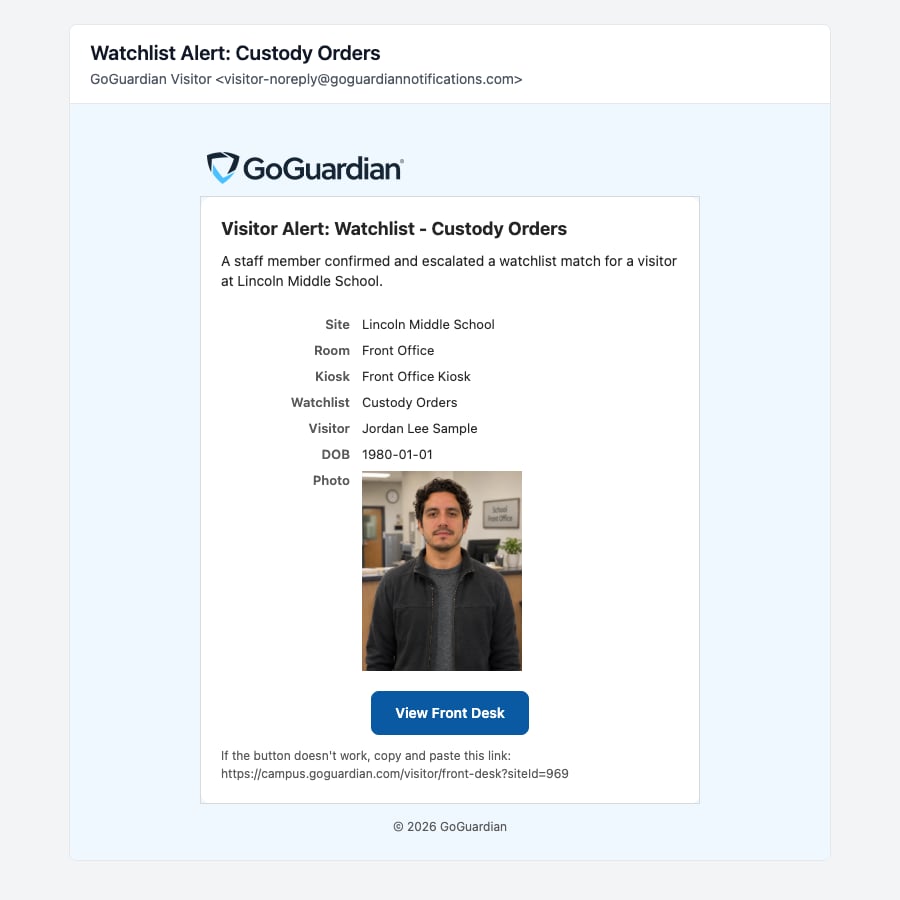
Email alerts come from GoGuardian Visitor (visitor-noreply@goguardiannotifications.com). The subject line names the kind of match:
Below the heading, the email says, for example, “A staff member confirmed and escalated an offender match for a visitor at Lincoln Middle School.” A watchlist alert says “a watchlist match” instead. A table follows with these details:
If you can use the Visitor Front Desk, the email also has a View Front Desk button. See Find More Details in Visitor.
Emails and texts are in the language set in your GoGuardian account preferences.
Read a Text Message Alert
If your notification list sends SMS alerts, you receive a text message. Like the email, it’s sent only after staff confirm the match. Texts are short and don’t include a photo or a link. For a sex offender registry match:Follow Your School’s Procedures
GoGuardian Visitor’s part ends when it denies the check-in or check-out and sends the alert. Follow your school’s procedures for a confirmed match, such as who goes to the front office and who else to contact.Find More Details in Visitor
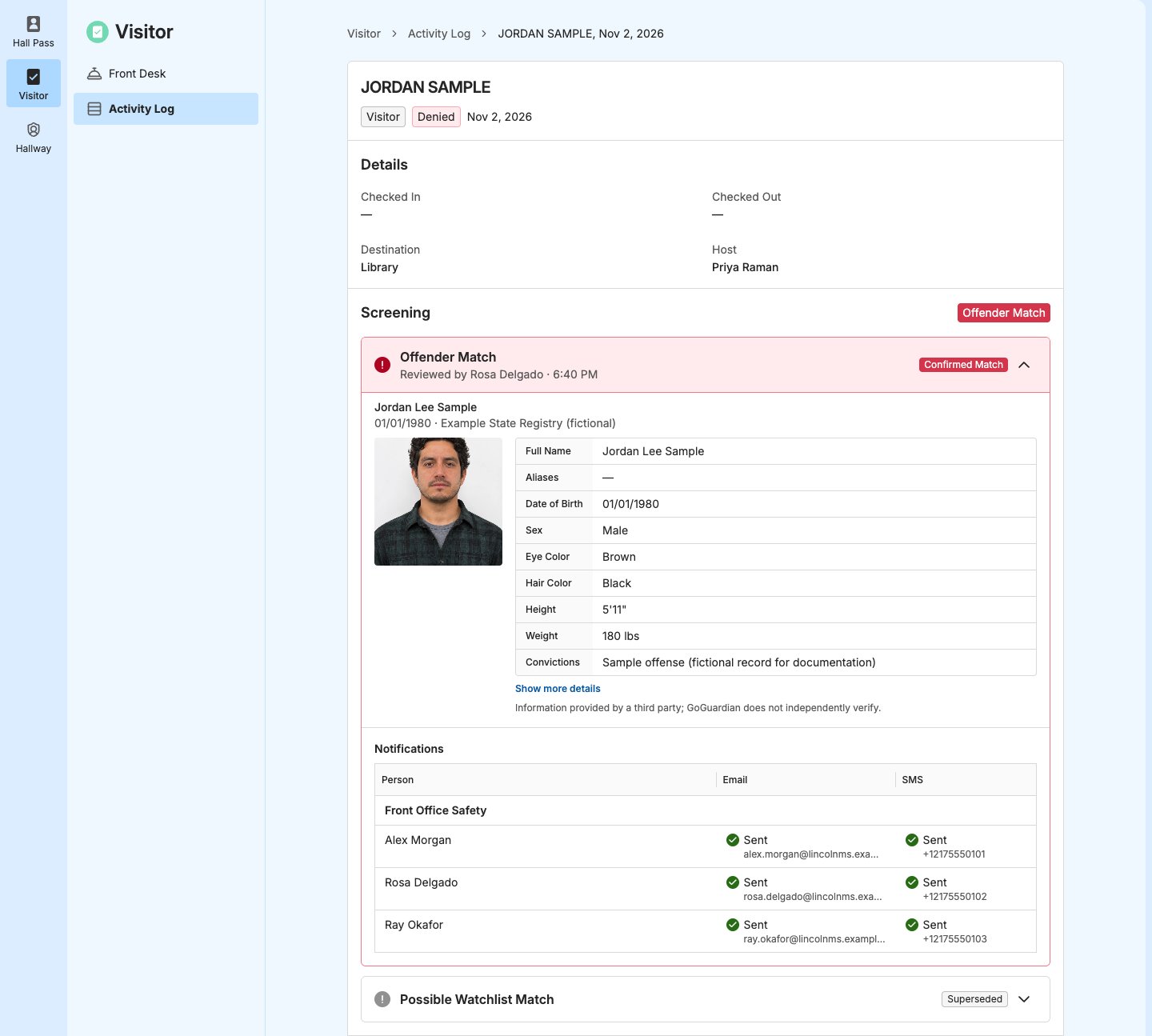
The alert has what you need to act. For more, such as the record that staff confirmed, go to Visitor. You see check-ins on the Front Desk and in the Activity Log only for the check-in points you’re assigned to. Site Admins see every check-in point. If you don’t have Visitor access, or the check-in isn’t listed, ask the staff member at the front desk or a Site Admin. See Users and Permissions.- In the email, click View Front Desk. Or sign in to Visitor and go to the Front Desk for your site. Visitor works in your phone’s browser too.
- Find the check-in under Recent Activity, which lists the latest check-ins. Its status is Denied, with a red alert icon.
- For the full details, go to the Activity Log, select Escalated in the Alerts filter, and select the check-in.
- Verify the result: The Screening section shows Offender Match or Watchlist Match, the record that staff confirmed, who confirmed it, and the watchlist Reason for a watchlist match. The Notifications section shows whether each list member’s email and text was Sent.
Make Sure You Receive Alerts
You receive alerts when a Site Admin adds you to a notification list. Each list sends email, SMS, or both.- Email: sent to the email address on your GoGuardian account.
- SMS: sent to the phone number on your account in GoGuardian Org Management. It must be a mobile number with no extension.