

Review the Notifications Visitor Sends
If your school also uses GoGuardian Hall Pass, a form’s Create Hall Pass step creates a pass, and Hall Pass notifies involved staff based on each staff member’s Pass events setting.
Understand Check-In Notifications
These staff members get a check-in notification:- Hosts: the staff members chosen in the form’s Choose Host step.
- Destination staff: staff assigned to the room chosen in the form’s Choose Destination step, so the teacher or staff member in that room knows the visitor or student is on the way.
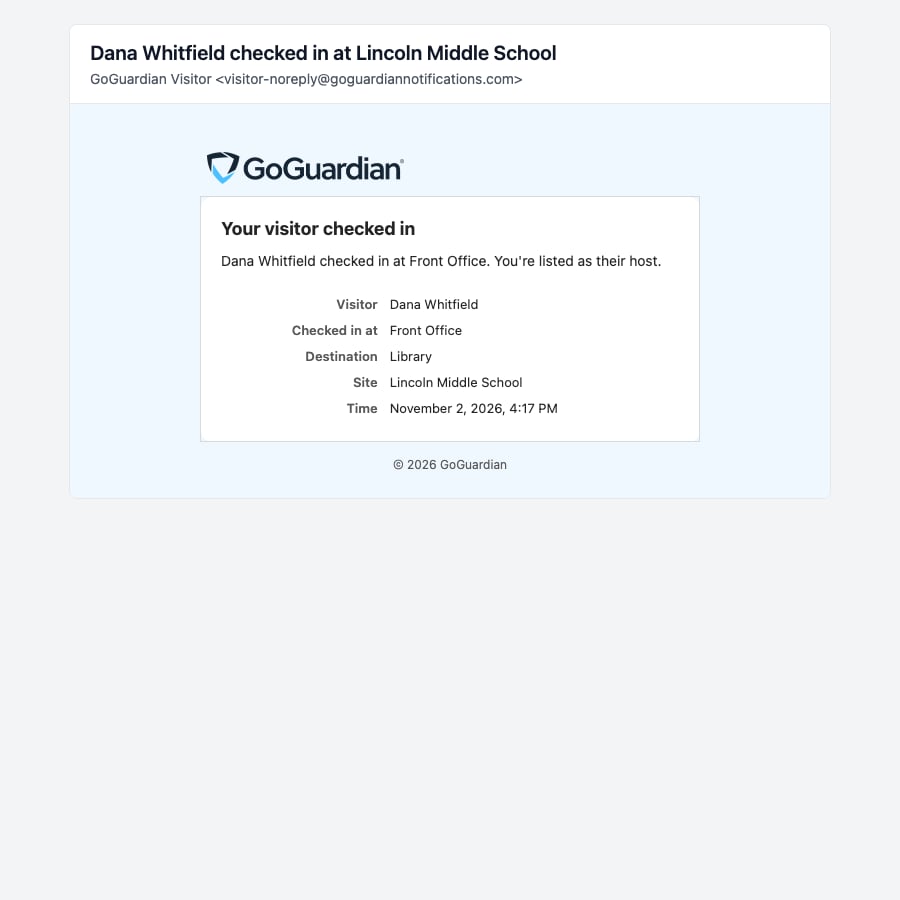
- Email: sent from visitor-noreply@goguardiannotifications.com with the subject “Jordan Sample checked in at Lincoln Middle School”. The email shows the Visitor or Student, Checked in at (the check-in point), Destination (if there is one), Site, and Time. For a visitor, a host’s email is titled “Your visitor checked in.”
- Push: titled “Visitor Checked In - Lincoln Middle School” or “Student Checked In - Lincoln Middle School,” with the same message as the SMS.
- SMS: a short message signed ”- GoGuardian Visitor.”
Turn Notifications On or Off
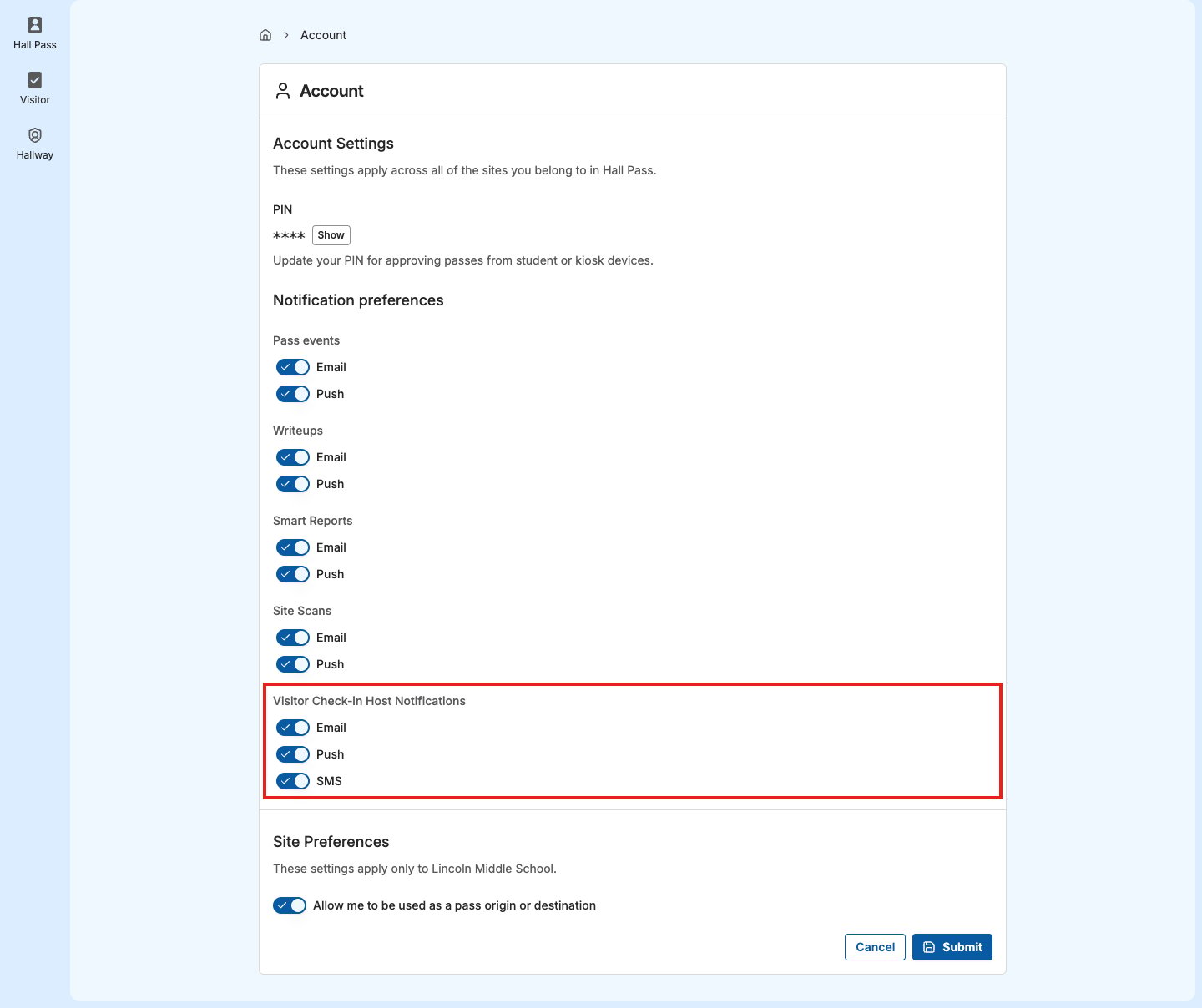
Check-in notifications are on for email, push, and SMS by default. Each staff member sets their own preferences, and the settings apply at every site they belong to. Admins can’t change them for someone else. The setting is called Visitor Check-in Host Notifications, but it covers every check-in notification, including ones you get as destination staff. It appears only for staff and admins at a site that uses Visitor.- Click your name in the top-right corner, then select Account Settings.
- Under Notification preferences, find Visitor Check-in Host Notifications.
- Turn Email, Push, and SMS on or off.
- Click Submit.
- Verify the result: The switches stay as you set them when you reopen Account Settings.
Set Up Push and SMS Notifications
Push notifications go to each browser where you’ve allowed notifications from GoGuardian. When you open GoGuardian, your browser asks whether to allow notifications. Click Allow in every browser where you want them. If you blocked notifications, turn them back on in the browser’s site settings. SMS notifications go to the phone number on your account in GoGuardian Org Management. Visitor can text a number only if it has 10 digits (or 11 starting with 1) and no extension. Use a mobile number, because a landline passes this check but can’t receive texts. If your number is missing or isn’t in a format Visitor can text, a warning icon appears next to SMS in Account Settings. Point to it to see “Your account does not have an SMS-capable phone number. Ask your administrator to update your account phone number.” A Super User can update the number in Org Management. See Edit Account Permissions.Compare Escalation Alerts
Escalation alerts go to notification lists, not hosts, and individuals can’t turn them off.
To choose who gets escalation alerts, see Notification Lists. For what an alert contains and what to do with it, see Respond to a Visitor Alert.