

Choose Steps for Each Template
The template a form starts from decides which steps it can use. Add Step shows only the steps that fit.- Required steps come with the template, always run first, and can’t be removed.
- With Hall Pass means your site also needs GoGuardian Hall Pass. Without it, Create Hall Pass shows a lock in Add Step.
- Each step can appear once per form, except Ask Question (Choice), Ask Question (Text), and Sign Document.
- Print Badge is always last. Create Hall Pass is last, or right before Print Badge.
Confirm Visitor Identity
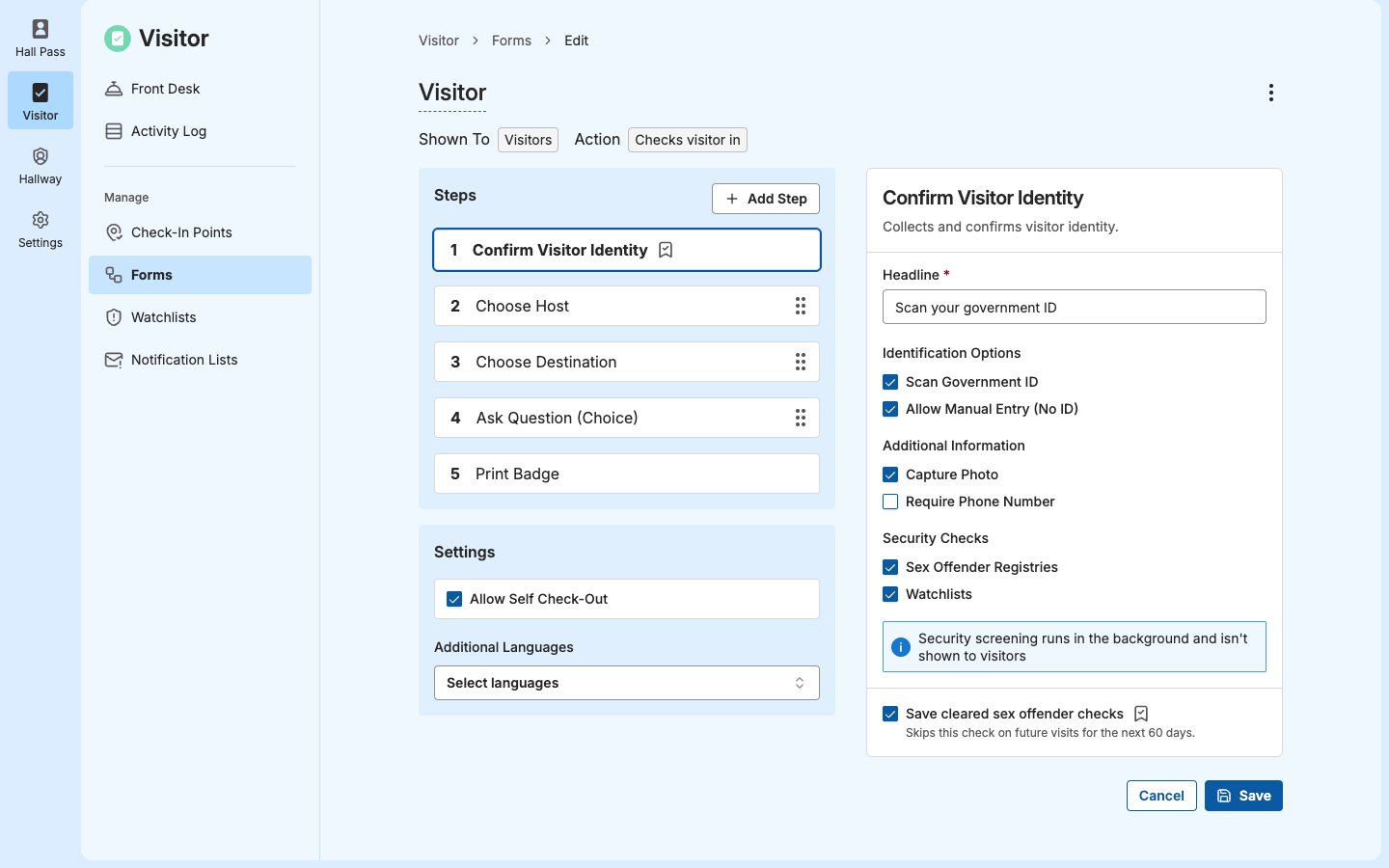
Collects and confirms who the visitor is, and screens them. Every Visitor and Parent/Guardian Pickup form starts with this step.
Turn on Scan Government ID, Allow Manual Entry (No ID), or both. A form needs at least 1 way for visitors to identify themselves.
Screening runs in the background, and visitors don’t see screening results. For how the security checks and saved checks work, see Understand Visitor Screening.
Visitors must be 16 or older. The kiosk shows “You must be 16 or older” to anyone younger, and the Front Desk doesn’t accept their date of birth. Photos and ID images are encrypted when stored. See Understand How Visitor Protects Screening Data.
On the Front Desk: Staff can always enter the visitor’s name and date of birth, even when Allow Manual Entry (No ID) is off. Scan ID appears only when Scan Government ID is on. The phone number field always appears, and it’s required only when Require Phone Number is on.
Confirm Student Identity
Collects and confirms who the student is. Every Student Check-In and Student Self Check-Out form starts with this step. Students aren’t screened.
Turn on at least 1 of Scan Student ID, Allow Student ID Entry, or Allow Manual Entry (No ID). When more than 1 is on, students choose a method at the kiosk.
On the Front Desk: Staff search for the student by name, whichever identification options are on.
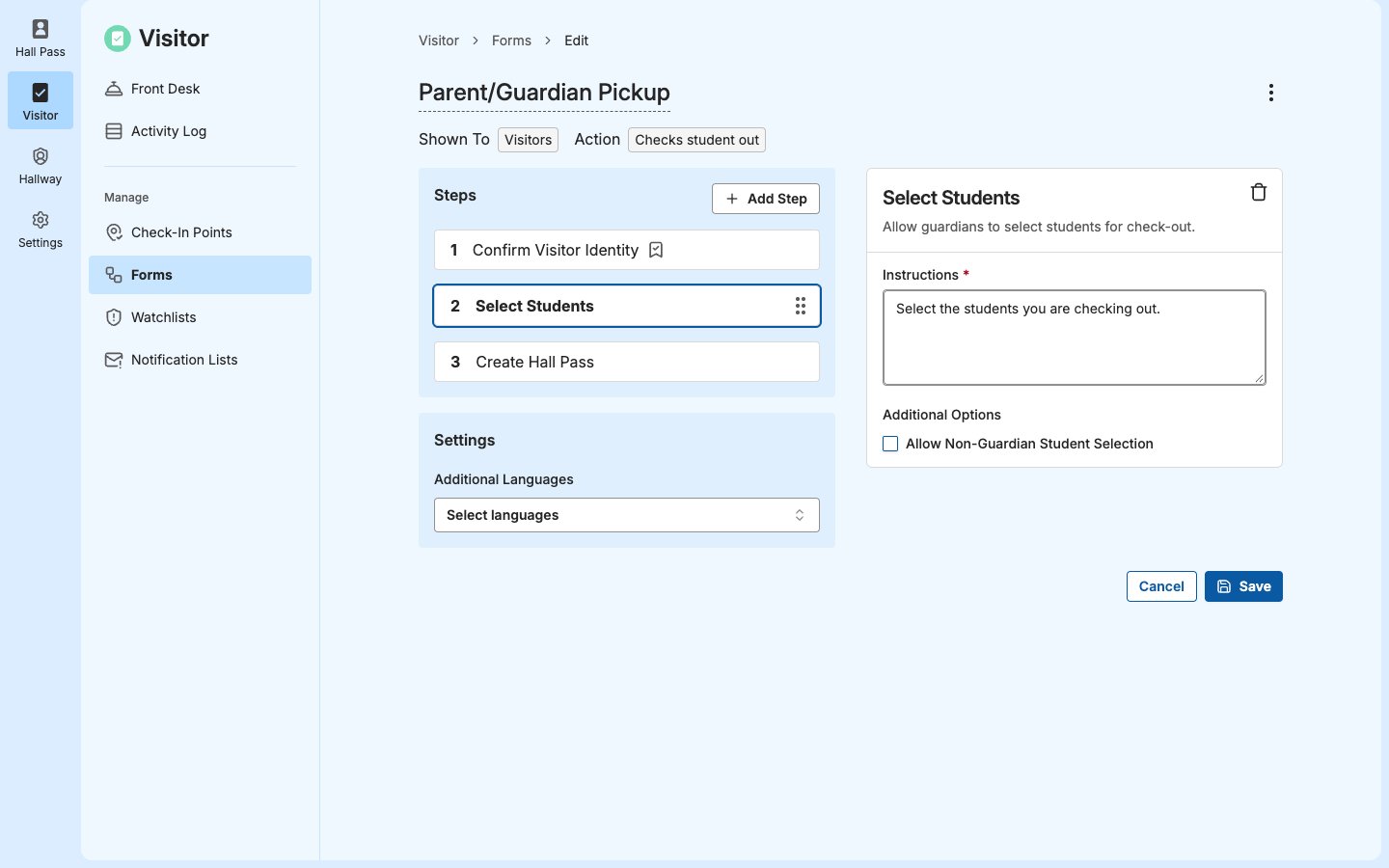
Select Students
Lets a guardian choose the students they’re picking up. Available on Parent/Guardian Pickup forms.
Students associated with the guardian are listed first. These associations come from guardian records in GoGuardian Org Management, synced from your roster or added there, and Visitor finds the guardian by the name from their ID or the name they enter at check-in. See Set Up Guardians for Student Pickup.
With Allow Non-Guardian Student Selection off, an adult with no associated students sees “No Students Found” and is asked to see the front desk. Turn it on to let a carpool driver, family friend, or other adult your school approves pick up a student.
On the Front Desk: Staff can search for and select any student at the site, even when Allow Non-Guardian Student Selection is off. Students associated with the guardian are still listed first.
Staff confirm the selected students before every pickup completes, whether it starts at a kiosk or the Front Desk. With Allow Non-Guardian Student Selection on, that confirmation is when staff check that the adult is approved to pick up each student. See Confirm Students for a Pickup.
Choose Destination
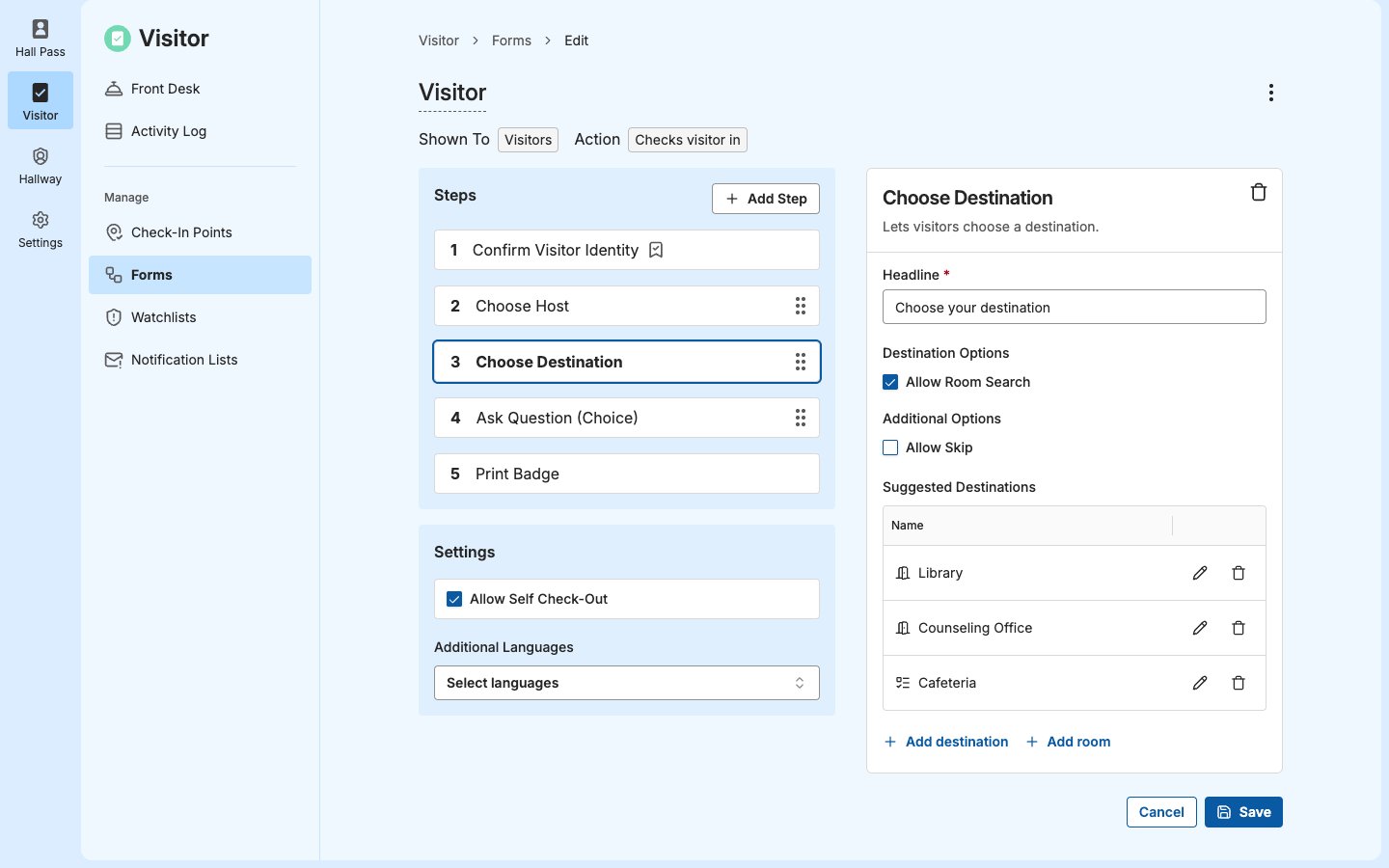
Lets visitors and students choose where they’re going, such as a classroom, the library, or the gym. Available on Visitor and Student Check-In forms.
If Allow Room Search is off, add at least 1 suggested destination. District-Wide forms can’t suggest rooms, only destinations you enter.
Staff assigned to the chosen room get a check-in notification. See Notifications.
On a Student Check-In form with a Create Hall Pass step, a room the student chooses here becomes their pass destination when Hall Pass allows a pass there, and the student skips choosing it again. If Hall Pass doesn’t allow it, the Create Hall Pass step asks the student to choose another destination.
Choose Host
Lets visitors and students choose who they’re here to see. Available on Visitor and Student Check-In forms.
If Allow Host Search is off, add at least 1 suggested host. Turn search off to limit a form to a short list, such as facilities staff on a contractor form.
District-Wide forms can’t suggest hosts, and Allow Host Search stays on.
The host gets a check-in notification. See Notifications.
Ask Question (Choice)
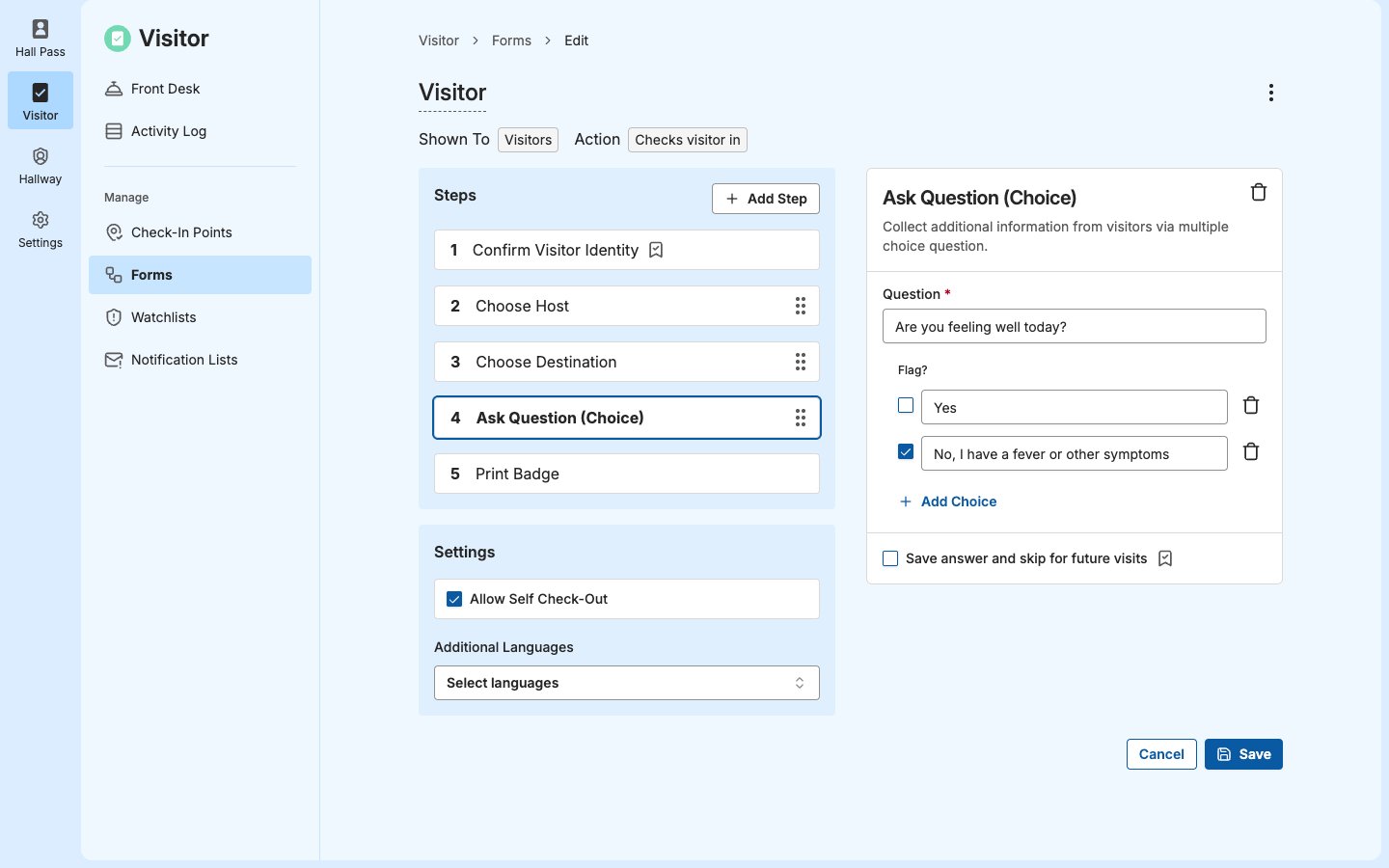
Asks a multiple-choice question, such as the reason for a visit. Available on every form, as many times as you need.
Flag answers that need a staff member’s attention before a visitor or student continues, such as “Yes” to “Are you feeling sick today?” A flagged answer raises a Flagged Answer alert on the Front Desk. It never notifies anyone. See Review a Flagged Answer.
Ask Question (Text)
Asks a question visitors and students answer in their own words, such as a company name or license plate. Available on every form, as many times as you need.
Typed answers aren’t translated. Staff see them as entered.
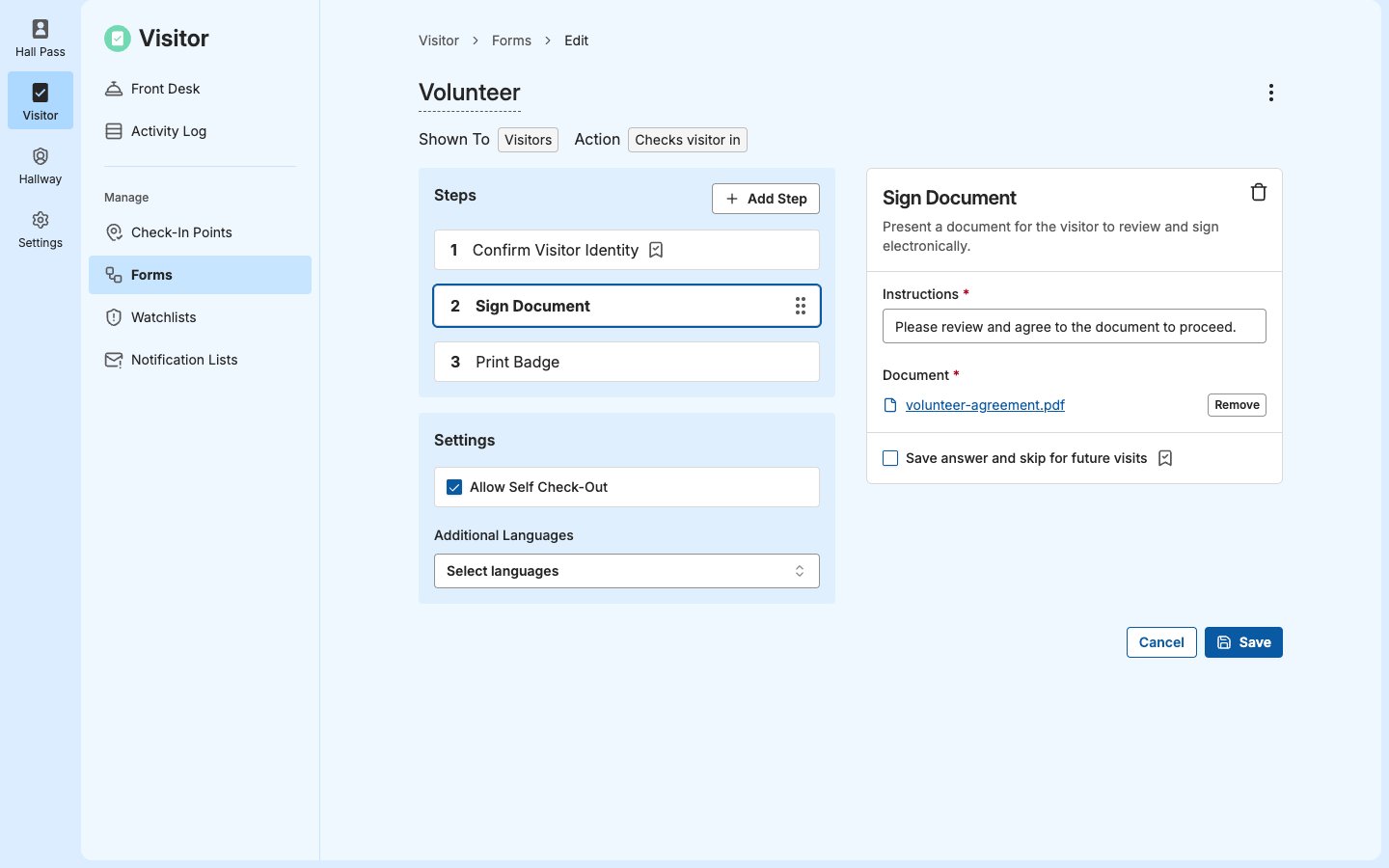
Sign Document
Shows a document, such as a volunteer agreement or a contractor safety policy, for visitors and students to read and accept. They tap Agree to continue. Available on every form, as many times as you need.
To replace the document, click Remove next to it, then upload the new PDF. The document isn’t translated, so upload a version your visitors can read, such as a PDF with each language.
On the Front Desk: Staff click View to open the document with the visitor or student, then select Agreement confirmed.
Create Hall Pass
Creates a hall pass in GoGuardian Hall Pass for each student as part of the check-in or pickup, so staff don’t write a separate pass. Available on Student Check-In and Parent/Guardian Pickup forms when your site has Hall Pass. Before you add this step:- Room Rules: Your check-in points must allow one-way travel in Hall Pass Room Rules, as origins for check-in forms and as destinations for pickup forms. When you register a check-in point, Update Room Rules to support Hall Pass steps sets this for you. See Check-In Points.
- Bell Schedules (pickup forms): For a pickup started at a kiosk, Hall Pass uses your bell schedules to find each student’s current class.
What the pass does depends on the form:
- Student Check-In: The pass goes from the check-in point to the student’s destination, which starts as their current class, or their next class if they don’t have one now. The student can choose a different one.
- Parent/Guardian Pickup: Each student’s pass goes from where they are, such as their class, to the check-in point. Passes are created after staff confirm the selected students. A denied pickup creates no passes.
Print Badge
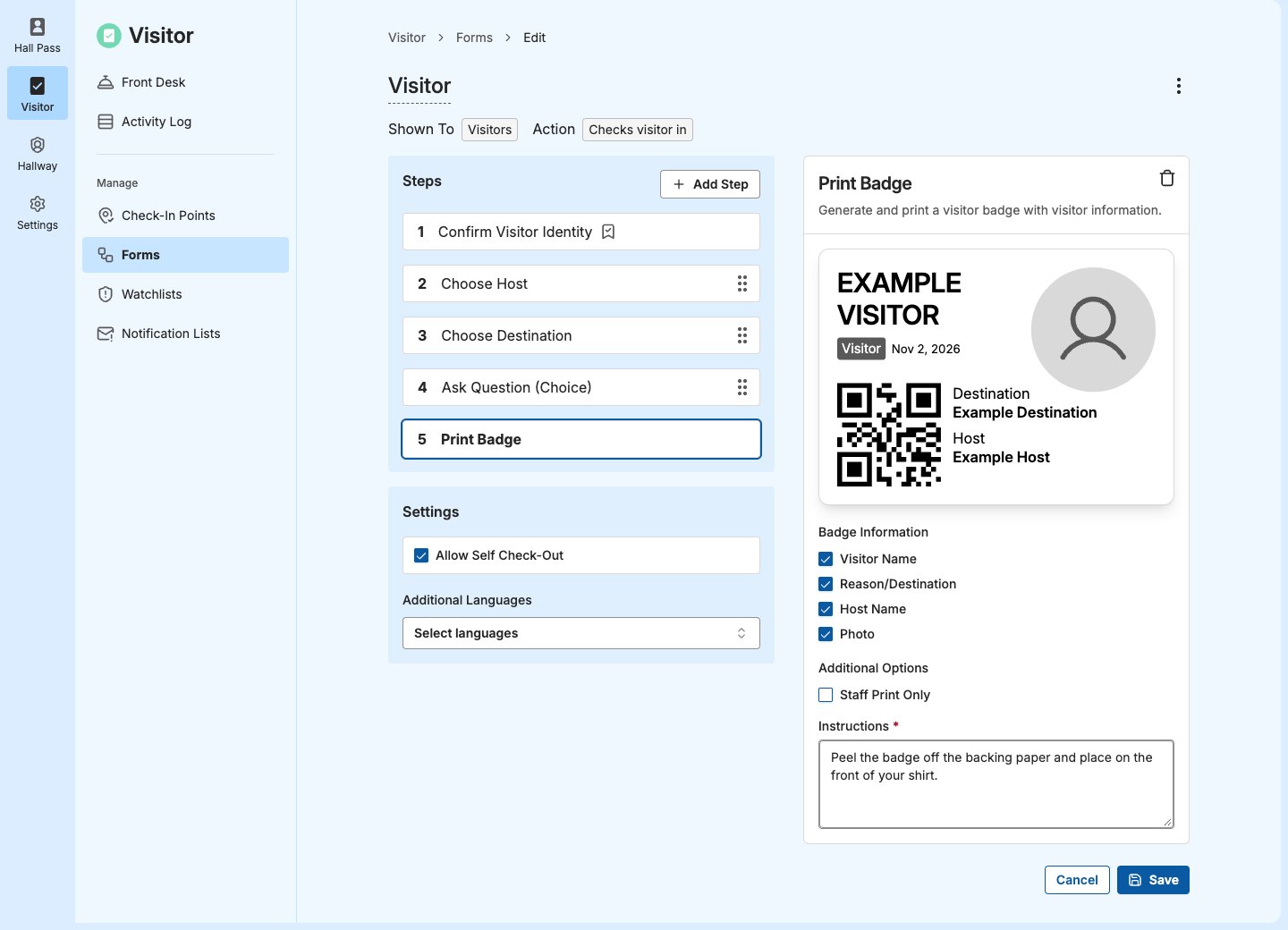
Prints a badge when the check-in is complete. Available on Visitor and Student Check-In forms. The step shows a preview of the badge as you change its options.
Badges from forms with Allow Self Check-Out also print a QR code that visitors scan at a kiosk to check out. See Allow Self Check-Out.
Changing Print Badge doesn’t change badges for visitors already checked in. For printers and label media, see Badge Printers.
On the Front Desk: Staff Print Only doesn’t apply. After a Front Desk check-in, staff choose whether to print the badge. See Use the Front Desk.
Save Answers for Returning Visitors
Save answer and skip for future visits on Ask Question and Sign Document steps saves time for visitors and students who check in often, such as volunteers who sign the same agreement every week. Steps with it on show a bookmark icon in the form’s Steps list. Confirm Visitor Identity shows it too when Save cleared sex offender checks is on.- A returning visitor or student skips the step and keeps the answer from their last completed check-in or check-out on that form at your site.
- On the Front Desk, the step isn’t skipped. It’s filled in with the saved answer, marked “From previous check-in” or “From previous check-out,” and staff can change it.
- Staff see “From previous check-in” or “From previous check-out” next to the answer in the Activity Log.
- Saving any change to the form starts saved answers over. Returning visitors and students answer again on their next visit. Then their new answer is saved. See Edit a Form.