How GoGuardian Visitor and GoGuardian Hall Pass work better together: hall passes created from check-ins and pickups, visitors and student passes in one Hallway view, and one setup for sites, users, rooms, and student badges.
GoGuardian Visitor and GoGuardian Hall Pass work better together. The front office checks a student in or out once, and Hall Pass creates the student’s pass from that check-in, so no one writes a second pass. Teachers know why a student is leaving class, and every pass created this way is tied to the check-in behind it.Staff also see visitors and students in the halls on one page. Both products run on the same sites, users, roster sync, rooms, and student badges, so you keep them up to date in one place.Each product also works on its own. The sections below cover each place where they connect and link to the page with the details.
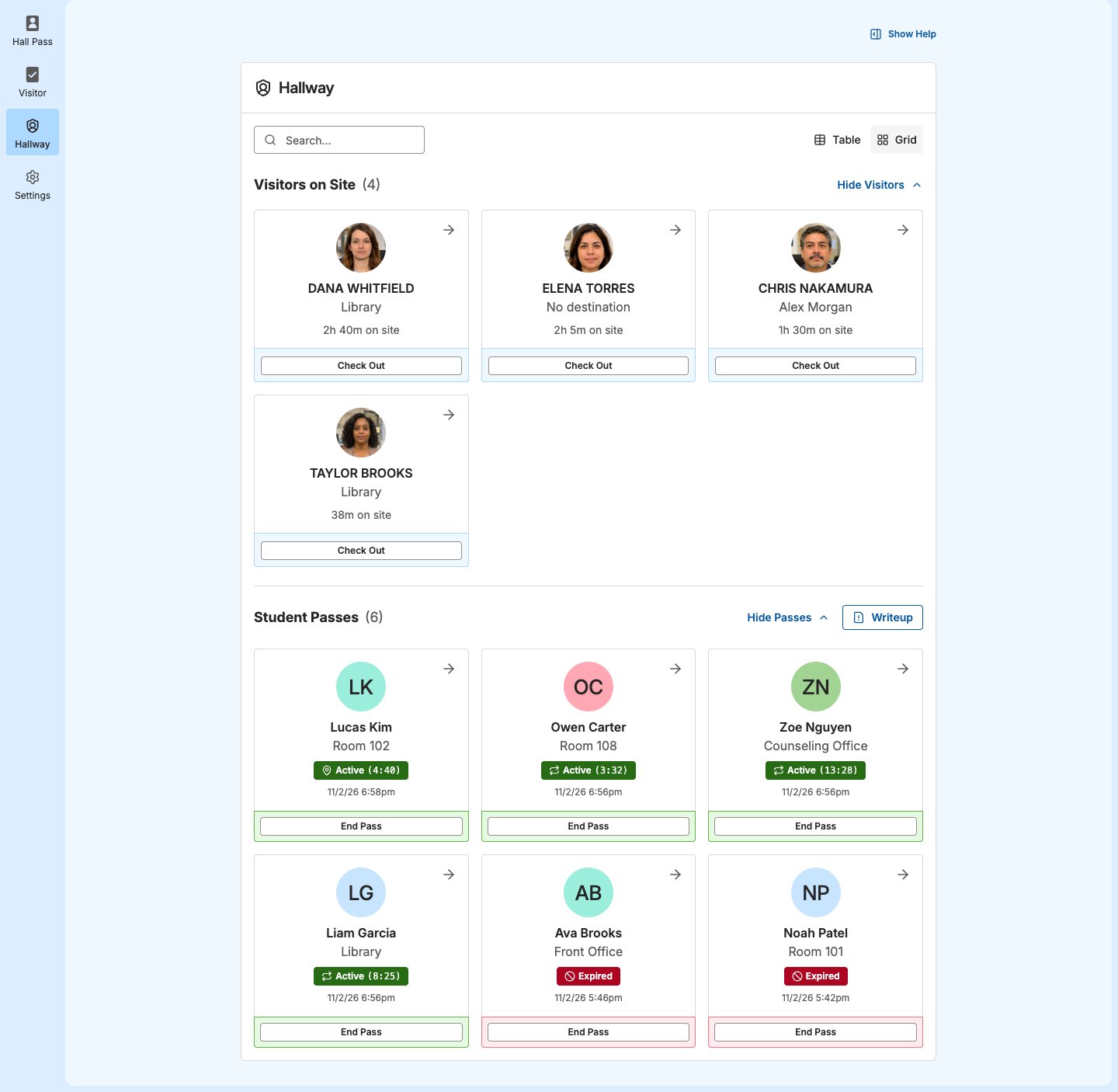
With both products, Hallway shows Visitors on Site and Student Passes on one page, so staff see who’s visiting and which students are in the halls at a glance. Staff with Hallway access, such as hall monitors and staff on hallway duty, see both without needing Visitor access.For details, see Hallway View and Use Hallway.
With both products, a student check-in or pickup in Visitor can create the student’s hall pass. The Create Hall Pass step in a Visitor form creates a pass for each student, so front office staff don’t write a separate pass.For example, when a late student checks in at the front office, no one calls ahead to their teacher. Hall Pass creates the pass, and the teacher sees the student is on the way. When a guardian arrives to pick up a student, no one calls the classroom or sends a runner. The pass goes to the teacher, who sends the student to the front office.
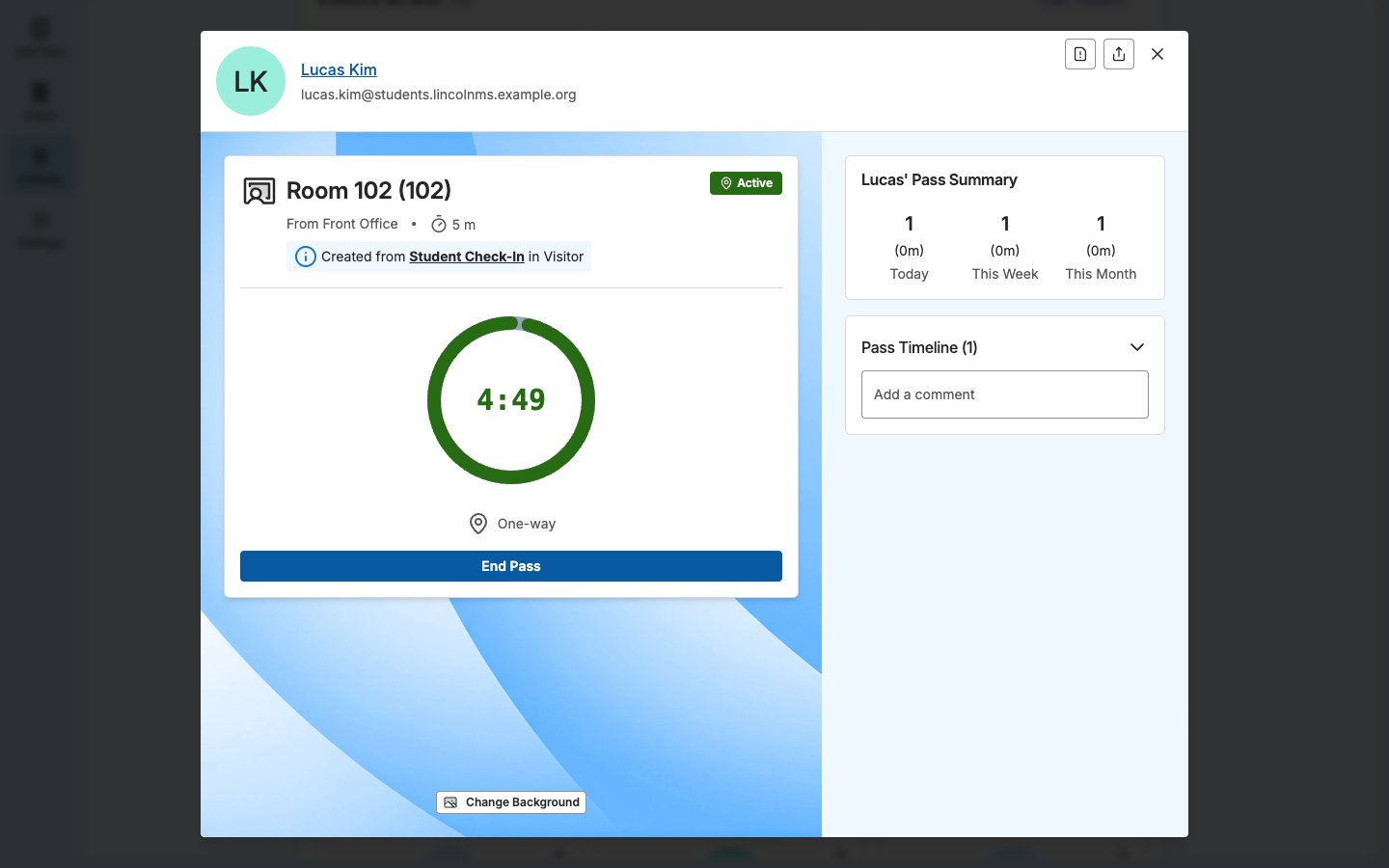
Student Check-In: A late student’s pass goes from the check-in point to their class. The pass starts right away, without waiting for approval.
Parent/Guardian Pickup: The student’s pass goes from their class to the check-in point. Passes are created after staff confirm the selected students.
A pickup pass still follows your Hall Pass rules for leaving class. If the student’s classroom requires approval to leave, the pass waits for their teacher to approve it, so the student doesn’t leave class until the teacher knows. Other Hall Pass rules, such as time restrictions, can also hold a pickup pass. Staff end the pickup pass once the student leaves with their guardian. Passes created this way don’t add to the student’s pass limit.At a site with both products, new Student Check-In and Parent/Guardian Pickup forms include the step. Forms created before your site had both products don’t, so add the step to them. Teachers get these passes when they’re assigned to their classroom in Settings → Rooms. For the step’s options and requirements, see Create Hall Pass. For approvals, see Pass Statuses. For checking each pass’s location at the desk, see Use the Front Desk.
Every pass created from a check-in or pickup says so, in the notification the teacher gets and in the pass history. The pass details name the Visitor form, and Site Admins and staff assigned to that check-in point can open the check-in from there. The front office can trace any of these passes back to the check-in behind it.For example, a Student Check-In form for late arrivals with a Print Badge step can print a badge the student carries as their tardy slip. The late arrival is logged in Visitor, and the student’s hall pass to class is tied to it. A hall monitor who opens the pass in Hallway sees it came from the late arrival form, so they know the student is headed to class.For the check-in record, see Activity Log.
Both products use the same sites and users in GoGuardian Org Management, so you add schools, staff, and students once and turn on Hall Pass, Visitor, or both for each site. Site Admins are admins in both products, so review who’s a Site Admin before you turn on the second product. Staff use Hall Pass with their staff role and open Visitor once they’re assigned to a check-in point.If you sync rosters from Clever, ClassLink, or OneRoster, one integration keeps students, teachers, and student IDs up to date in both products, along with organizational units (OUs) if you turn on OU sync. Visitor also uses the synced guardians and their associated students for pickups.For setup, see Add Sites and Users in Org Management, Set Up Hall Pass in Org Management, and Sync Rosters with Clever, ClassLink, or OneRoster.
Both products use the same rooms and room assignments in Settings → Rooms. A Visitor check-in point is one of those rooms. Staff assigned to it, from either product, can open Visitor and see check-ins and screening results there.Before you register a room that’s already used for Hall Pass, or assign Hall Pass staff to a check-in point’s room, see Check Who’s Assigned Before You Register a Room. For setup, see Check-In Points and Understand Rooms and Locations.
Student badges are set up once for the site, in Settings → Badges. Students scan the same badge to sign in at a Hall Pass kiosk and to check in or out at a Visitor kiosk, so badges students already carry for one product work in the other.For setup, see Set Up QR Codes and Badges. For the kiosk options, see Choose Student Sign-In Method and Confirm Student Identity.
{"docsConfig":{"theme":"linden","$schema":"https://mintlify.com/docs.json","name":"GoGuardian","description":"Help center and product documentation for GoGuardian's K-12 safety and classroom management suite, including Admin (web filtering), Teacher (classroom management), Beacon (student safety alerts), Hall Pass, Discover, and Org Management.","colors":{"primary":"#0A59A3","light":"#439CEF","dark":"#002F6C"},"logo":{"light":"https://mintcdn.com/goguardian/08olqC3O-Uu3gBIf/images/logo/gg-pdl-lockup.svg?fit=max\u0026auto=format\u0026n=08olqC3O-Uu3gBIf\u0026q=85\u0026s=4e52b3255e2eae1b6b38419db0a1bf62","dark":"https://mintcdn.com/goguardian/08olqC3O-Uu3gBIf/images/logo/gg-pdl-lockup-white.svg?fit=max\u0026auto=format\u0026n=08olqC3O-Uu3gBIf\u0026q=85\u0026s=98894adb9647f2b523e0d11de1fc7961"},"favicon":"https://media.brand.dev/fb6d60c3-9a7a-4a85-a889-7a95764fa5ed.png","background":{"color":{"light":"#FFFFFF","dark":"#0F1F36"}},"search":{"prompt":"Search GoGuardian help articles…"},"seo":{"metatags":{"og:site_name":"GoGuardian Help Center","og:type":"website","twitter:card":"summary_large_image"},"indexing":"navigable"},"fonts":{"family":"TTCommonsPro"},"styling":{"eyebrows":"breadcrumbs","latex":false},"metadata":{"timestamp":true},"navigation":{"pages":[]}},"deployment":{"deploymentMetadataValue":{"subdomain":"goguardian","hasAudioNarration":false,"actualSubdomain":"goguardian","customDomains":["docs.goguardian.com"],"gitSource":{"type":"github","owner":"goguardian","repo":"docs","deployBranch":"main","isPrivate":true,"contentDirectory":"","mountPath":"","label":""},"chroma":{"liveDeploymentHistoryId":"6ae8cd1f6b2402847b6c28b5","collectionId":"a59cba30-806d-47be-bea7-bfd586530c65","schemaVersion":"v3","latestBuiltDeploymentHistoryId":"6ae8cd1f6b2402847b6c28b5"},"feedback":{"thumbs":true},"entitlements":{"AI_CHAT":{"status":"ENABLED"},"WEB_MCP":{"status":"ENABLED"},"NARRATION":{"status":"ENABLED"}},"buildId":"6ae93e6cc54790090eebd7f9","clientVersion":"0.0.4045","searchFilterCounts":[{"language":"default","tag":"Products","count":743},{"language":"default","tag":"Pear Deck Learning","count":396},{"language":"default","tag":"GoGuardian","count":357},{"language":"default","tag":"Pear Assessment","count":195},{"language":"default","tag":"Getting Started","count":114},{"language":"default","tag":"Teacher","count":96},{"language":"default","tag":"Admin","count":95},{"language":"default","tag":"Pear Deck","count":84},{"language":"default","tag":"Pear Practice","count":83},{"language":"default","tag":"Troubleshooting","count":77}],"searchSettings":{"maxResults":20,"isFiltersEnabled":true}},"assistantConfig":{"enableAskAiButton":false,"enableStarterQuestions":false,"enableContextualStarterQuestions":false,"enableAskAiSearchBar":true},"basePath":"","hasChatPermissions":false,"hasWebMcpPermissions":true,"toggles":[{"name":"kill-isr","enabled":true,"variant":{"name":"disabled","enabled":false,"feature_enabled":true},"impressionData":false},{"name":"agent-mintlify-slack","enabled":true,"variant":{"name":"disabled","enabled":false,"feature_enabled":true},"impressionData":false},{"name":"agent-integrations-settings","enabled":true,"variant":{"name":"disabled","enabled":false,"feature_enabled":true},"impressionData":false},{"name":"automations-pr-grouping","enabled":true,"variant":{"name":"disabled","enabled":false,"feature_enabled":true},"impressionData":false},{"name":"custom-prefix","enabled":true,"variant":{"name":"disabled","enabled":false,"feature_enabled":true},"impressionData":false},{"name":"analytics-v7","enabled":true,"variant":{"name":"disabled","enabled":false,"feature_enabled":true},"impressionData":false},{"name":"user-flows-analytics","enabled":true,"variant":{"name":"disabled","enabled":false,"feature_enabled":true},"impressionData":false},{"name":"no-publish-flow","enabled":true,"variant":{"name":"disabled","enabled":false,"feature_enabled":true},"impressionData":false},{"name":"workos-onboarding","enabled":true,"variant":{"name":"disabled","enabled":false,"feature_enabled":true},"impressionData":false},{"name":"llms-txt-v2","enabled":true,"variant":{"name":"disabled","enabled":false,"feature_enabled":true},"impressionData":false},{"name":"snapshot-serving-live","enabled":true,"variant":{"name":"disabled","enabled":false,"feature_enabled":true},"impressionData":false},{"name":"stripTemperatureMiddleware","enabled":true,"variant":{"name":"disabled","enabled":false,"feature_enabled":true},"impressionData":false},{"name":"support-platform-pylon-zendesk","enabled":true,"variant":{"name":"disabled","enabled":false,"feature_enabled":true},"impressionData":false},{"name":"snapshot-serving","enabled":true,"variant":{"name":"disabled","enabled":false,"feature_enabled":true},"impressionData":false},{"name":"instant-rollback","enabled":true,"variant":{"name":"disabled","enabled":false,"feature_enabled":true},"impressionData":false},{"name":"granular-notifications-server","enabled":true,"variant":{"name":"disabled","enabled":false,"feature_enabled":true},"impressionData":false},{"name":"granular-notifications","enabled":true,"variant":{"name":"disabled","enabled":false,"feature_enabled":true},"impressionData":false},{"name":"automations-fable","enabled":true,"variant":{"name":"disabled","enabled":false,"feature_enabled":true},"impressionData":false},{"name":"fixed-ai-action-pricing","enabled":true,"variant":{"name":"disabled","enabled":false,"feature_enabled":true},"impressionData":false},{"name":"automation-resolve-merge-conflict","enabled":true,"variant":{"name":"disabled","enabled":false,"feature_enabled":true},"impressionData":false},{"name":"scoped-publishing","enabled":true,"variant":{"name":"disabled","enabled":false,"feature_enabled":true},"impressionData":false},{"name":"mintql","enabled":true,"variant":{"name":"disabled","enabled":false,"feature_enabled":true},"impressionData":false},{"name":"page-level-analytics","enabled":true,"variant":{"name":"disabled","enabled":false,"feature_enabled":true},"impressionData":false},{"name":"editor-version-history-v2","enabled":true,"variant":{"name":"disabled","enabled":false,"feature_enabled":true},"impressionData":false},{"name":"billing-page-v2","enabled":true,"variant":{"name":"disabled","enabled":false,"feature_enabled":true},"impressionData":false},{"name":"full-page-search","enabled":true,"variant":{"name":"disabled","enabled":false,"feature_enabled":true},"impressionData":false},{"name":"workspace-projects","enabled":true,"variant":{"name":"disabled","enabled":false,"feature_enabled":true},"impressionData":false},{"name":"assistant-v5","enabled":true,"variant":{"name":"disabled","enabled":false,"feature_enabled":true},"impressionData":false},{"name":"byok-sep-25","enabled":true,"variant":{"name":"disabled","enabled":false,"feature_enabled":true},"impressionData":false},{"name":"fork-pr-previews","enabled":true,"variant":{"name":"disabled","enabled":false,"feature_enabled":true},"impressionData":false},{"name":"revalidation-jwt","enabled":true,"variant":{"name":"disabled","enabled":false,"feature_enabled":true},"impressionData":false},{"name":"vite-origin","enabled":true,"variant":{"name":"disabled","enabled":false,"feature_enabled":true},"impressionData":false},{"name":"billing-updated-9-15","enabled":true,"variant":{"name":"disabled","enabled":false,"feature_enabled":true},"impressionData":false},{"name":"workos-sso-scim","enabled":true,"variant":{"name":"disabled","enabled":false,"feature_enabled":true},"impressionData":false},{"name":"hobby-abuse-scan","enabled":true,"variant":{"name":"disabled","enabled":false,"feature_enabled":true},"impressionData":false},{"name":"dashboard-inbox","enabled":true,"variant":{"name":"disabled","enabled":false,"feature_enabled":true},"impressionData":false},{"name":"workos-signup","enabled":true,"variant":{"name":"disabled","enabled":false,"feature_enabled":true},"impressionData":false},{"name":"turbopuffer-dual-write","enabled":true,"variant":{"name":"disabled","enabled":false,"feature_enabled":true},"impressionData":false},{"name":"workos-enabled","enabled":true,"variant":{"name":"disabled","enabled":false,"feature_enabled":true},"impressionData":false},{"name":"approve-review-flow","enabled":true,"variant":{"name":"disabled","enabled":false,"feature_enabled":true},"impressionData":false},{"name":"sso-setup-deadline-banner","enabled":true,"variant":{"name":"disabled","enabled":false,"feature_enabled":true},"impressionData":false}],"googleFontsInlined":false},"customCss":[{"filePath":"custom.css","content":"@font-face{font-family:'TTCommonsPro';src:url(/fonts/TTCommonsPro-Thin.otf) format('opentype');font-weight:100;font-style:normal;font-display:swap}@font-face{font-family:'TTCommonsPro';src:url(/fonts/TTCommonsPro-ThinItalic.otf) format('opentype');font-weight:100;font-style:italic;font-display:swap}@font-face{font-family:'TTCommonsPro';src:url(/fonts/TTCommonsPro-ExtraLight.otf) format('opentype');font-weight:200;font-style:normal;font-display:swap}@font-face{font-family:'TTCommonsPro';src:url(/fonts/TTCommonsPro-ExtraLightItalic.otf) format('opentype');font-weight:200;font-style:italic;font-display:swap}@font-face{font-family:'TTCommonsPro';src:url(/fonts/TTCommonsPro-Light.otf) format('opentype');font-weight:300;font-style:normal;font-display:swap}@font-face{font-family:'TTCommonsPro';src:url(/fonts/TTCommonsPro-LightItalic.otf) format('opentype');font-weight:300;font-style:italic;font-display:swap}@font-face{font-family:'TTCommonsPro';src:url(/fonts/TTCommonsPro-Regular.otf) format('opentype');font-weight:400;font-style:normal;font-display:swap}@font-face{font-family:'TTCommonsPro';src:url(/fonts/TTCommonsPro-Italic.otf) format('opentype');font-weight:400;font-style:italic;font-display:swap}@font-face{font-family:'TTCommonsPro';src:url(/fonts/TTCommonsPro-Medium.otf) format('opentype');font-weight:500;font-style:normal;font-display:swap}@font-face{font-family:'TTCommonsPro';src:url(/fonts/TTCommonsPro-MediumItalic.otf) format('opentype');font-weight:500;font-style:italic;font-display:swap}@font-face{font-family:'TTCommonsPro';src:url(/fonts/TTCommonsPro-DemiBold.otf) format('opentype');font-weight:600;font-style:normal;font-display:swap}@font-face{font-family:'TTCommonsPro';src:url(/fonts/TTCommonsPro-DemiBoldItalic.otf) format('opentype');font-weight:600;font-style:italic;font-display:swap}@font-face{font-family:'TTCommonsPro';src:url(/fonts/TTCommonsPro-Bold.otf) format('opentype');font-weight:700;font-style:normal;font-display:swap}@font-face{font-family:'TTCommonsPro';src:url(/fonts/TTCommonsPro-BoldItalic.otf) format('opentype');font-weight:700;font-style:italic;font-display:swap}@font-face{font-family:'TTCommonsPro';src:url(/fonts/TTCommonsPro-ExtraBold.otf) format('opentype');font-weight:800;font-style:normal;font-display:swap}@font-face{font-family:'TTCommonsPro';src:url(/fonts/TTCommonsPro-ExtraBoldItalic.otf) format('opentype');font-weight:800;font-style:italic;font-display:swap}@font-face{font-family:'TTCommonsPro';src:url(/fonts/TTCommonsPro-Black.otf) format('opentype');font-weight:900;font-style:normal;font-display:swap}@font-face{font-family:'TTCommonsPro';src:url(/fonts/TTCommonsPro-BlackItalic.otf) format('opentype');font-weight:900;font-style:italic;font-display:swap}@font-face{font-family:'TTCommonsPro';src:url(/fonts/TTCommonsPro-ExtraBlack.otf) format('opentype');font-weight:950;font-style:normal;font-display:swap}@font-face{font-family:'TTCommonsPro';src:url(/fonts/TTCommonsPro-ExtraBlackItalic.otf) format('opentype');font-weight:950;font-style:italic;font-display:swap}body,html{font-family:'TTCommonsPro',ui-sans-serif,system-ui,-apple-system,BlinkMacSystemFont,'Segoe UI',Roboto,'Helvetica Neue',Arial,sans-serif}div[class*=navbar],header nav,header>div,nav[class*=navbar]{max-width:none!important;width:100%!important}img.nav-logo{height:2.5rem}@media (min-width:1024px){img.nav-logo{margin-left:2rem}}.nav-tabs-item{white-space:nowrap}#pagination .uppercase{text-transform:none}kbd{background:#f0f0f0;border:1px solid #d0d0d0;color:#262626;border-radius:4px;padding:.1rem .4rem;font-size:.85em}html.dark kbd{background:#2d2d2d;border:1px solid #4a4a4a;color:#f0f0f0}"}],"page":{"pagePath":"products/visitor/visitor-and-hall-pass","slug":"/products/visitor/visitor-and-hall-pass","pageMetadata":{"title":"Use GoGuardian Visitor with Hall Pass","description":"How GoGuardian Visitor and GoGuardian Hall Pass work better together: hall passes created from check-ins and pickups, visitors and student passes in one Hallway view, and one setup for sites, users, rooms, and student badges.","last_reviewed":"November 2026","article_type":"Conceptual","products":"GoGuardian Visitor, GoGuardian Hall Pass","audience":"Administrators, IT Admins, Staff","keywords":["hall pass for late arrival","hall pass for student pickup","tardy slip","call student to office for pickup","pass linked to check-in","student badge at visitor kiosk","roster sync visitor and hall pass","use visitor without hall pass"],"href":"/products/visitor/visitor-and-hall-pass"},"description":{"compiledSource":"\"use strict\";\nconst {jsx: _jsx} = arguments[0];\nconst {useMDXComponents: _provideComponents} = arguments[0];\nfunction _createMdxContent(props) {\n const _components = {\n p: \"p\",\n ..._provideComponents(),\n ...props.components\n };\n return _jsx(_components.p, {\n children: \"How GoGuardian Visitor and GoGuardian Hall Pass work better together: hall passes created from check-ins and pickups, visitors and student passes in one Hallway view, and one setup for sites, users, rooms, and student badges.\"\n });\n}\nfunction MDXContent(props = {}) {\n const {wrapper: MDXLayout} = {\n ..._provideComponents(),\n ...props.components\n };\n return MDXLayout ? _jsx(MDXLayout, {\n ...props,\n children: _jsx(_createMdxContent, {\n ...props\n })\n }) : _createMdxContent(props);\n}\nreturn {\n default: MDXContent\n};\n","frontmatter":{},"scope":{}},"pageType":"default","mdx":{"mdxSource":{"compiledSource":"\"use strict\";const{Fragment:_Fragment,jsx:_jsx,jsxs:_jsxs}=arguments[0];const{useMDXComponents:_provideComponents}=arguments[0];function _createMdxContent(props){const _components={a:`a`,li:`li`,p:`p`,strong:`strong`,ul:`ul`,..._provideComponents(),...props.components},{Heading,OptimizedImage}=_components;if(!Heading)_missingMdxReference(`Heading`,true);if(!OptimizedImage)_missingMdxReference(`OptimizedImage`,true);return _jsxs(_Fragment,{children:[_jsx(_components.p,{children:`GoGuardian Visitor and GoGuardian Hall Pass work better together. The front office checks a student in or out once, and Hall Pass creates the student’s pass from that check-in, so no one writes a second pass. Teachers know why a student is leaving class, and every pass created this way is tied to the check-in behind it.`}),`\n`,_jsx(_components.p,{children:`Staff also see visitors and students in the halls on one page. Both products run on the same sites, users, roster sync, rooms, and student badges, so you keep them up to date in one place.`}),`\n`,_jsx(_components.p,{children:`Each product also works on its own. The sections below cover each place where they connect and link to the page with the details.`}),`\n`,_jsx(Heading,{level:`2`,id:`see-visitors-and-student-passes-in-hallway`,children:`See Visitors and Student Passes in Hallway`}),`\n`,_jsxs(_components.p,{children:[`With both products, Hallway shows `,_jsx(_components.strong,{children:`Visitors on Site`}),` and `,_jsx(_components.strong,{children:`Student Passes`}),` on one page, so staff see who’s visiting and which students are in the halls at a glance. Staff with Hallway access, such as hall monitors and staff on hallway duty, see both without needing Visitor access.`]}),`\n`,_jsxs(_components.p,{children:[`For details, see `,_jsx(_components.a,{href:`/products/visitor/hallway-view`,children:`Hallway View`}),` and `,_jsx(_components.a,{href:`/products/hall-pass/hall-monitor`,children:`Use Hallway`}),`.`]}),`\n`,_jsx(OptimizedImage,{src:`https://mintcdn.com/goguardian/vbbcOHBdrxzrcZoi/images/screenshots/hallway-view/01-visitors-on-site.png?fit=max\u0026auto=format\u0026n=vbbcOHBdrxzrcZoi\u0026q=85\u0026s=624cb77af0b55e116fa1ef6aa4117732`,alt:`Hallway in grid view with Visitors on Site listing 4 fictional visitors with their photos, destination or host, and time on site, above Student Passes with active and expired passes for fictional students`,\"data-og-width\":`1440`,width:`1440`,\"data-og-height\":`1406`,height:`1406`,\"data-path\":`images/screenshots/hallway-view/01-visitors-on-site.png`,\"data-optimize\":`true`,\"data-opv\":`3`,srcset:`https://mintcdn.com/goguardian/vbbcOHBdrxzrcZoi/images/screenshots/hallway-view/01-visitors-on-site.png?w=280\u0026fit=max\u0026auto=format\u0026n=vbbcOHBdrxzrcZoi\u0026q=85\u0026s=ab93292d78b524d3a784d7667b535569 280w, https://mintcdn.com/goguardian/vbbcOHBdrxzrcZoi/images/screenshots/hallway-view/01-visitors-on-site.png?w=560\u0026fit=max\u0026auto=format\u0026n=vbbcOHBdrxzrcZoi\u0026q=85\u0026s=7358498629c71576eb1436716add189c 560w, https://mintcdn.com/goguardian/vbbcOHBdrxzrcZoi/images/screenshots/hallway-view/01-visitors-on-site.png?w=840\u0026fit=max\u0026auto=format\u0026n=vbbcOHBdrxzrcZoi\u0026q=85\u0026s=dfb209ee0f85abf969ed59ec24da44c8 840w, https://mintcdn.com/goguardian/vbbcOHBdrxzrcZoi/images/screenshots/hallway-view/01-visitors-on-site.png?w=1100\u0026fit=max\u0026auto=format\u0026n=vbbcOHBdrxzrcZoi\u0026q=85\u0026s=7df20bbcbbe8bfe68488e8e765d24d35 1100w, https://mintcdn.com/goguardian/vbbcOHBdrxzrcZoi/images/screenshots/hallway-view/01-visitors-on-site.png?w=1650\u0026fit=max\u0026auto=format\u0026n=vbbcOHBdrxzrcZoi\u0026q=85\u0026s=6a9020bd7e7a60f066e00a0330decd6f 1650w, https://mintcdn.com/goguardian/vbbcOHBdrxzrcZoi/images/screenshots/hallway-view/01-visitors-on-site.png?w=2500\u0026fit=max\u0026auto=format\u0026n=vbbcOHBdrxzrcZoi\u0026q=85\u0026s=60a297578312f49cba6f03e91378cf0b 2500w`}),`\n`,_jsx(Heading,{level:`2`,id:`create-hall-passes-from-check-ins-and-pickups`,children:`Create Hall Passes from Check-Ins and Pickups`}),`\n`,_jsxs(_components.p,{children:[`With both products, a student check-in or pickup in Visitor can create the student’s hall pass. The `,_jsx(_components.strong,{children:`Create Hall Pass`}),` step in a Visitor form creates a pass for each student, so front office staff don’t write a separate pass.`]}),`\n`,_jsx(_components.p,{children:`For example, when a late student checks in at the front office, no one calls ahead to their teacher. Hall Pass creates the pass, and the teacher sees the student is on the way. When a guardian arrives to pick up a student, no one calls the classroom or sends a runner. The pass goes to the teacher, who sends the student to the front office.`}),`\n`,_jsxs(_components.ul,{children:[`\n`,_jsxs(_components.li,{children:[_jsx(_components.strong,{children:`Student Check-In:`}),` A late student’s pass goes from the check-in point to their class. The pass starts right away, without waiting for approval.`]}),`\n`,_jsxs(_components.li,{children:[_jsx(_components.strong,{children:`Parent/Guardian Pickup:`}),` The student’s pass goes from their class to the check-in point. Passes are created after staff confirm the selected students.`]}),`\n`]}),`\n`,_jsx(_components.p,{children:`A pickup pass still follows your Hall Pass rules for leaving class. If the student’s classroom requires approval to leave, the pass waits for their teacher to approve it, so the student doesn’t leave class until the teacher knows. Other Hall Pass rules, such as time restrictions, can also hold a pickup pass. Staff end the pickup pass once the student leaves with their guardian. Passes created this way don’t add to the student’s pass limit.`}),`\n`,_jsxs(_components.p,{children:[`At a site with both products, new `,_jsx(_components.strong,{children:`Student Check-In`}),` and `,_jsx(_components.strong,{children:`Parent/Guardian Pickup`}),` forms include the step. Forms created before your site had both products don’t, so `,_jsx(_components.a,{href:`/products/visitor/create-and-manage-forms#add-a-step`,children:`add the step`}),` to them. Teachers get these passes when they’re assigned to their classroom in `,_jsx(_components.strong,{children:`Settings`}),` → `,_jsx(_components.strong,{children:`Rooms`}),`. For the step’s options and requirements, see `,_jsx(_components.a,{href:`/products/visitor/form-steps-reference#create-hall-pass`,children:`Create Hall Pass`}),`. For approvals, see `,_jsx(_components.a,{href:`/products/hall-pass/pass-statuses`,children:`Pass Statuses`}),`. For checking each pass’s location at the desk, see `,_jsx(_components.a,{href:`/products/visitor/front-desk`,children:`Use the Front Desk`}),`.`]}),`\n`,_jsx(Heading,{level:`2`,id:`trace-a-pass-back-to-its-check-in`,children:`Trace a Pass Back to Its Check-In`}),`\n`,_jsx(_components.p,{children:`Every pass created from a check-in or pickup says so, in the notification the teacher gets and in the pass history. The pass details name the Visitor form, and Site Admins and staff assigned to that check-in point can open the check-in from there. The front office can trace any of these passes back to the check-in behind it.`}),`\n`,_jsxs(_components.p,{children:[`For example, a `,_jsx(_components.strong,{children:`Student Check-In`}),` form for late arrivals with a `,_jsx(_components.strong,{children:`Print Badge`}),` step can print a badge the student carries as their tardy slip. The late arrival is logged in Visitor, and the student’s hall pass to class is tied to it. A hall monitor who opens the pass in Hallway sees it came from the late arrival form, so they know the student is headed to class.`]}),`\n`,_jsxs(_components.p,{children:[`For the check-in record, see `,_jsx(_components.a,{href:`/products/visitor/activity-log`,children:`Activity Log`}),`.`]}),`\n`,_jsx(OptimizedImage,{src:`https://mintcdn.com/goguardian/vbbcOHBdrxzrcZoi/images/screenshots/visitor-and-hall-pass/02-pass-details.png?fit=max\u0026auto=format\u0026n=vbbcOHBdrxzrcZoi\u0026q=85\u0026s=566e4b494f3e9c958876045f24221b91`,alt:`Hall Pass details for a fictional student's active one-way pass from the Front Office to Room 102, with Created from Student Check-In in Visitor below the pass route`,\"data-og-width\":`1440`,width:`1440`,\"data-og-height\":`900`,height:`900`,\"data-path\":`images/screenshots/visitor-and-hall-pass/02-pass-details.png`,\"data-optimize\":`true`,\"data-opv\":`3`,srcset:`https://mintcdn.com/goguardian/vbbcOHBdrxzrcZoi/images/screenshots/visitor-and-hall-pass/02-pass-details.png?w=280\u0026fit=max\u0026auto=format\u0026n=vbbcOHBdrxzrcZoi\u0026q=85\u0026s=1d7f26015a98cb011af3989d66c51e9f 280w, https://mintcdn.com/goguardian/vbbcOHBdrxzrcZoi/images/screenshots/visitor-and-hall-pass/02-pass-details.png?w=560\u0026fit=max\u0026auto=format\u0026n=vbbcOHBdrxzrcZoi\u0026q=85\u0026s=68258fcb8fd8cb639304759cf25fef49 560w, https://mintcdn.com/goguardian/vbbcOHBdrxzrcZoi/images/screenshots/visitor-and-hall-pass/02-pass-details.png?w=840\u0026fit=max\u0026auto=format\u0026n=vbbcOHBdrxzrcZoi\u0026q=85\u0026s=8d5d4c82f7d302adc6b12d48d860a206 840w, https://mintcdn.com/goguardian/vbbcOHBdrxzrcZoi/images/screenshots/visitor-and-hall-pass/02-pass-details.png?w=1100\u0026fit=max\u0026auto=format\u0026n=vbbcOHBdrxzrcZoi\u0026q=85\u0026s=a55c63d3e2c61519e8e12846fe80478c 1100w, https://mintcdn.com/goguardian/vbbcOHBdrxzrcZoi/images/screenshots/visitor-and-hall-pass/02-pass-details.png?w=1650\u0026fit=max\u0026auto=format\u0026n=vbbcOHBdrxzrcZoi\u0026q=85\u0026s=9b50ab7fb3cb5430d85a61f82d583034 1650w, https://mintcdn.com/goguardian/vbbcOHBdrxzrcZoi/images/screenshots/visitor-and-hall-pass/02-pass-details.png?w=2500\u0026fit=max\u0026auto=format\u0026n=vbbcOHBdrxzrcZoi\u0026q=85\u0026s=c905d530b13f58f548756a294043804e 2500w`}),`\n`,_jsx(Heading,{level:`2`,id:`share-sites-and-users`,children:`Share Sites and Users`}),`\n`,_jsx(_components.p,{children:`Both products use the same sites and users in GoGuardian Org Management, so you add schools, staff, and students once and turn on Hall Pass, Visitor, or both for each site. Site Admins are admins in both products, so review who’s a Site Admin before you turn on the second product. Staff use Hall Pass with their staff role and open Visitor once they’re assigned to a check-in point.`}),`\n`,_jsx(_components.p,{children:`If you sync rosters from Clever, ClassLink, or OneRoster, one integration keeps students, teachers, and student IDs up to date in both products, along with organizational units (OUs) if you turn on OU sync. Visitor also uses the synced guardians and their associated students for pickups.`}),`\n`,_jsxs(_components.p,{children:[`For setup, see `,_jsx(_components.a,{href:`/products/visitor/add-sites-and-users-in-org-management`,children:`Add Sites and Users in Org Management`}),`, `,_jsx(_components.a,{href:`/products/hall-pass/set-up-hall-pass`,children:`Set Up Hall Pass in Org Management`}),`, and `,_jsx(_components.a,{href:`/products/org-management/clever-classlink-sync`,children:`Sync Rosters with Clever, ClassLink, or OneRoster`}),`.`]}),`\n`,_jsx(Heading,{level:`2`,id:`share-rooms-and-room-assignments`,children:`Share Rooms and Room Assignments`}),`\n`,_jsxs(_components.p,{children:[`Both products use the same rooms and room assignments in `,_jsx(_components.strong,{children:`Settings`}),` → `,_jsx(_components.strong,{children:`Rooms`}),`. A Visitor check-in point is one of those rooms. Staff assigned to it, from either product, can open Visitor and see check-ins and screening results there.`]}),`\n`,_jsxs(_components.p,{children:[`Before you register a room that’s already used for Hall Pass, or assign Hall Pass staff to a check-in point’s room, see `,_jsx(_components.a,{href:`/products/visitor/users-and-permissions#check-whos-assigned-before-you-register-a-room`,children:`Check Who’s Assigned Before You Register a Room`}),`. For setup, see `,_jsx(_components.a,{href:`/products/visitor/check-in-points`,children:`Check-In Points`}),` and `,_jsx(_components.a,{href:`/products/hall-pass/rooms-and-locations`,children:`Understand Rooms and Locations`}),`.`]}),`\n`,_jsx(Heading,{level:`2`,id:`use-the-same-student-badges-at-every-kiosk`,children:`Use the Same Student Badges at Every Kiosk`}),`\n`,_jsxs(_components.p,{children:[`Student badges are set up once for the site, in `,_jsx(_components.strong,{children:`Settings`}),` → `,_jsx(_components.strong,{children:`Badges`}),`. Students scan the same badge to sign in at a Hall Pass kiosk and to check in or out at a Visitor kiosk, so badges students already carry for one product work in the other.`]}),`\n`,_jsxs(_components.p,{children:[`For setup, see `,_jsx(_components.a,{href:`/products/hall-pass/qr-codes-and-badges`,children:`Set Up QR Codes and Badges`}),`. For the kiosk options, see `,_jsx(_components.a,{href:`/products/hall-pass/kiosk-mode#choose-student-sign-in-method`,children:`Choose Student Sign-In Method`}),` and `,_jsx(_components.a,{href:`/products/visitor/form-steps-reference#confirm-student-identity`,children:`Confirm Student Identity`}),`.`]}),`\n`,_jsx(Heading,{level:`2`,id:`resources`,children:`Resources`}),`\n`,_jsxs(_components.ul,{children:[`\n`,_jsx(_components.li,{children:_jsx(_components.a,{href:`/products/visitor/hallway-view`,children:`Hallway View`})}),`\n`,_jsx(_components.li,{children:_jsx(_components.a,{href:`/products/visitor/front-desk`,children:`Use the Front Desk`})}),`\n`,_jsx(_components.li,{children:_jsx(_components.a,{href:`/products/visitor/form-steps-reference`,children:`Form Steps Reference`})}),`\n`,_jsx(_components.li,{children:_jsx(_components.a,{href:`/products/visitor/users-and-permissions`,children:`Users and Permissions`})}),`\n`,_jsx(_components.li,{children:_jsx(_components.a,{href:`/products/visitor/check-in-points`,children:`Check-In Points`})}),`\n`,_jsx(_components.li,{children:_jsx(_components.a,{href:`/products/visitor/add-sites-and-users-in-org-management`,children:`Add Sites and Users in Org Management`})}),`\n`,_jsx(_components.li,{children:_jsx(_components.a,{href:`/products/hall-pass/hall-monitor`,children:`Use Hallway`})}),`\n`,_jsx(_components.li,{children:_jsx(_components.a,{href:`/products/hall-pass/pass-statuses`,children:`Pass Statuses`})}),`\n`,_jsx(_components.li,{children:_jsx(_components.a,{href:`/products/hall-pass/set-up-hall-pass`,children:`Set Up Hall Pass in Org Management`})}),`\n`,_jsx(_components.li,{children:_jsx(_components.a,{href:`/products/org-management/clever-classlink-sync`,children:`Sync Rosters with Clever, ClassLink, or OneRoster`})}),`\n`,_jsx(_components.li,{children:_jsx(_components.a,{href:`/products/hall-pass/qr-codes-and-badges`,children:`Set Up QR Codes and Badges`})}),`\n`,_jsx(_components.li,{children:_jsx(_components.a,{href:`/products/hall-pass/rooms-and-locations`,children:`Understand Rooms and Locations`})}),`\n`]})]})}function MDXContent(props={}){const{wrapper:MDXLayout}={..._provideComponents(),...props.components};return MDXLayout?_jsx(MDXLayout,{...props,children:_jsx(_createMdxContent,{...props})}):_createMdxContent(props)}return{default:MDXContent};function _missingMdxReference(id,component){throw new Error(`Expected `+(component?`component`:`object`)+\" `\"+id+\"` to be defined: you likely forgot to import, pass, or provide it.\")}","frontmatter":{},"scope":{"config":{},"pageMetadata":{"title":"Use GoGuardian Visitor with Hall Pass","description":"How GoGuardian Visitor and GoGuardian Hall Pass work better together: hall passes created from check-ins and pickups, visitors and student passes in one Hallway view, and one setup for sites, users, rooms, and student badges.","last_reviewed":"November 2026","article_type":"Conceptual","products":"GoGuardian Visitor, GoGuardian Hall Pass","audience":"Administrators, IT Admins, Staff","keywords":["hall pass for late arrival","hall pass for student pickup","tardy slip","call student to office for pickup","pass linked to check-in","student badge at visitor kiosk","roster sync visitor and hall pass","use visitor without hall pass"],"href":"/products/visitor/visitor-and-hall-pass"}}},"mdxSourceWithNoJs":null},"mdxExtracts":{"tableOfContents":[{"title":"See Visitors and Student Passes in Hallway","slug":"see-visitors-and-student-passes-in-hallway","depth":2,"children":[]},{"title":"Create Hall Passes from Check-Ins and Pickups","slug":"create-hall-passes-from-check-ins-and-pickups","depth":2,"children":[]},{"title":"Trace a Pass Back to Its Check-In","slug":"trace-a-pass-back-to-its-check-in","depth":2,"children":[]},{"title":"Share Sites and Users","slug":"share-sites-and-users","depth":2,"children":[]},{"title":"Share Rooms and Room Assignments","slug":"share-rooms-and-room-assignments","depth":2,"children":[]},{"title":"Use the Same Student Badges at Every Kiosk","slug":"use-the-same-student-badges-at-every-kiosk","depth":2,"children":[]},{"title":"Resources","slug":"resources","depth":2,"children":[]}],"codeExamples":{}},"jsLinks":["/_mintlify/custom/goguardian/6782fcf1d7fb5a3b/scripts/scrape-and-convert.js","/_mintlify/custom/goguardian/8381199bed4c67a2/scripts/scrape-articles.js","/_mintlify/custom/goguardian/2c3caca81eed856c/scripts/build-dashboard-data.js","/_mintlify/custom/goguardian/e8b250ad39ec8372/bot.js","/_mintlify/custom/goguardian/d06a21d0e2ea70ca/scripts/legacy-screenshot/build-mapping.js","/_mintlify/custom/goguardian/7f2923f811257823/scripts/legacy-screenshot/lib.js","/_mintlify/custom/goguardian/073ab821f8b5f779/scripts/legacy-screenshot/migrate-article.js","/_mintlify/custom/goguardian/d7c722b087def904/scripts/legacy-screenshot/migrate-batch.js","/_mintlify/custom/goguardian/3e4031e7a1248e44/scripts/legacy-screenshot/migrate-core.js","/_mintlify/custom/goguardian/a8f363b6346cb963/scripts/legacy-screenshot/preview.js","/_mintlify/custom/goguardian/4031161c6df3f968/scripts/pull-mintlify-analytics-full.js","/_mintlify/custom/goguardian/de6381608244a6eb/scripts/check-nav-orphans.js"],"subdomain":"goguardian","siteName":"GoGuardian","title":"Use GoGuardian Visitor with Hall Pass - GoGuardian","navMaps":{"firstHrefInVersion":{},"firstHrefInLanguage":{}},"lastModified":"2026-11-03T01:53:04.908Z","gitLastModified":"2026-11-03T01:52:40.000Z","originalFileLocation":"products/visitor/visitor-and-hall-pass.mdx"},"headHtml":"\u003cscript data-mint-head>(function(){var d=document.documentElement,p=null;if(!p){try{p=localStorage.getItem(\"isDarkMode\")}catch(e){}if(p==='true')p='dark';else if(p==='false')p='light';if(p!=='light'\u0026\u0026p!=='dark'\u0026\u0026p!=='system')p=\"system\"}var r=p==='system'?(matchMedia(\"(prefers-color-scheme: dark)\").matches?'dark':'light'):p;d.classList.remove(r==='dark'?'light':'dark');d.classList.add(r);d.setAttribute(\"data-theme-preference\",p)})();\u003c/script>\u003cmeta data-mint-head name=\"description\" content=\"How GoGuardian Visitor and GoGuardian Hall Pass work better together: hall passes created from check-ins and pickups, visitors and student passes in one Hallway view, and one setup for sites, users, rooms, and student badges.\">\u003cmeta data-mint-head name=\"application-name\" content=\"GoGuardian\">\u003cmeta data-mint-head name=\"generator\" content=\"Mintlify\">\u003clink data-mint-head rel=\"apple-touch-icon\" type=\"image/png\" sizes=\"180x180\" href=\"https://media.brand.dev/fb6d60c3-9a7a-4a85-a889-7a95764fa5ed.png\">\u003clink data-mint-head rel=\"icon\" type=\"image/png\" sizes=\"32x32\" href=\"https://media.brand.dev/fb6d60c3-9a7a-4a85-a889-7a95764fa5ed.png\">\u003clink data-mint-head rel=\"icon\" type=\"image/png\" sizes=\"16x16\" href=\"https://media.brand.dev/fb6d60c3-9a7a-4a85-a889-7a95764fa5ed.png\">\u003clink data-mint-head rel=\"shortcut icon\" type=\"image/png\" href=\"https://media.brand.dev/fb6d60c3-9a7a-4a85-a889-7a95764fa5ed.png\">\u003cmeta data-mint-head property=\"og:title\" content=\"Use GoGuardian Visitor with Hall Pass - GoGuardian\">\u003cmeta data-mint-head property=\"og:description\" content=\"How GoGuardian Visitor and GoGuardian Hall Pass work better together: hall passes created from check-ins and pickups, visitors and student passes in one Hallway view, and one setup for sites, users, rooms, and student badges.\">\u003cmeta data-mint-head property=\"og:site_name\" content=\"GoGuardian Help Center\">\u003cmeta data-mint-head property=\"og:url\" content=\"https://docs.goguardian.com/products/visitor/visitor-and-hall-pass\">\u003cmeta data-mint-head property=\"og:type\" content=\"website\">\u003cmeta data-mint-head property=\"og:image\" content=\"https://goguardian.mintlify.app/_mintlify/api/og/v2?division=Visitor\u0026amp;title=Use+GoGuardian+Visitor+with+Hall+Pass\u0026amp;description=How+GoGuardian+Visitor+and+GoGuardian+Hall+Pass+work+better+together%3A+hall+passes+created+from+check-ins+and+pickups%2C+visitors+and+student+passes+in+one+Hallway\u0026amp;theme=a478a7b878d5e32243ff1cc9\u0026amp;signature=ac8a4a0b9fd090942bb56d6462a099ed221ec69f04777efd5568be56048c1c94\">\u003cmeta data-mint-head property=\"og:image:width\" content=\"1200\">\u003cmeta data-mint-head property=\"og:image:height\" content=\"630\">\u003cmeta data-mint-head name=\"twitter:card\" content=\"summary_large_image\">\u003cmeta data-mint-head name=\"twitter:title\" content=\"Use GoGuardian Visitor with Hall Pass - GoGuardian\">\u003cmeta data-mint-head name=\"twitter:description\" content=\"How GoGuardian Visitor and GoGuardian Hall Pass work better together: hall passes created from check-ins and pickups, visitors and student passes in one Hallway view, and one setup for sites, users, rooms, and student badges.\">\u003cmeta data-mint-head name=\"twitter:image\" content=\"https://goguardian.mintlify.app/_mintlify/api/og/v2?division=Visitor\u0026amp;title=Use+GoGuardian+Visitor+with+Hall+Pass\u0026amp;description=How+GoGuardian+Visitor+and+GoGuardian+Hall+Pass+work+better+together%3A+hall+passes+created+from+check-ins+and+pickups%2C+visitors+and+student+passes+in+one+Hallway\u0026amp;theme=a478a7b878d5e32243ff1cc9\u0026amp;signature=ac8a4a0b9fd090942bb56d6462a099ed221ec69f04777efd5568be56048c1c94\">\u003cmeta data-mint-head name=\"twitter:image:width\" content=\"1200\">\u003cmeta data-mint-head name=\"twitter:image:height\" content=\"630\">\u003cmeta data-mint-head name=\"msapplication-config\" content=\"https://mintlify.s3.us-west-1.amazonaws.com/goguardian/_generated/favicon/browserconfig.xml?v=3\">\u003cmeta data-mint-head name=\"apple-mobile-web-app-title\" content=\"GoGuardian\">\u003cmeta data-mint-head name=\"msapplication-TileColor\" content=\"#0A59A3\">\u003clink data-mint-head rel=\"canonical\" href=\"https://docs.goguardian.com/products/visitor/visitor-and-hall-pass\">\u003clink data-mint-head rel=\"alternate\" type=\"application/xml\" href=\"/sitemap.xml\">\u003clink data-mint-head rel=\"alternate\" type=\"text/markdown\" href=\"/products/visitor/visitor-and-hall-pass.md\">\u003cscript data-mint-head type=\"application/ld+json\">{\"@context\":\"https://schema.org\",\"@graph\":[{\"@type\":\"Organization\",\"@id\":\"https://docs.goguardian.com/#organization\",\"name\":\"GoGuardian\",\"url\":\"https://docs.goguardian.com\",\"logo\":{\"@type\":\"ImageObject\",\"url\":\"https://mintcdn.com/goguardian/08olqC3O-Uu3gBIf/images/logo/gg-pdl-lockup.svg?fit=max\u0026auto=format\u0026n=08olqC3O-Uu3gBIf\u0026q=85\u0026s=4e52b3255e2eae1b6b38419db0a1bf62\"}},{\"@type\":\"WebSite\",\"@id\":\"https://docs.goguardian.com#website\",\"name\":\"GoGuardian\",\"url\":\"https://docs.goguardian.com\",\"publisher\":{\"@id\":\"https://docs.goguardian.com/#organization\"}},{\"@type\":\"WebPage\",\"@id\":\"https://docs.goguardian.com/products/visitor/visitor-and-hall-pass#webpage\",\"url\":\"https://docs.goguardian.com/products/visitor/visitor-and-hall-pass\",\"name\":\"Use GoGuardian Visitor with Hall Pass\",\"description\":\"How GoGuardian Visitor and GoGuardian Hall Pass work better together: hall passes created from check-ins and pickups, visitors and student passes in one Hallway view, and one setup for sites, users, rooms, and student badges.\",\"dateModified\":\"2026-11-03T01:52:40.000Z\",\"isPartOf\":{\"@id\":\"https://docs.goguardian.com#website\"},\"breadcrumb\":{\"@id\":\"https://docs.goguardian.com/products/visitor/visitor-and-hall-pass#breadcrumb\"}},{\"@type\":\"BreadcrumbList\",\"@id\":\"https://docs.goguardian.com/products/visitor/visitor-and-hall-pass#breadcrumb\",\"itemListElement\":[{\"@type\":\"ListItem\",\"position\":1,\"name\":\"Products\",\"item\":\"https://docs.goguardian.com/products/admin\"},{\"@type\":\"ListItem\",\"position\":2,\"name\":\"Visitor\",\"item\":\"https://docs.goguardian.com/products/visitor\"},{\"@type\":\"ListItem\",\"position\":3,\"name\":\"Use GoGuardian Visitor with Hall Pass\",\"item\":\"https://docs.goguardian.com/products/visitor/visitor-and-hall-pass\"}]},{\"@type\":[\"Article\",\"TechArticle\"],\"@id\":\"https://docs.goguardian.com/products/visitor/visitor-and-hall-pass#article\",\"headline\":\"Use GoGuardian Visitor with Hall Pass\",\"name\":\"Use GoGuardian Visitor with Hall Pass\",\"description\":\"How GoGuardian Visitor and GoGuardian Hall Pass work better together: hall passes created from check-ins and pickups, visitors and student passes in one Hallway view, and one setup for sites, users, rooms, and student badges.\",\"url\":\"https://docs.goguardian.com/products/visitor/visitor-and-hall-pass\",\"mainEntityOfPage\":{\"@id\":\"https://docs.goguardian.com/products/visitor/visitor-and-hall-pass#webpage\"},\"dateModified\":\"2026-11-03T01:52:40.000Z\",\"keywords\":\"hall pass for late arrival, hall pass for student pickup, tardy slip, call student to office for pickup, pass linked to check-in, student badge at visitor kiosk, roster sync visitor and hall pass, use visitor without hall pass\",\"publisher\":{\"@id\":\"https://docs.goguardian.com/#organization\"},\"isPartOf\":{\"@id\":\"https://docs.goguardian.com#website\"}}]}\u003c/script>\u003cscript data-mint-head type=\"application/ld+json\">{\"@context\":\"https://schema.org\",\"@type\":\"WebSite\",\"name\":\"GoGuardian\",\"creator\":{\"@type\":\"Organization\",\"name\":\"Mintlify\",\"url\":\"https://mintlify.com\"}}\u003c/script>","siteName":"GoGuardian","nav":{"global":null,"tabs":[{"tab":"GoGuardian","groups":[{"group":"Getting Started","expanded":false,"pages":[{"title":"GoGuardian Help Center","sidebarTitle":"Welcome","href":"/welcome"},{"title":"Prepare for Onboarding","href":"/getting-started"},{"group":"GoGuardian Extensions","pages":[{"title":"Install GoGuardian Extensions and Configure Google Admin Console","href":"/products/admin/install-extensions"},{"title":"Verify the GoGuardian Extension Deployment","href":"/products/org-management/verify-extension-deployment"}]},{"group":"The GoGuardian App","pages":[{"title":"Overview","href":"/products/gg-app/overview"},{"title":"The GoGuardian App on Windows","href":"/products/gg-app/windows"},{"title":"The GoGuardian App on iPad","href":"/products/gg-app/ipad"},{"title":"The GoGuardian App on macOS","href":"/products/gg-app/macos"}]}]},{"group":"Products","pages":[{"group":"Admin","expanded":false,"pages":[{"title":"Overview","sidebarTitle":"Overview","href":"/products/admin"},{"group":"Filtering","pages":[{"title":"Overview","href":"/products/admin/filtering-overview"},{"title":"Apply Recommendations in GoGuardian Admin","href":"/products/admin/recommendation-engine"},{"group":"Policies","pages":[{"title":"Understand Filtering Policies","href":"/products/admin/filtering-policies"},{"title":"How Filtering Rules Interact","href":"/products/admin/how-filtering-rules-interact"},{"title":"Create a Filtering Policy","href":"/products/admin/create-a-filtering-policy"},{"title":"Block Multiple Google Account Sign-Ins","href":"/products/admin/block-multiple-google-account-sign-ins"},{"title":"Allow and Block Websites","href":"/products/admin/block-and-allow-websites"},{"title":"Update Multiple Policies with Quick Editor","href":"/products/admin/use-quick-editor"},{"title":"Use Wildcard Rules in Policies","href":"/products/admin/filtering-with-wildcards"},{"title":"Use Auto-Format Domains for Website URL Rules","href":"/products/admin/auto-format-domains"},{"title":"Review Website Categories","href":"/products/admin/website-categories"},{"title":"Block Uncategorized Websites","href":"/products/admin/block-uncategorized-websites"},{"title":"Simulate Policies","href":"/products/admin/filtering-simulator"},{"title":"Understand Block Pages","href":"/products/admin/block-pages"},{"title":"Manage Custom Groups","href":"/products/admin/custom-groups"},{"title":"Sync Entra Groups to Admin Custom Groups","href":"/products/admin/entra-custom-groups-sync"},{"title":"Advanced Filtering Tips for GoGuardian Admin Policies","href":"/products/admin/advanced-filtering-tips"},{"title":"Filter Chrome Apps and Extensions in GoGuardian Admin","href":"/products/admin/filter-apps-and-extensions"},{"group":"YouTube Filtering","pages":[{"title":"Explore YouTube Filtering Layers","href":"/products/admin/youtube-filtering-layers"},{"title":"Configure YouTube Filtering","href":"/products/admin/youtube-filtering"},{"title":"Block Live Chat in YouTube","href":"/products/admin/block-live-chat-in-youtube"}]},{"group":"Custom Configuration","pages":[{"title":"Configure Bypass Passwords","href":"/products/admin/configure-bypass-passwords"},{"title":"Configure Global Filter Settings","href":"/products/admin/global-config"},{"title":"Configure Smart Rules","href":"/products/admin/smart-rules"},{"title":"GoGuardian Admin and Chromebook Desks","href":"/products/admin/chromebook-desks"},{"title":"Configure At-Home Filtering","href":"/products/admin/configure-at-home-filtering"},{"title":"Block Access to Personal Google Accounts","href":"/products/admin/block-personal-google-accounts"},{"title":"Customize the GoGuardian Admin Block Page","href":"/products/admin/customize-the-block-page"}]}]},{"group":"Smart Alerts","pages":[{"title":"Manage the Smart Alerts Allowlist","href":"/products/admin/smart-alerts-allowlist"},{"title":"Configure Smart Alerts Access","href":"/products/admin/smart-alerts-access"},{"title":"Configure Smart Alert Triggers","href":"/products/admin/configure-smart-alert-triggers"},{"title":"Compare Smart Alerts and Flagged Activity","href":"/products/admin/smart-alerts-vs-flagged-activity"},{"title":"Smart Alerts Image Filtering","href":"/products/admin/smart-alerts-image-filtering"},{"title":"Block Proxy Sites with Smart Alerts","href":"/products/admin/smart-alerts-for-proxies"},{"title":"Block Gaming Sites with Smart Alerts","href":"/products/admin/smart-alerts-for-games"},{"title":"Smart Alert Notifications and Email Alerts","href":"/products/admin/smart-alert-notifications-and-email-alerts"}]}]},{"group":"Reporting","pages":[{"title":"Overview","href":"/products/admin/reporting-overview"},{"group":"Dashboard","pages":[{"title":"Review the Admin Dashboard","href":"/products/admin/admin-dashboard"},{"title":"Review Browsing Activity","href":"/products/admin/browsing-activity"},{"title":"Review Student Activity","href":"/products/admin/student-activity"},{"title":"Review Screen Time Activity","href":"/products/admin/screen-time-activity"},{"title":"Use Global Search","href":"/products/admin/global-search"},{"title":"A Student Name Shows as Pending","href":"/products/admin/troubleshoot-pending-students"},{"title":"Review AI Activity with Prompt Visibility","href":"/products/admin/ai-activity-prompt-visibility"},{"title":"Understand AI Activity Classifications","href":"/products/admin/understand-ai-activity-classifications"}]},{"group":"Reports and Logs","pages":[{"title":"Export Student Reports","href":"/products/admin/export-student-reports"},{"title":"Review Exported Reports","href":"/products/admin/exported-reports"},{"title":"Look Up a Student by Device","href":"/products/admin/device-lookup"},{"title":"Review the Admin Audit Log","href":"/products/admin/audit-log"}]},{"group":"Flagged Activity","pages":[{"title":"Manage Flagged Activity","href":"/products/admin/manage-flagged-activity"},{"title":"Manage Flagged Terms ","href":"/products/admin/manage-flagged-terms"}]}]},{"group":"Troubleshooting","boost":6,"pages":[{"title":"Review Filtering Contexts","href":"/products/admin/filtering-contexts"},{"title":"Site Blocked Unexpectedly","href":"/products/admin/site-blocked-unexpectedly"},{"title":"Site Not Blocked Unexpectedly","href":"/products/admin/site-not-blocked-unexpectedly"},{"title":"Embedded Content Filtering","href":"/products/admin/troubleshoot-iframe-filtering"},{"title":"YouTube Video Blocked Unexpectedly","href":"/products/admin/youtube-video-blocked-unexpectedly"},{"title":"Google Searches Are Blocked Unexpectedly","href":"/products/admin/google-searches-blocked-unexpectedly"},{"title":"Block CROSH","href":"/products/admin/troubleshoot-crosh"},{"title":"Block Google Doodle Games","href":"/products/admin/block-google-doodle"},{"title":"A Device Is Not Filtering on the School Network","href":"/products/admin/device-not-filtering-on-school-network"},{"title":"A Windows Device Is Not Filtering","href":"/products/admin/windows-device-not-filtering"},{"title":"Troubleshoot Why a Website Is Blocked in GoGuardian Admin","href":"/products/admin/troubleshoot-blocked-websites"},{"title":"Troubleshoot Theft Recovery Devices and Statuses","href":"/products/admin/troubleshoot-theft-recovery"}]},{"group":"Theft Recovery","pages":[{"title":"Understand Theft Recovery","href":"/products/admin/theft-recovery"},{"title":"Set Up Theft Recovery","href":"/products/admin/set-up-theft-recovery"},{"title":"Migrate Chromebooks to New Theft Recovery Extension","href":"/products/admin/migrate-chromebooks-theft-recovery"},{"title":"Track a Missing Device","href":"/products/admin/track-a-missing-device"},{"title":"Recover a Missing Device","href":"/products/admin/recover-a-missing-device"},{"title":"Understand Data Collected by Theft Recovery","href":"/products/admin/theft-recovery-data-collected"}]},{"group":"Fleet","pages":[{"title":"Overview","href":"/products/fleet"},{"title":"How GoGuardian Fleet Works","href":"/products/fleet/understand-goguardian-fleet"},{"title":"FAQs","href":"/products/fleet/fleet-faqs"},{"group":"Users and Access","pages":[{"title":"Manage Fleet Users","href":"/products/fleet/manage-fleet-users"},{"title":"Grant a User Access to GoGuardian Fleet","href":"/products/fleet/grant-user-access-to-fleet"},{"title":"Revoke a User's Access to GoGuardian Fleet","href":"/products/fleet/revoke-fleet-access"}]},{"group":"Device Management","pages":[{"title":"Import Devices","href":"/products/fleet/import-devices"},{"title":"Sync with Google Admin Console","href":"/products/fleet/sync-with-google-admin-console"},{"title":"Search and Filter Devices","href":"/products/fleet/search-and-filter-devices"},{"title":"Update Device Status","href":"/products/fleet/update-device-status"},{"title":"Check Device Software Versions in GoGuardian Fleet","href":"/products/fleet/check-device-software-versions"},{"title":"Change Displayed Device Data in GoGuardian Fleet","href":"/products/fleet/change-displayed-device-data"}]},{"group":"Repairs","pages":[{"title":"Track Device Repairs","href":"/products/fleet/track-device-repairs"},{"title":"Export Repair Data","href":"/products/fleet/export-repair-data"},{"title":"Start a Device Repair in GoGuardian Fleet","href":"/products/fleet/start-a-device-repair"}]},{"group":"Troubleshooting","boost":6,"pages":[{"title":"Troubleshoot a Fleet Authorization Error","href":"/products/fleet/troubleshoot-fleet-authorization-error"}]}]},{"group":"DNS","pages":[{"title":"Overview","href":"/products/dns"},{"title":"Review DNS Traffic Data","href":"/products/dns/dns-reporting"},{"title":"FAQs","href":"/products/dns/dns-faqs"},{"group":"Network Configuration","pages":[{"title":"Set Up GoGuardian DNS","href":"/products/dns/set-up-goguardian-dns"},{"title":"Enable AdDeflect","href":"/products/dns/addeflect"},{"title":"Delete DNS Network","href":"/products/dns/delete-a-network"},{"title":"How GoGuardian DNS Works","href":"/products/dns/understand-goguardian-dns"}]},{"group":"Troubleshooting","boost":6,"pages":[{"title":"Fix DNS Resolver Connectivity","href":"/products/dns/troubleshoot-dns-resolvers"}]}]},{"title":"DNS Precision Filtering","href":"/products/admin/dns-precision-filtering"}]},{"group":"Beacon","expanded":false,"pages":[{"title":"Overview","href":"/products/beacon"},{"group":"Getting Started","pages":[{"title":"About GoGuardian Beacon","href":"/products/beacon/about-beacon"},{"title":"How Beacon Works","href":"/products/beacon/how-beacon-works"},{"title":"Beacon Glossary","href":"/products/beacon/beacon-glossary"},{"title":"Initial Setup Checklist","href":"/products/beacon/initial-setup-checklist"},{"title":"Best Practices: Beacon Rollout","href":"/products/beacon/best-practices-rollout"},{"title":"Tips and Resources","href":"/products/beacon/tips-and-resources"}]},{"group":"Beacon Settings","pages":[{"title":"Create a Deployment","href":"/products/beacon/create-a-deployment"},{"title":"Understand How Students Appear in GoGuardian Beacon","href":"/products/beacon/student-roster-sync"},{"title":"Configure Beacon Settings","href":"/products/beacon/configure-beacon-settings"},{"title":"Enable Threats and Violence Alert Categories","href":"/products/beacon/enable-categories"},{"title":"Alert Categories","href":"/products/beacon/alert-categories"},{"title":"Configure School Hours","href":"/products/beacon/configure-school-hours"},{"title":"Alert Preferences","href":"/products/beacon/alert-preferences"},{"title":"Schedule a Pause","href":"/products/beacon/schedule-a-pause"},{"title":"Set Up Your Profile","href":"/products/beacon/set-up-your-profile"},{"title":"Beacon API Coverage","href":"/products/beacon/beacon-api-coverage"},{"title":"Enable Enhanced Microsoft Outlook Monitoring","href":"/products/beacon/outlook-email-monitoring"},{"title":"Enable Google Docs Coverage in GoGuardian Beacon","href":"/products/beacon/enable-google-docs-coverage"},{"title":"Domain Wide Delegation for GoGuardian Beacon and Admin","href":"/products/beacon/domain-wide-delegation-beacon-admin"},{"title":"Enhanced Gmail Alert Cards","href":"/products/beacon/enhanced-gmail-alert-cards"}]},{"group":"Beacon 24/7","pages":[{"title":"Review a Beacon 24/7 Alert","href":"/products/beacon/review-a-247-alert"},{"title":"Grouped Alerts","href":"/products/beacon/grouped-alerts"},{"title":"Risk Levels","href":"/products/beacon/risk-levels"},{"title":"Alert Phases","href":"/products/beacon/alert-phases"},{"title":"Enable Enhanced Gmail Monitoring","href":"/products/beacon/enhanced-gmail-monitoring"},{"title":"Best Practices: Beacon 24/7","href":"/products/beacon/best-practices-247"},{"title":"Beacon 24/7 FAQ","href":"/products/beacon/247-faq"}]},{"group":"Users and Escalation","pages":[{"title":"Beacon User Roles and Permissions","href":"/products/beacon/user-roles-and-permissions"},{"title":"Add and Manage Beacon Users","href":"/products/beacon/manage-beacon-users"},{"title":"Configure Escalation Lists","href":"/products/beacon/escalation-lists"},{"title":"Configure a Beacon 24/7 Escalation List","href":"/products/beacon/247-escalation-list"},{"title":"Include Student Names in Email Notifications","href":"/products/beacon/include-student-names-in-notifications"}]},{"group":"Alerts and Dashboard","pages":[{"title":"Beacon Dashboard Overview","href":"/products/beacon/dashboard-overview"},{"title":"Alert Card Anatomy","href":"/products/beacon/alert-card-anatomy"},{"title":"Beacon 24/7 Alert Card Anatomy","href":"/products/beacon/alert-card-anatomy-247"},{"title":"Understand Alert Generation","href":"/products/beacon/understand-alert-generation"},{"title":"Investigate a Beacon Alert","href":"/products/beacon/investigate-an-alert"},{"title":"Respond to Email Notification Alerts","href":"/products/beacon/respond-to-email-alerts"},{"title":"Save an Alert as PDF","href":"/products/beacon/save-alert-as-pdf"},{"title":"Snooze an Alert","href":"/products/beacon/snooze-an-alert"},{"title":"Activity Log","href":"/products/beacon/activity-log"}]},{"group":"Notifications","pages":[{"title":"Configure Alert Notifications","href":"/products/beacon/configure-alert-notifications"},{"title":"Set Up Staff Notifications for Threats and Violence Alerts","href":"/products/beacon/set-up-staff-notifications"},{"title":"SMS Notifications","href":"/products/beacon/sms-notifications"},{"title":"Notification Settings","href":"/products/beacon/notification-settings"},{"title":"SMS Notification Terms","href":"/products/beacon/sms-notification-terms"},{"title":"Parent and Guardian Notifications","href":"/products/beacon/parent-guardian-notifications"},{"title":"Review Alerts on Mobile","href":"/products/beacon/review-alerts-on-mobile"},{"title":"Stop Email Notifications","href":"/products/beacon/stop-email-notifications"}]},{"group":"Threats and Violence","pages":[{"title":"Student Messaging","href":"/products/beacon/student-messaging"},{"title":"Threats and Violence Student Messaging","href":"/products/beacon/threats-and-violence-student-messaging"},{"title":"Threats and Violence Parent and Guardian Notifications","href":"/products/beacon/threats-and-violence-parent-notifications"},{"title":"Threats and Violence FAQ","href":"/products/beacon/threats-and-violence-faq"}]},{"group":"Communication Resources","pages":[{"title":"Letter Template for Parents and Guardians","href":"/products/beacon/letter-template"},{"title":"Core Letter Template for Counselors — Suicide and Self-Harm Alerts","href":"/products/beacon/core-letter-template"},{"title":"24/7 Letter Template for Escalation List Counselors","href":"/products/beacon/247-letter-template"},{"title":"Threats and Violence Letter Template for Counselors","href":"/products/beacon/threats-violence-letter-template"},{"title":"Parent and Guardian Communication Resources","href":"/products/beacon/parent-guardian-communication-resources"},{"title":"Communicating with Guardians — Additional Resources","href":"/products/beacon/communicating-with-guardians"},{"title":"Communicating with Parents and Guardians About GoGuardian Beacon","href":"/products/beacon/communicating-with-parents-and-guardians"},{"title":"Preguntas Frecuentes — GoGuardian Beacon (Spanish)","href":"/products/beacon/faq-spanish"}]},{"group":"Troubleshooting","boost":6,"pages":[{"title":"Troubleshoot SMS Short Code Issues","href":"/products/beacon/troubleshoot-sms-short-code"}]}]},{"group":"Discover","expanded":false,"pages":[{"title":"Overview","href":"/products/discover"},{"title":"Manage Email Notifications","href":"/products/discover/manage-email-notifications"},{"group":"Dashboard and Data","pages":[{"title":"Filter Dashboard Data","href":"/products/discover/filter-dashboard-data"},{"title":"Ask Questions About Discover Data","href":"/products/discover/ask-questions-about-data"},{"title":"Find Usage Trends","href":"/products/discover/find-usage-trends"},{"title":"Identify Underused Apps","href":"/products/discover/identify-underused-apps"},{"title":"Review Dashboard Metrics","href":"/products/discover/review-dashboard-metrics"}]},{"group":"Screen Time Insights","pages":[{"title":"Understand Screen Time Insights","href":"/products/discover/understand-screen-time-insights"}]},{"group":"App Catalog","pages":[{"title":"Browse App Catalog","href":"/products/discover/browse-app-catalog"},{"title":"Compare App Usage Across Groups","href":"/products/discover/compare-app-usage-across-schools"},{"title":"Suggest App for Catalog","href":"/products/discover/suggest-app-for-catalog"},{"title":"Review App Catalog Fields","href":"/products/discover/review-app-catalog-fields"},{"title":"Manage App Approval Details","href":"/products/discover/manage-app-approval-details"},{"title":"Review App Policy and Terms","href":"/products/discover/review-app-policy-and-terms"},{"title":"Block App in GoGuardian Admin","href":"/products/discover/block-app-in-admin"}]},{"group":"Shared Views","pages":[{"title":"Understand Shared Views","href":"/products/discover/understand-shared-views"},{"title":"Create and Manage Shared Views","href":"/products/discover/create-manage-shared-views"}]},{"group":"Licenses and Contracts","pages":[{"title":"Manage Licenses","href":"/products/discover/manage-licenses"},{"title":"Upload Contract","href":"/products/discover/upload-contract"},{"title":"Review License Status Fields","href":"/products/discover/review-license-status-fields"}]},{"group":"Troubleshooting","boost":6,"pages":[{"title":"Fix Missing Data","href":"/products/discover/fix-missing-data"},{"title":"Troubleshoot Contract Upload","href":"/products/discover/troubleshoot-contract-upload"}]}]},{"group":"Hall Pass","expanded":false,"pages":[{"title":"Overview","sidebarTitle":"Overview","href":"/products/hall-pass"},{"group":"Getting Started","pages":[{"title":"Set Up Hall Pass in Org Management","href":"/products/hall-pass/set-up-hall-pass"},{"title":"Add Users to GoGuardian Hall Pass","href":"/products/hall-pass/add-users-to-hall-pass"},{"title":"Understand Rooms and Locations","href":"/products/hall-pass/rooms-and-locations"},{"title":"Review Site Settings","href":"/products/hall-pass/site-settings"},{"title":"Integrate GoGuardian Teacher with Hall Pass","href":"/products/hall-pass/integrate-teacher"}]},{"group":"Role Guides","pages":[{"title":"Hall Pass User Roles and Permissions","href":"/products/hall-pass/user-roles-and-permissions"},{"title":"Request and Manage Your Hall Pass","href":"/products/hall-pass/student-passes"},{"title":"Create and Manage Passes as Staff","href":"/products/hall-pass/teacher-staff-passes"},{"title":"Use Hallway","href":"/products/hall-pass/hall-monitor"}]},{"group":"Passes","pages":[{"title":"Understand Approvals, Limits, and Rules","href":"/products/hall-pass/approvals-limits-and-rules"},{"title":"Request a Pass","href":"/products/hall-pass/request-a-pass"},{"title":"Approve, Reject, Cancel, or End a Pass","href":"/products/hall-pass/approve-reject-cancel-end-a-pass"},{"title":"Understand Pass Statuses and Timing","href":"/products/hall-pass/pass-statuses"},{"title":"Set Up Recurring Passes","href":"/products/hall-pass/recurring-passes"}]},{"group":"Rules and Enforcement","pages":[{"title":"Enable Auto-Approve for a Room","href":"/products/hall-pass/auto-approve-passes"},{"title":"Create Group Rules","href":"/products/hall-pass/group-rules"},{"title":"Create Out-together Rules","href":"/products/hall-pass/out-together-rules"},{"title":"Create Time Restrictions","href":"/products/hall-pass/time-restrictions"},{"title":"Use Emergency Mode","href":"/products/hall-pass/emergency-mode"},{"title":"Hall Pass Notifications","href":"/products/hall-pass/notifications"}]},{"group":"Kiosk and Badges","pages":[{"title":"Set Up Kiosk Mode","href":"/products/hall-pass/kiosk-mode"},{"title":"Set Up Hall Pass as a PWA in Kiosk Mode","href":"/products/hall-pass/pwa-kiosk-mode"},{"title":"Set Up QR Codes and Badges","href":"/products/hall-pass/qr-codes-and-badges"}]},{"group":"Reporting","pages":[{"title":"Review Reports","href":"/products/hall-pass/reports"},{"title":"Set Up Smart Reports","href":"/products/hall-pass/smart-reports"},{"title":"Review Site Scans","href":"/products/hall-pass/site-scans"}]}]},{"group":"Org Management","expanded":false,"pages":[{"title":"Overview","sidebarTitle":"Overview","href":"/products/org-management"},{"group":"Integrations","pages":[{"title":"Enable GoGuardian in Google Admin Console","href":"/products/org-management/enable-in-google-admin-console"},{"title":"Sync OUs from Google Admin Console","href":"/products/org-management/sync-ous-from-google"},{"title":"Google Directory Teacher Provisioning","href":"/products/org-management/google-directory-provisioning"},{"title":"Provision Admin Accounts from Google","href":"/products/org-management/provision-admins"},{"title":"User Provisioning with CSV via SFTP Sync","href":"/products/org-management/user-provisioning-csv-sftp"},{"title":"Sync Rosters with Clever, ClassLink, or OneRoster","href":"/products/org-management/clever-classlink-sync"},{"title":"Sync Groups with Microsoft Entra","href":"/products/org-management/microsoft-entra-sync"},{"title":"Understand Active Directory OU Sync","href":"/products/org-management/active-directory"},{"title":"Set Up Active Directory Sync","href":"/products/org-management/setup-active-directory"},{"title":"Sync Organizational Units via Clever","href":"/products/org-management/sync-ous-via-clever"},{"title":"Modify an Existing Clever or ClassLink Integration","href":"/products/org-management/modify-an-existing-integration"}]},{"group":"User Management","pages":[{"title":"Create and Manage User Accounts","href":"/products/org-management/create-manage-user-accounts"},{"title":"User Roles and Permissions","href":"/products/org-management/user-roles-and-permissions"},{"title":"Understand OU Mapping and Assigned Org Units","href":"/products/org-management/ou-permissions"},{"title":"Set Up Granular Access Control with RBAC","href":"/products/org-management/granular-access-control"},{"title":"Bulk Update User Permissions by CSV","href":"/products/org-management/bulk-update-permissions-csv"},{"title":"Set Up Teacher Accounts","href":"/products/org-management/set-up-teacher-accounts"},{"title":"Make Another User a Super User","href":"/products/org-management/make-another-user-an-administrator"},{"title":"Welcome Email, Password Setup, and Login Options","href":"/products/org-management/welcome-email-and-login-options"}]},{"group":"Security and Authentication","pages":[{"title":"Set Up Multi-Factor Authentication","href":"/products/org-management/multi-factor-authentication"},{"title":"Configure Staff SAML SSO","href":"/products/org-management/saml-sso"},{"title":"Turn On Automatic Logout","href":"/products/org-management/automatic-logout"},{"title":"Use ClassLink SSO with GoGuardian Teacher","href":"/products/org-management/classlink-sso-for-teacher"},{"title":"Verify User Logins with GoGuardian","href":"/products/org-management/verified-login"}]},{"group":"Settings and Scheduling","pages":[{"title":"Configure At Home Mode","href":"/products/org-management/at-home-mode"},{"title":"Temporarily Disable Filtering and Activity Review","href":"/products/org-management/disable-filtering-and-monitoring"}]},{"group":"Reports and Audits","pages":[{"title":"Understand When GoGuardian Is Active","href":"/products/org-management/when-is-goguardian-active"},{"title":"Review the Audit Log","href":"/products/org-management/audit-log"},{"title":"Review Teacher Usage and Reporting","href":"/products/org-management/teacher-usage-reporting"},{"title":"Access Historical Chat Logs","href":"/products/org-management/access-historical-chat-logs"},{"title":"Review and Manage Teacher Classroom Activity","href":"/products/org-management/review-teacher-classroom-activity"},{"title":"Manage Teacher Daily Summary Emails","href":"/products/org-management/teacher-daily-summary-emails"}]},{"group":"Troubleshooting","boost":6,"pages":[{"title":"Add Exceptions in Organization Management","href":"/products/org-management/add-exceptions"},{"title":"Fix GoGuardian Sign-In and Account Access Errors","href":"/products/org-management/troubleshoot-login"},{"title":"Review Licensing, Renewals, and Sales Contacts","href":"/products/org-management/licensing-and-renewals"},{"title":"Troubleshoot Rostering and Sync Issues Across GoGuardian","href":"/products/org-management/troubleshoot-clever-classlink-sync"},{"title":"Troubleshoot Active Directory Sync","href":"/products/org-management/troubleshoot-active-directory-sync"},{"title":"Troubleshoot with Diagnostics in Organization Management","href":"/products/org-management/diagnostics"},{"title":"End GoGuardian Subscription","href":"/products/org-management/end-goguardian-subscription"}]}]},{"group":"Parent","expanded":false,"pages":[{"title":"Overview","href":"/products/parent-app"},{"title":"Overview","sidebarTitle":"Understand GoGuardian Parent","href":"/products/parent-app/overview"},{"title":"Get Started with GoGuardian Parent","href":"/products/parent-app/get-started-with-goguardian-parent"},{"title":"Set Up GoGuardian Parent","href":"/products/parent-app/set-up-goguardian-parent"},{"title":"Add Guardian Contact Information","href":"/products/parent-app/add-guardian-contact-information"},{"title":"Review Student Activity in GoGuardian Parent","href":"/products/parent-app/review-student-activity"}]},{"group":"Teacher","expanded":false,"pages":[{"title":"Overview","href":"/products/teacher"},{"group":"Getting Started","pages":[{"group":"Accounts and Access","pages":[{"title":"Import Teachers from Google Directory","href":"/products/teacher/import-teachers-from-google-directory"},{"title":"Manage Users and Organization Settings","href":"/products/teacher/manage-users-and-settings"},{"title":"Log In as a Teacher","href":"/products/teacher/log-in-as-a-teacher"},{"title":"Create a Test Student Account for GoGuardian Teacher","sidebarTitle":"Create a Test Student Account","href":"/products/teacher/create-a-test-student-account"},{"title":"Accept Terms of Service","href":"/products/teacher/accept-terms-of-service"},{"title":"Export Chrome Policy JSON","href":"/products/teacher/export-chrome-policy"},{"title":"Enable Screenshots for Students via Google Admin Console","href":"/products/teacher/enable-screenshots-for-students"}]},{"group":"Classrooms","pages":[{"title":"Create a Classroom","href":"/products/teacher/create-a-classroom"},{"title":"Add Students to a Class","href":"/products/teacher/add-students-to-a-class"},{"title":"Edit Classroom Information","href":"/products/teacher/edit-classroom-info"},{"title":"Remove Students From a Classroom","href":"/products/teacher/remove-students-from-a-classroom"},{"title":"Sort and Reorganize Classrooms","href":"/products/teacher/sort-classrooms"},{"title":"Merge Classrooms","href":"/products/teacher/merge-classrooms"},{"title":"Communicate with Parents and Guardians About GoGuardian Teacher","href":"/products/teacher/communicate-with-parents-and-guardians"},{"title":"Template Letter for Parents and Guardians About GoGuardian Admin and Teacher","href":"/products/teacher/template-letter-for-guardians"},{"title":"Enroll Students in GoGuardian Teacher Classes","href":"/products/teacher/enroll-students-in-teacher-classes"},{"title":"Add Additional Teachers and Helpers to a Class","href":"/products/teacher/add-co-teachers-and-helpers"}]},{"group":"Integrations","pages":[{"title":"Manage Classes Integrated from Clever and ClassLink","href":"/products/teacher/classroom-integrations"},{"title":"Use Google Classroom Coursework Integration","href":"/products/teacher/google-classroom-coursework"},{"title":"Integrate GoGuardian Teacher with Hall Pass","href":"/products/teacher/integrate-hall-pass"},{"title":"Use Pear Deck Instant Share","href":"/products/teacher/integrate-pear-deck"}]},{"group":"Best Practices","pages":[{"title":"End-of-Year and End-of-Semester Best Practices","href":"/products/teacher/end-of-year-best-practices"},{"title":"Chromebook Desks and Chrome Split View in GoGuardian Teacher","href":"/products/teacher/chromebook-multi-desk"},{"title":"GoGuardian Teacher Training and Professional Development Resources","href":"/products/teacher/professional-development"}]}]},{"group":"Scenes","pages":[{"title":"Scenes Overview","href":"/products/teacher/scenes-overview"},{"title":"Create and Apply a Scene","href":"/products/teacher/create-and-apply-a-scene"},{"title":"Components of a Scene","href":"/products/teacher/components-of-a-scene"},{"title":"Allow Access to Blocked Sites","href":"/products/teacher/allow-access-to-blocked-sites"},{"title":"Use Wildcards in Scenes","href":"/products/teacher/use-wildcards-in-scenes"},{"title":"Use Advanced Filtering in Scenes","href":"/products/teacher/advanced-filtering"},{"title":"Apply Scenes to Student Groups","href":"/products/teacher/scenes-for-student-groups"},{"title":"Share Scenes With Another Teacher","href":"/products/teacher/share-scenes"},{"title":"Delete a Scene","href":"/products/teacher/delete-a-scene"},{"title":"Check if a Website Is Blocked","href":"/products/teacher/website-checker"},{"title":"Shared Quick Lists in GoGuardian Teacher","href":"/products/teacher/shared-quick-lists"}]},{"group":"Classroom Sessions","pages":[{"group":"Start Sessions","pages":[{"title":"Start a Classroom Session","href":"/products/teacher/start-a-classroom-session"},{"title":"Schedule Classroom Sessions","href":"/products/teacher/schedule-classroom-sessions"},{"title":"Use Teacher Chat","href":"/products/teacher/use-teacher-chat"},{"title":"Send Announcements to Students","href":"/products/teacher/use-announcements"},{"title":"Use Student Check-Ins","href":"/products/teacher/teacher-check-ins"},{"title":"Session Report Emails","href":"/products/teacher/session-report-emails"}]},{"group":"Video Calls","pages":[{"title":"Enable Video Conferencing","href":"/products/teacher/enable-video-conferencing"},{"title":"Video Call Mode","href":"/products/teacher/video-call-mode"},{"title":"Voice-Only Call Mode","href":"/products/teacher/voice-only-call-mode"},{"title":"Use Lecture and Presentation Mode","href":"/products/teacher/lecture-presentation-mode"},{"title":"Enable Screen Sharing for a Media Device","href":"/products/teacher/enable-screen-sharing"},{"title":"Super Users: Enable Video Conferencing and Present to Class","href":"/products/teacher/enable-present-to-class"}]},{"group":"Student Activity","pages":[{"title":"Active Screens View","href":"/products/teacher/active-screens-view"},{"title":"Active Classroom: Timelines View","href":"/products/teacher/timelines-view"},{"title":"Student Browsing Reports","href":"/products/teacher/student-browsing-reports"},{"title":"Email a Student Report as a PDF","href":"/products/teacher/email-student-reports"},{"title":"Access Data from Past Sessions","href":"/products/teacher/access-past-session-data"},{"title":"View Data from Past Sessions","href":"/products/teacher/view-past-sessions"},{"title":"Access Chat Logs","href":"/products/teacher/access-chat-logs"},{"title":"Take a Screenshot","href":"/products/teacher/take-a-screenshot"},{"title":"Off-Task Alerts","href":"/products/teacher/off-task-alerts"},{"title":"Allow Desktop Notifications","href":"/products/teacher/allow-desktop-notifications"}]},{"group":"Controls","pages":[{"title":"Commands Overview","href":"/products/teacher/commands-overview"},{"title":"Lock Screen","href":"/products/teacher/lock-screen"},{"title":"Unlock a Student's Screen","href":"/products/teacher/unlock-screen"},{"title":"Close a Tab","href":"/products/teacher/close-tab"},{"title":"Open Tab","href":"/products/teacher/open-tab"},{"title":"Exclude and Include Students","href":"/products/teacher/exclude-and-include-students"},{"title":"Focus Tabs","href":"/products/teacher/focus-tabs"},{"title":"Reorganize Classes and Students Using Drag and Drop","href":"/products/teacher/drag-and-drop"},{"title":"Enable Teacher Override","href":"/products/teacher/teacher-override"},{"title":"Set Up and Use Student Groups","href":"/products/teacher/student-groups"},{"title":"Archive, Restore, or Delete a Classroom","href":"/products/teacher/archive-restore-delete-a-classroom"}]}]},{"group":"Troubleshooting","boost":6,"pages":[{"group":"Student Status","pages":[{"title":"Device Unavailable","href":"/products/teacher/device-unavailable"},{"title":"Run Diagnostic on Unavailable Device","href":"/products/teacher/troubleshoot-student-device-diagnostics"},{"title":"Student Screen Shows No Active Tab","href":"/products/teacher/no-active-tab"},{"title":"Fix \"No Data\" on Students Screen","href":"/products/teacher/no-data"},{"title":"Waiting for Activity","href":"/products/teacher/waiting-for-activity"},{"title":"Student May Be Idle","href":"/products/teacher/student-may-be-idle"},{"title":"Reviewing Activity Is Restricted","href":"/products/teacher/reviewing-activity-restricted"},{"title":"Reviewing Activity Not Allowed By Admin","href":"/products/teacher/reviewing-activity-not-allowed"},{"title":"Student Not Found","href":"/products/teacher/student-not-found"},{"title":"Seeing Multiple Student Screens","href":"/products/teacher/multiple-student-screens"},{"title":"Students Missing from Classroom Session","href":"/products/teacher/students-missing-from-session"}]},{"group":"Filtering and Integrations","pages":[{"title":"Scene Conflicts","href":"/products/teacher/scene-conflicts"},{"title":"Troubleshoot Common Scene Problems","href":"/products/teacher/common-scene-problems"},{"title":"Troubleshoot Teacher Commands","href":"/products/teacher/troubleshoot-commands"},{"title":"Troubleshoot Google Classroom Issues","href":"/products/teacher/troubleshoot-google-classroom"},{"title":"Troubleshoot ClassLink Classes Not Syncing in Teacher","href":"/products/teacher/troubleshoot-classlink-sync"},{"title":"Disable Ad Blockers in GoGuardian Teacher","href":"/products/teacher/disable-ad-blockers"},{"title":"Troubleshoot Google OU Sync Issues","href":"/products/teacher/troubleshoot-ou-import"}]},{"group":"App and Extensions","pages":[{"title":"Fix GoGuardian Teacher Loading and Performance Issues","href":"/products/teacher/troubleshoot-loading-performance"},{"title":"Fix the GoGuardian Extension on Teacher Devices","href":"/products/teacher/troubleshoot-teacher-extension"}]},{"group":"FAQs","pages":[{"title":"Unlock a Student's Device","href":"/products/teacher/faq-unlock-student"},{"title":"Why Is a Student Getting Blocked?","href":"/products/teacher/faq-student-getting-blocked"},{"title":"FAQ: Refresh a Student's Scene","href":"/products/teacher/faq-scene-override"},{"title":"FAQ: Multiple Sessions for Students and Teachers","href":"/products/teacher/faq-multiple-sessions"},{"title":"FAQ: Archived Classroom Reports Show Wrong Students","href":"/products/teacher/faq-archived-classroom-reports"},{"title":"Turn Off Teacher Sessions During School Breaks","href":"/products/teacher/faq-turn-off-sessions"},{"title":"GoGuardian Teacher FAQs","href":"/products/teacher/faqs"}]}]}]},{"group":"Visitor","expanded":false,"pages":[{"title":"Overview","sidebarTitle":"Overview","href":"/products/visitor"},{"group":"Getting Started","pages":[{"title":"Add Sites and Users in Org Management","href":"/products/visitor/add-sites-and-users-in-org-management"},{"title":"Set Up GoGuardian Visitor","href":"/products/visitor/set-up-visitor"},{"title":"Users and Permissions","href":"/products/visitor/users-and-permissions"},{"title":"Compatibility and Requirements","href":"/products/visitor/compatibility-and-requirements"}]},{"group":"Front Desk","pages":[{"title":"Use the Front Desk","href":"/products/visitor/front-desk"},{"title":"Review Screening Alerts","href":"/products/visitor/review-screening-alerts"},{"title":"The Kiosk Check-In Experience","href":"/products/visitor/kiosk-check-in-experience"}]},{"title":"Activity Log","href":"/products/visitor/activity-log"},{"title":"Hallway View","href":"/products/visitor/hallway-view"},{"title":"Visitor Notifications","href":"/products/visitor/notifications"},{"group":"Forms","pages":[{"title":"Create and Manage Forms","href":"/products/visitor/create-and-manage-forms"},{"title":"Form Steps Reference","href":"/products/visitor/form-steps-reference"}]},{"group":"Check-In Points and Devices","pages":[{"title":"Check-In Points","href":"/products/visitor/check-in-points"},{"title":"Kiosks","href":"/products/visitor/kiosks"},{"title":"Badge Printers","href":"/products/visitor/badge-printers"}]},{"group":"Screening and Safety","pages":[{"title":"Understand Visitor Screening","href":"/products/visitor/visitor-screening"},{"title":"Watchlists","href":"/products/visitor/watchlists"},{"title":"Notification Lists","href":"/products/visitor/notification-lists"},{"title":"Respond to a Visitor Alert","description":"Read a GoGuardian Visitor email or text alert for a confirmed sex offender registry or watchlist match, and find the full details in Visitor.","href":"/products/visitor/respond-to-a-visitor-alert"}]},{"title":"Use GoGuardian Visitor with Hall Pass","href":"/products/visitor/visitor-and-hall-pass"},{"group":"Troubleshooting","pages":[{"title":"Troubleshoot Kiosks","description":"Get a GoGuardian Visitor kiosk working again when it's offline, says it isn't ready, or shows an error: what front office staff can fix at the desk, and what IT checks next.","href":"/products/visitor/troubleshoot-kiosks"},{"title":"Troubleshoot Badge Printing","href":"/products/visitor/troubleshoot-badge-printing"}]}]}]},{"group":"Looking for Pear Deck Learning?","pages":[{"title":"Pear Deck Learning Help Center","sidebarTitle":"Pear Deck Learning Help Center","url":"/pear-deck/welcome","href":"/shortcuts/pear-deck-learning-help-center"}]}]},{"tab":"Pear Deck Learning","pages":[{"title":"Pear Deck Learning","href":"/pear-deck/welcome"}]},{"tab":"Support","pages":[{"title":"Support","href":"/support/contact-support"}]}]},"basePath":"","title":"Use GoGuardian Visitor with Hall Pass - GoGuardian","buildId":"dpl_36EDyZCDfRuoUD9af5CH4M1bqY2h","deploymentId":"dpl_36EDyZCDfRuoUD9af5CH4M1bqY2h","dynamics":["a74be98ba7"],"chunks":["zoom-image-lightbox-eHyQ0tlO.js","lightbox-handle-r17bVUz3.js"]}