

Keep Checking In from the Front Desk
A kiosk that’s down doesn’t stop check-ins. Everything a kiosk does, staff can do from the Front Desk: check visitors in and out, complete pickups, check students in and out, and print badges. See Use the Front Desk. While you work on the kiosk, ask visitors and students to come to the counter, and check them in from the Front Desk with the same forms. Those check-ins are recorded like any kiosk check-in.Get a Kiosk Working Again
Find what the kiosk or its Front Desk card shows below, and try that fix. If the kiosk still isn’t working after the fix and a restart, stop and tell IT. See Tell IT What’s Wrong. Some fixes need a Site Admin. Each one says so.Wake an Offline Kiosk
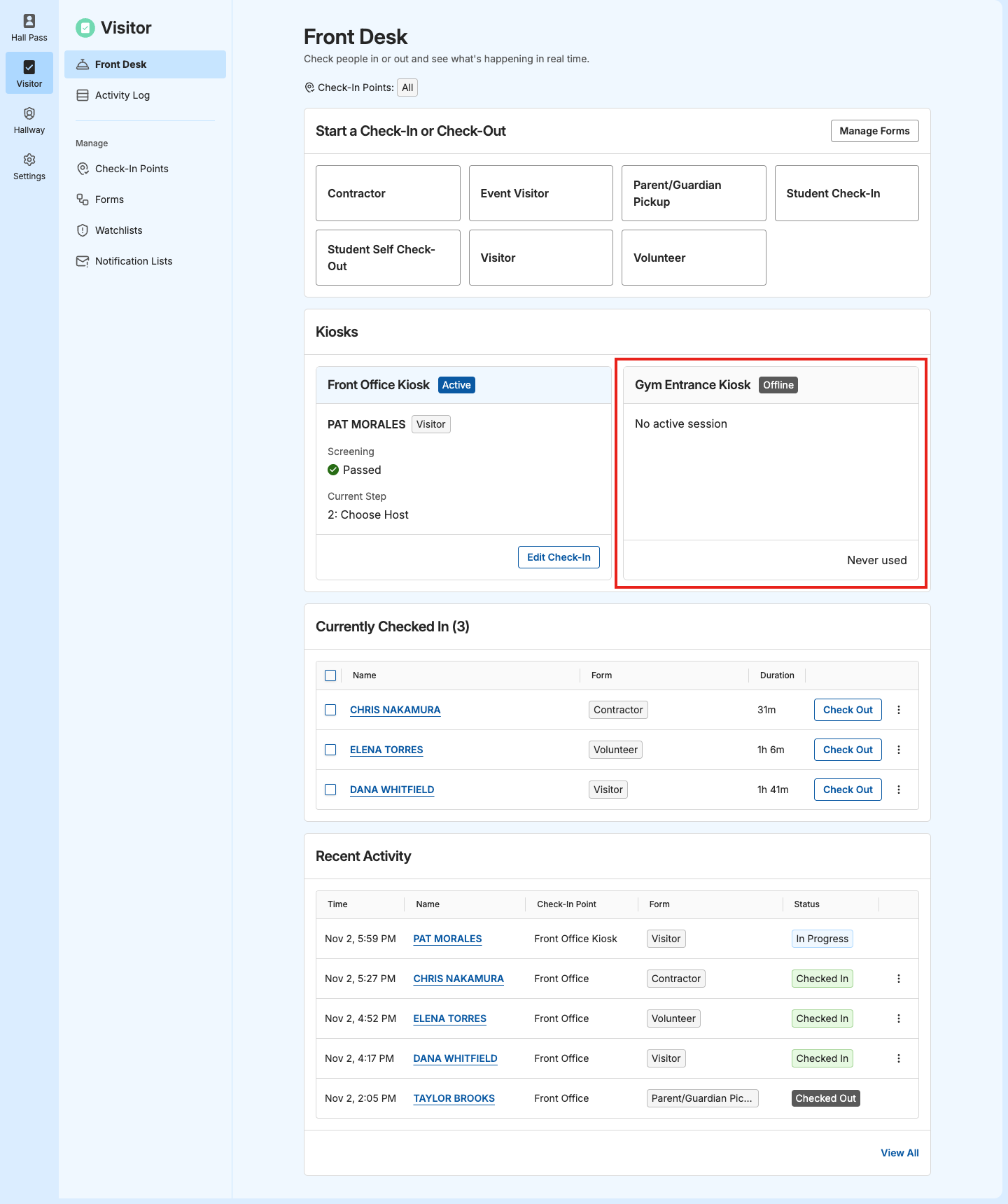
On the Front Desk, the kiosk’s card under Kiosks shows Offline. The kiosk may be off, asleep, signed out, or not connected to the internet.- Go to the kiosk and tap the screen. If it’s dark, press the power button.
- If the device is off or the battery is empty, plug it in and turn it on.
- Check what the kiosk shows:
- Its welcome screen: Restart it. See Restart the Kiosk.
- Kiosk Login: See Sign the Kiosk Back In.
- “Connection Lost”: See Reconnect After “Connection Lost”.
- “Error”: See Start Over After an Error.
- Verify the result: Within a minute, the kiosk’s card on the Front Desk shows Inactive, which means it’s online and ready, or Active if a check-in picked up where it left off.
Clear “This Kiosk Isn’t Ready”
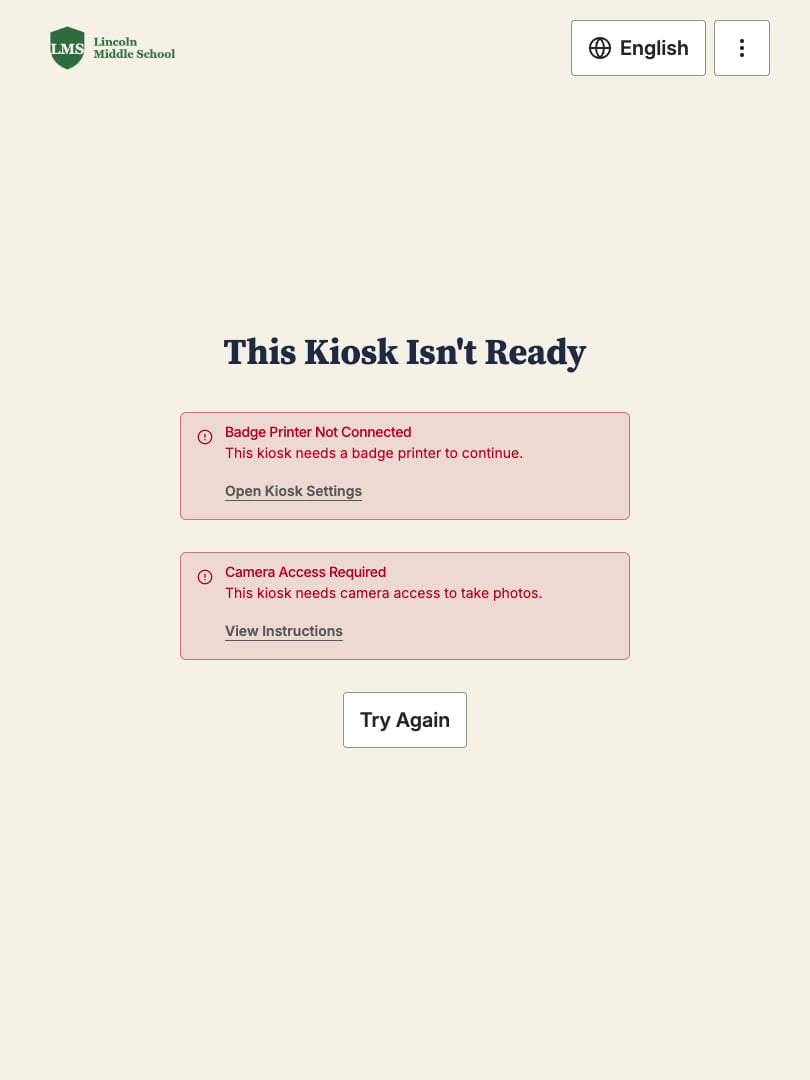
The kiosk shows This Kiosk Isn’t Ready with a card for each thing it’s missing. The kiosk can’t take check-ins until every card is cleared.
After you fix a card, tap Try Again. When every card is cleared, the kiosk shows “All Issues Resolved” and returns to its welcome screen after 5 seconds. Tap Go Home to return right away.
Sign the Kiosk Back In
The kiosk shows Kiosk Login instead of its welcome screen. A staff member signed it out, or its login changed. Signing in needs the kiosk’s username and password, which only a Site Admin can see. Ask a Site Admin to sign it in, or tell IT. See Sign In on the Kiosk Device.Reconnect After “Connection Lost”
The kiosk shows “Connection Lost” and “Check your internet connection. We’ll reconnect automatically when you’re back online.” This screen appears only on iPad and Windows kiosks.- Wait a moment. The kiosk keeps trying on its own.
- To try right away, tap Reconnect Now.
- Verify the result: The kiosk shows its welcome screen.
Start Over After an Error
The kiosk shows “Error” and “An unexpected error occurred while processing your request.” This often means the kiosk lost its connection partway through a check-in.- If the screen shows a Request ID, take a photo of the screen. IT needs the ID.
- Tap Start Over.
- Verify the result: The kiosk shows its welcome screen, or the step where a visitor or student left off.
Retry a Step That Won’t Save
When GoGuardian Visitor can’t save a step, the kiosk shows “Could not save your information. Please try again or ask a staff member for help.” Ask the visitor or student to tap the button again. If it keeps failing, check them in from the Front Desk and tell IT.Restart the Kiosk
If the kiosk freezes, stops responding to taps, or seems stuck in a way the fixes above don’t cover, restart it. The kiosk stays signed in, so you don’t need its username and password.- Close the kiosk’s browser tab or the GoGuardian Campus app, and open it again. If you can’t close it, turn the device off and on with its power button.
- Verify the result: The kiosk opens without asking you to sign in, and its card on the Front Desk shows Inactive, or Active if a check-in picked up where it left off.
Tell IT What’s Wrong
Call IT when a fix doesn’t work, the same problem comes back, or the fix needs access you don’t have. At a minimum, tell them which kiosk, what it shows, and what the Front Desk shows:- Which kiosk: The kiosk’s name, as shown on its Front Desk card, and its check-in point.
- What the kiosk shows: The exact message, such as This Kiosk Isn’t Ready with Camera Access Required, “Connection Lost,” or Kiosk Login. A photo of the screen helps.
- What the Front Desk shows: Offline, Inactive, or Active on the kiosk’s card.
- When it started: The time, and whether it has happened before.
- What you tried: Such as waking it, tapping Try Again, tapping Reconnect Now, or restarting it.
- The Request ID: If an error screen showed one.
Fix Kiosk Problems as IT
These fixes need access to the kiosk device, your device management tools, or the Site Admin role in Visitor. Start from what front office staff report:Find the Kiosk and Its Device
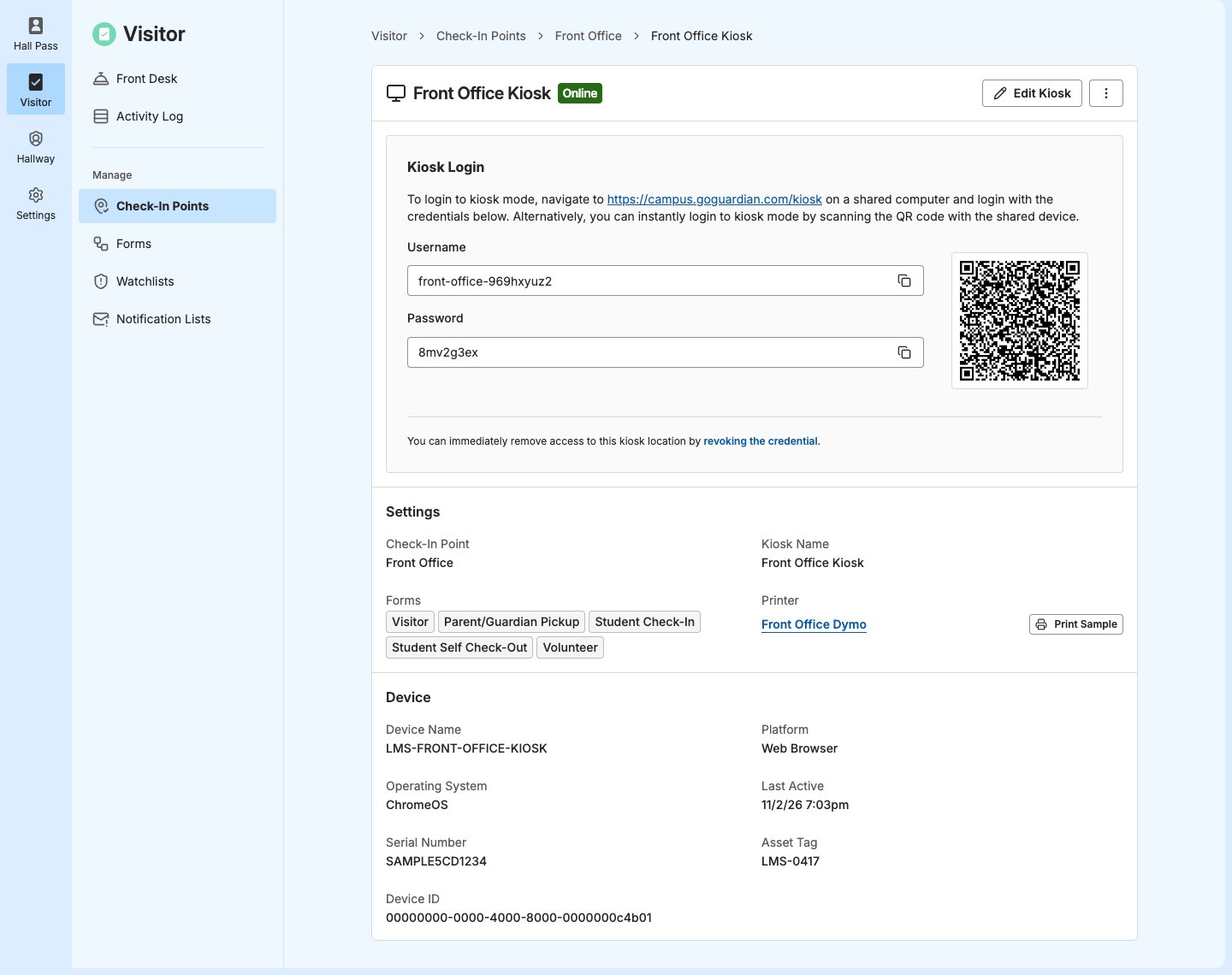
- In Visitor, go to Check-In Points, open the check-in point, and click the kiosk.
- Check the badge next to the kiosk’s name. Online means the kiosk is signed in and connected right now. Use this to confirm the kiosk’s connection.
- Under Device, use the Device Name, Serial Number, Asset Tag, or IP and MAC addresses to find the device in your device management tools. The kiosk shows only the details its device reports.
Bring an Offline Kiosk Back Online
A kiosk is Online while it’s signed in and holding a real-time connection to GoGuardian Visitor. It shows Offline shortly after that connection drops. Check these in order:- Sign-in. Open the kiosk’s page in Visitor to see why a device shows Kiosk Login:
- The kiosk isn’t listed at the check-in point: It was archived. Create a new kiosk for the device.
- The kiosk’s page shows Create Kiosk Login: A Site Admin revoked its login. Create a new one and sign in again. If you deploy the login as a Windows policy, deploy the new username and password. See Revoke a Kiosk Login.
- The kiosk’s page shows Online with a different Device Name: The kiosk was signed in on another device with Replace Kiosk. A kiosk runs on 1 device at a time, so create a kiosk for each device.
- Otherwise: A staff member signed it out. Sign in again. See Sign In on the Kiosk Device.
- Power and sleep. If the kiosk keeps going to sleep, check the keep-awake settings for its platform: Kiosk power settings in the Google Admin console, Auto-Lock in Single App Mode on iPad, or the power settings on Windows. See Set Up the Kiosk Device.
- Kiosk lock. Make sure the device is locked to the kiosk, so visitors and students can’t leave it. A closed browser tab or app shows Offline.
- Network. Make sure the kiosk’s network allows
https://*.goguardian.comandwss://ws-goguardian.pusher.comon port 443. Without the second, the kiosk can load but never shows Online. See Allow Network Traffic. - Verify the result: The kiosk’s page shows Online, and its Front Desk card shows Inactive.
Clear “This Kiosk Isn’t Ready” for Good
The kiosk checks its camera and network permissions each time its welcome screen loads, and checks for a printer on its welcome screen. Badge Printer Not Connected: The kiosk needs a printer when at least 1 of its forms has a Print Badge step with Staff Print Only off. Do one of these:- Assign a printer on the kiosk: tap Open Kiosk Settings on the card, or tap More (⋮) and then Edit Kiosk Settings. Select your name in Your User, enter your PIN, select the printer under Printer Settings, and tap Save Changes. See Add a Printer to a Kiosk.
- If badges should print at the front desk instead, turn on Staff Print Only in each form’s Print Badge step. See Let Staff Decide When Badges Print.
- iPad: In Settings, find Campus and turn on Camera. When you set up each iPad, allow the camera when the GoGuardian Campus app asks.
- Chromebook: A Chromebook kiosk set up in the Google Admin console gets camera access automatically, with no prompt, for the kiosk app’s own URL. If the card appears, check that the Chromebook has a working camera and that the kiosk app’s URL is
https://campus.goguardian.com/kiosk. See Set Up a Chromebook Kiosk. - Web browser: Click the lock icon in the address bar, find Camera, and select Allow.
- Windows: The GoGuardian Campus app doesn’t ask for camera access, so this card doesn’t appear. If ID scans or photos don’t work, check that the computer has a working camera.
Fix Connection Problems
“Connection Lost”: The GoGuardian Campus app on iPad and Windows shows this when it can’t load the kiosk. It retries on its own, waiting a little longer after each try, up to every 2 minutes.- Check that the device is on a network that reaches the internet.
- Confirm that the network allows the traffic in Allow Network Traffic.
- Tap Reconnect Now on the kiosk.
- Verify the result: The kiosk shows its welcome screen, and the kiosk’s page shows Online.
Contact GoGuardian Support
If the kiosk still doesn’t work, contact GoGuardian Support. Include:- The site, check-in point, and kiosk name
- The Platform and Operating System from the kiosk’s page
- The exact message the kiosk shows, and a photo of the screen
- The Request ID, if an error screen showed one
- When the problem started and what you’ve tried