

Understand What Smart Reports Can Answer
Smart Reports answer questions about your site’s check-ins and check-outs, such as how many check-ins each form had, the busiest times at each check-in point, check-ins with screening alerts, and badge printing. If your site has GoGuardian Hall Pass, reports can also cover hall passes created at check-in. A report can include charts when they make a trend or comparison easier to read. Visitor names and ID details aren’t shared with the AI agents that write reports. Because the agents don’t see names, a report can’t answer a question about a visitor by name, such as “When did Jordan Lee last visit?” To find a visitor’s past check-ins, search for them in the Activity Log instead. Reports link to the check-ins, visitors, students, and staff they mention. Those links show names only to staff who can open them in Visitor. A report can only use check-ins from your site’s data retention period. If a question asks about an earlier period, the report says the data has been removed. See Change the Data Retention Period.Create Smart Report
- In the Visitor sidebar, select Smart Reports under Insights.
- Click Create Smart Report.
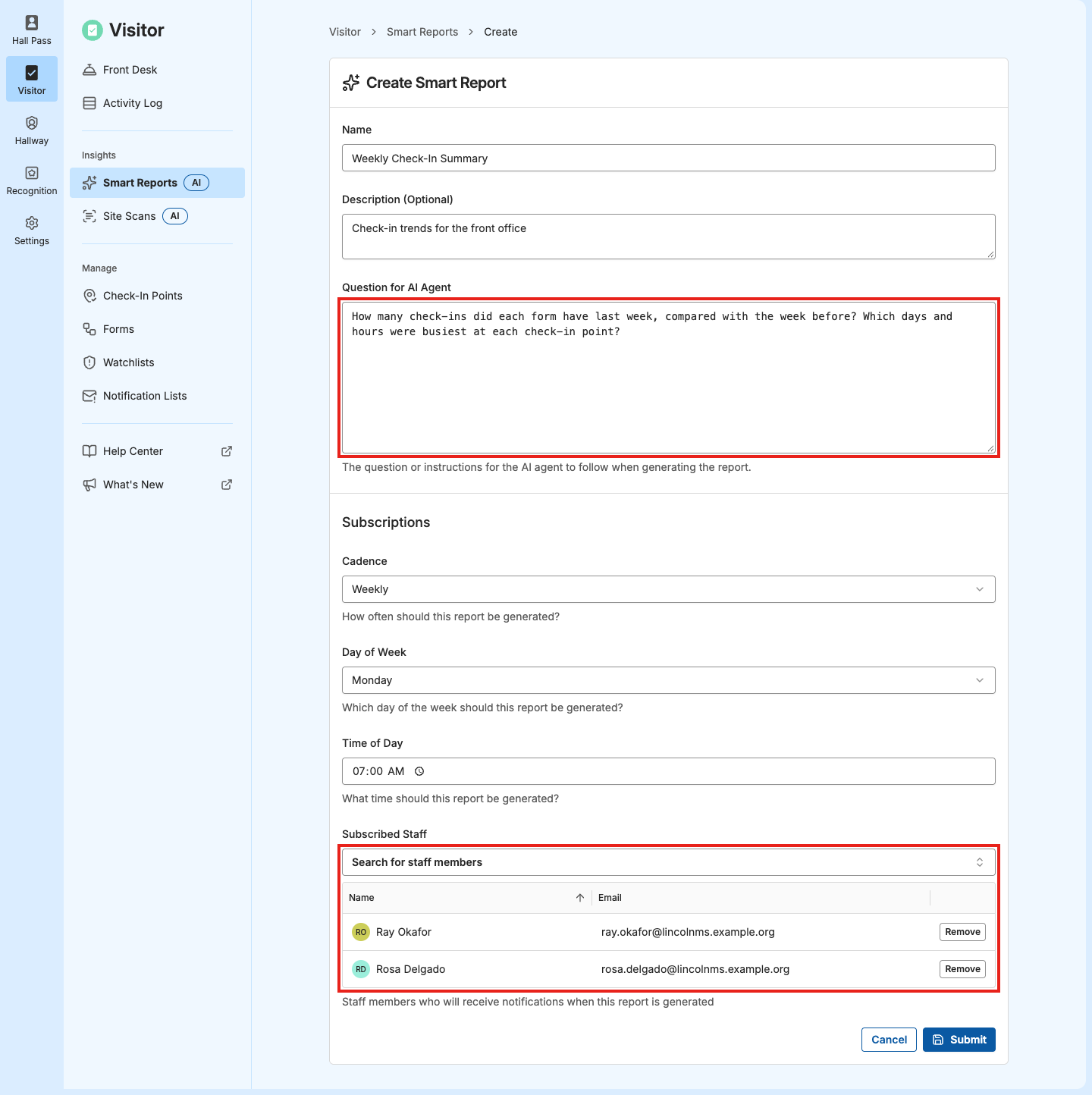
- Enter a Name and, optionally, a Description.
- Enter your question in Question for AI Agent. Include a time window, such as “last week.” Without one, the report covers the last 7 days. For tips, see Write Effective Questions.
- Select a Cadence: Daily (M-F) runs every weekday, and Weekly runs once a week.
- If you chose Weekly, select a Day of Week.
- Enter a Time of Day. Reports run in your site’s time zone.
- Under Subscribed Staff, search for and add each staff member who should get the report.
- Click Submit.
- Verify the result: The report’s page opens on Settings, with its schedule, Next Run time, and subscribed staff. The first report runs at the Next Run time.
Read Smart Reports
Each time a Smart Report runs, subscribed staff get a notification in GoGuardian. They also get an email, a push notification, or both, depending on their Smart Reports settings under Notification preferences. See Turn Notifications On or Off. Open the notification to see the report. Site Admins can also open past reports: open Smart Reports, select the report, select Past Reports, and click a date. Each report shows when it was created and when it runs next, and you can click Print to print it or save it as a PDF. AI can make mistakes, so check the details in the Activity Log before acting on a report.Manage Smart Reports
Open Smart Reports and select a report to see its Settings and Past Reports. From there you can:- Edit Report: change the name, description, question, schedule, or subscribed staff. Changes apply from the next run.
- Copy: start a new report with the same settings. Select it from More actions.
- Delete: stop the report and remove it and its past reports from Smart Reports. Deleting can’t be undone, so to change what a report covers or who gets it, edit the report instead. Select Delete from More actions, then click Delete to confirm.
Write Effective Questions
Focused questions give more useful reports.- Ask about 1 decision you need to make. Create separate reports for separate goals.
- Include a time window, such as “last week” or “the past 30 days,” so each run covers the same span.
- Name forms and check-in points exactly as they appear in Visitor.
- Ask for a comparison when you want a trend, such as “compared with the week before.”
- Read the first report and refine the question if the answer isn’t what you need.
- “How many check-ins did each form have last week, compared with the week before?”
- “What were the busiest hours at each check-in point over the past 30 days?”
- “How many check-ins had screening alerts last month, by check-in point?”
- “Which badge printers had failed print jobs last week?”