

Customize District Page
This ensures a more district-specific sign-in and sign-up. Make sure students and teachers sign up through this page, which also ensures they create their account in the correct school district.- Click Manage District.
- Click Profile.
- Find your district’s sign-in page under District URL.
- Share this URL with your teachers and students instead of the general Pear Assessment sign-up page.
Finalize District Policies
Decide how student and teacher accounts are created. You can define policies to restrict access to certain groups of users.- Click Manage District in the left navigation.
- Click the Settings tab.
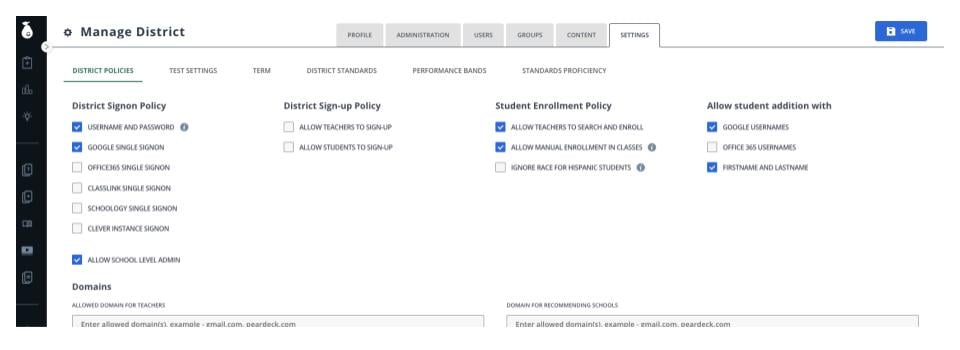
- On the District Policies tab, update your policies:
- District Signon Policy: choose which sign-on methods to allow (Username and Password, Google Single Signon, Office 365 Single Signon, ClassLink Single Signon, Schoology Single Signon, or Clever Instance Signon).
- District Sign-up Policy: choose whether teachers and students can sign up on their own.
- Student Enrollment Policy: choose whether teachers can search and enroll existing students, manually enroll students in classes, or both.
- Allow Student Addition With: choose which usernames (Google, Office 365, or first and last name) teachers can use to add students.
- Domains: enter the allowed email domain for teachers and the domain used to recommend schools.
- Click Save.
Add Schools
Most schools are already present. Verify the schools in your district are added and are correct. If not, you can add, remove, or edit the schools. See Manage Schools as Administrator for the full workflow.Resources
Manage Schools as Administrator
Add, edit, deactivate, and approve schools in your district.
Understand Rostering Options
Compare every way to roster classes once district access is configured.
Create Staff Accounts
Invite teachers and create admin accounts after district access is set.