Enabling screenshot access is required to fully use GoGuardian Teacher and the GoGuardian Admin Theft Recovery feature. For GoGuardian Teacher, it lets teachers view student screens during class sessions. For Theft Recovery, it lets the app capture screenshots of lost or stolen devices.

Enable Screenshots

  1. Sign in to admin.google.com with a Google Workspace administrator account.
  2. Select DevicesChromeSettings.
  3. Select the organizational unit or units to enable screenshots for.
  4. In User & browser settings, set Screenshot to Allow users to take screenshots and video recordings.
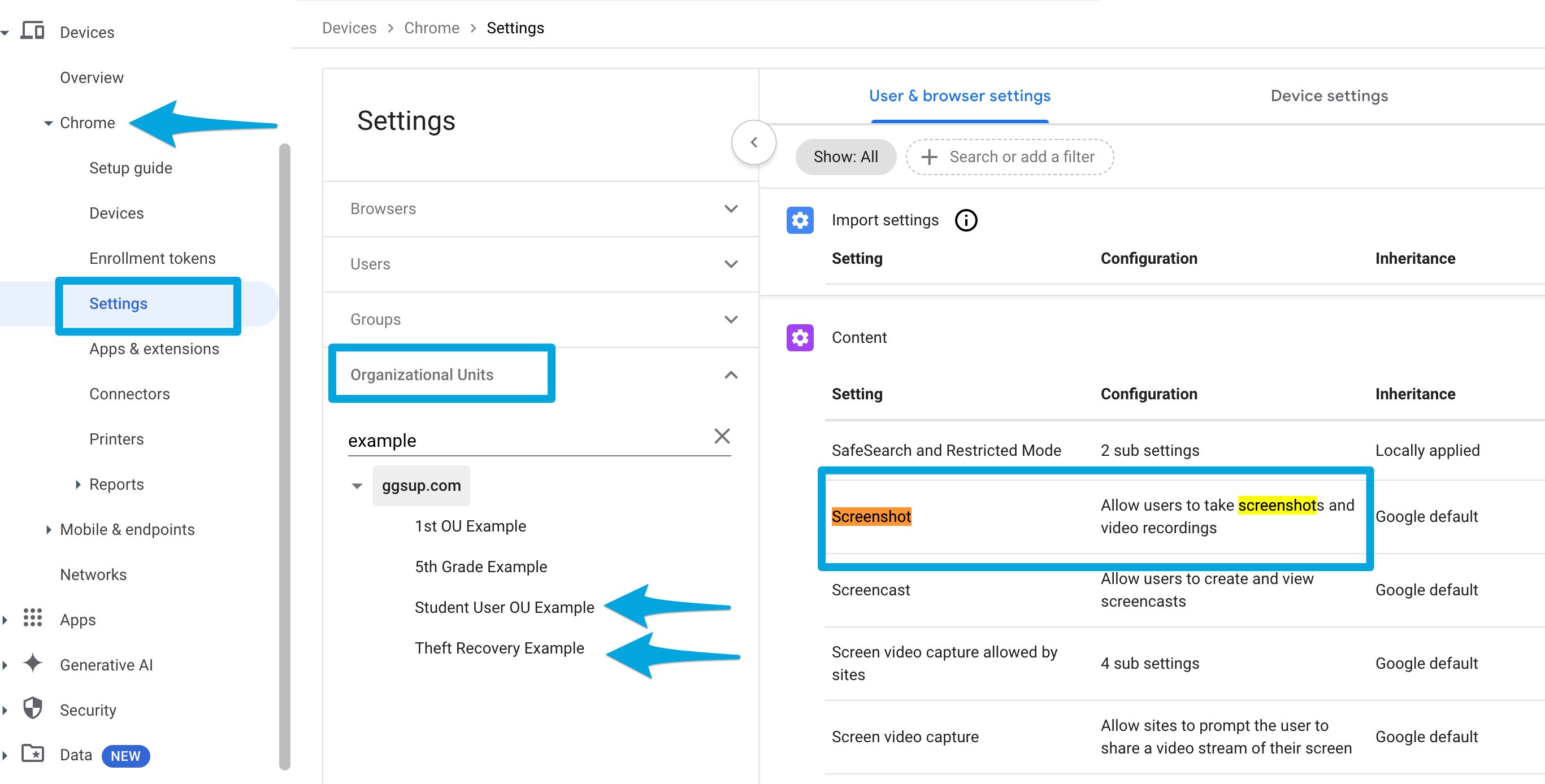
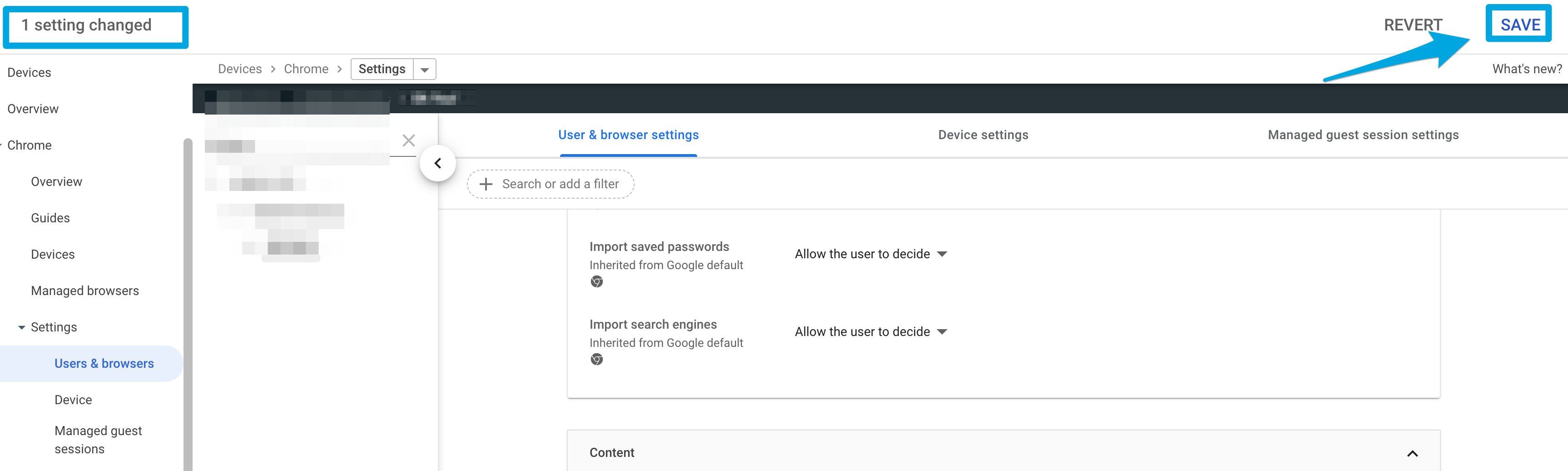
In User & browser settings, set Screenshot to Allow users to take screenshots and video recordings. 5. Click Save. For GoGuardian’s full recommended Google Admin Console configuration, see Install GoGuardian Extensions and Configure Google Admin Console. The 'Save' button in Google Admin Console after making changes
Last modified on July 14, 2026