Update Google Chrome to the latest version on your devices before enabling Manifest V2 support.
Enable Manifest V2 in Google Admin Console
- Sign in to admin.google.com with a Google administrator account.
- Click Devices > Chrome > Settings.
- Under User & Browser Settings, go to Apps and Extensions.
- From the Organizational Units page, select all OUs that have the GoGuardian Extensions deployed.
- Click Manifest V2 extension availability.
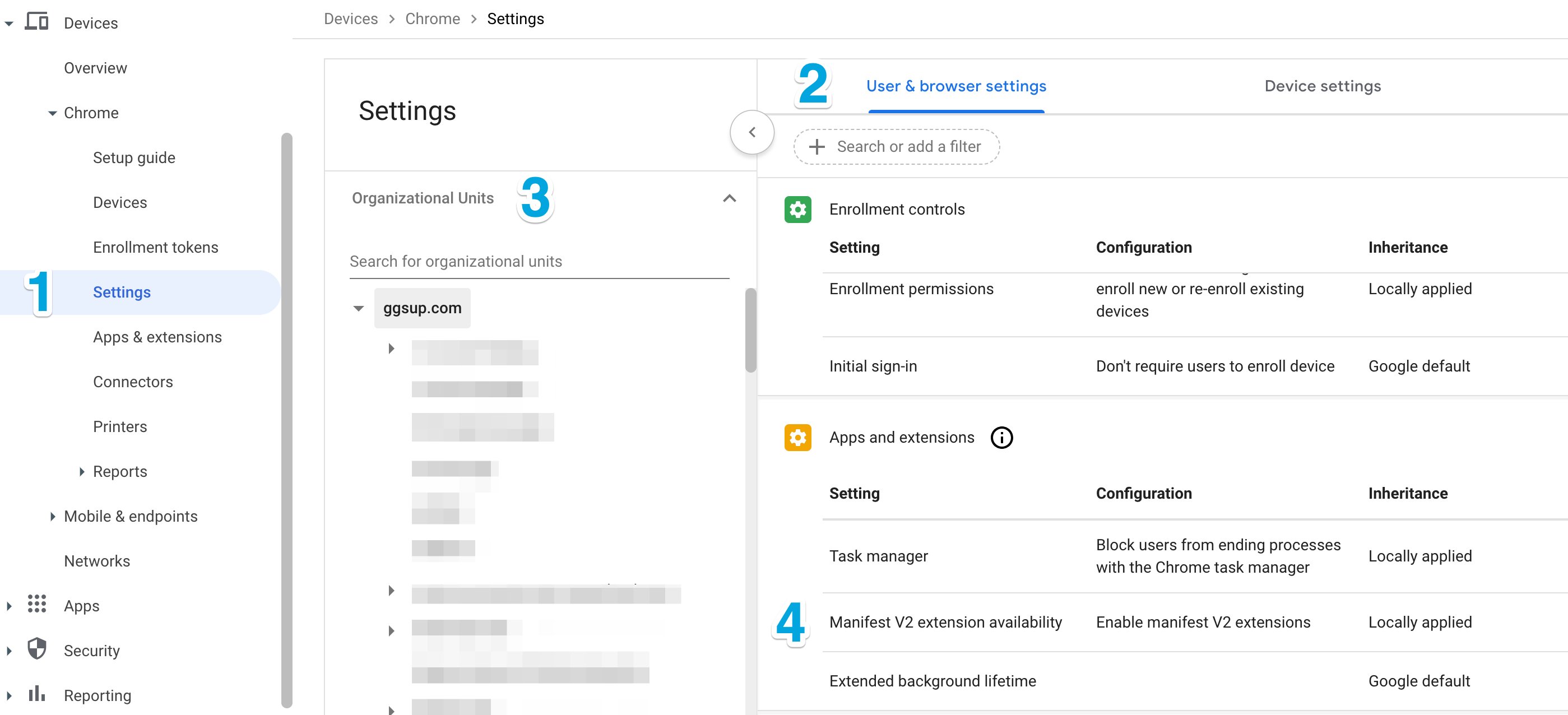
- Under Configuration, change Default Browser Behavior to Enable manifest V2 extensions.
- Click Save.
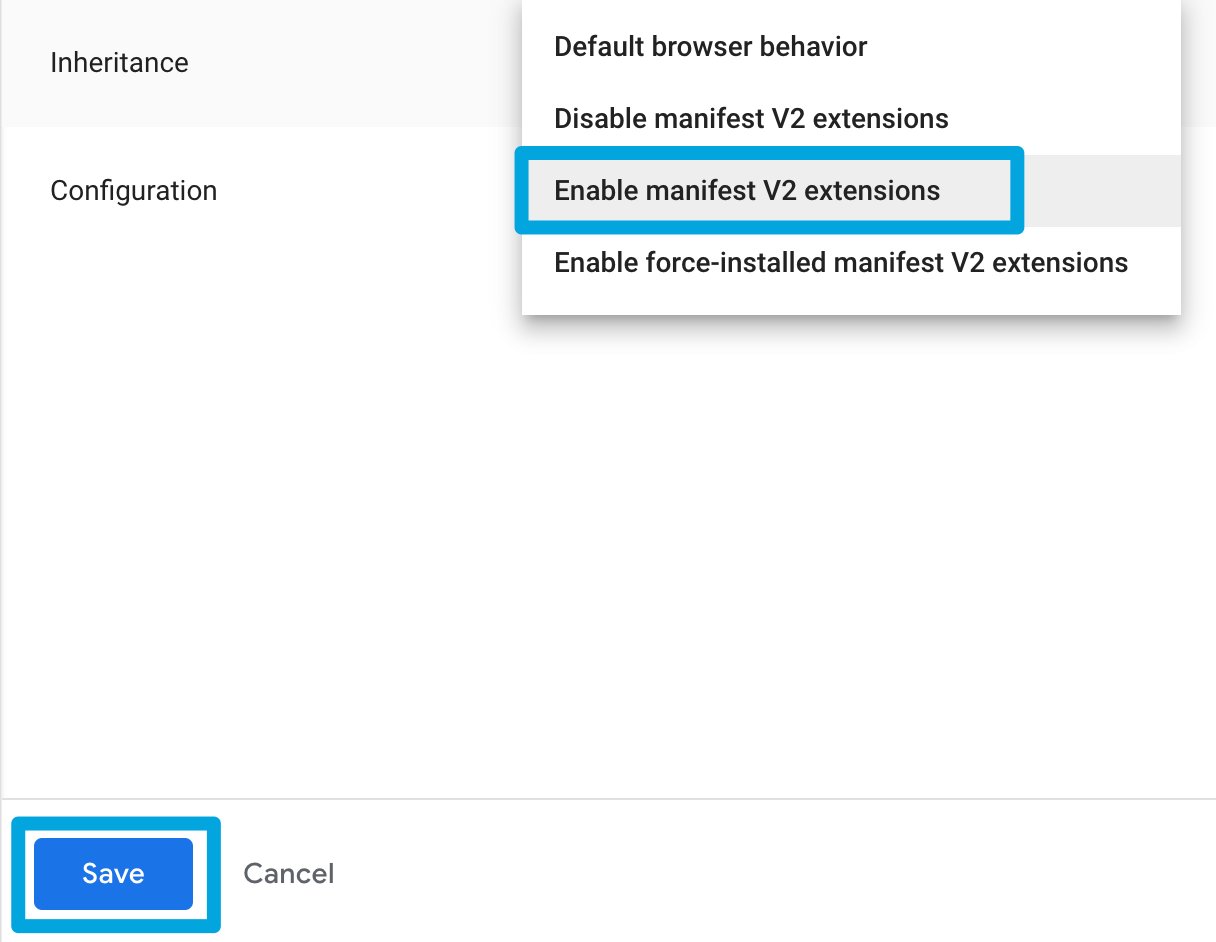
Repeat these steps for all OUs that have the GoGuardian Extensions deployed. Sub-OUs may inherit this setting from parent OUs, so verify and reapply to individual OUs as needed.
Enable Manifest V2 in Active Directory
Download and Install Chrome Policy Templates (Google Chrome)
Skip this section if Chrome policy templates have already been updated.- Open Server Manager and click Tools > Group Policy Management.
- Expand Forest > Domains > your domain > Group Policy Objects.
- Right-click your GPO and click Edit.
- Expand User Configuration > Policies > Administrative Templates > Google in Group Policy Management Editor.
- Confirm two Google Chrome folders were created: Google Chrome and Google Chrome — Default Settings (users can override). If neither appears, follow the steps below.
- Click Start > Run, enter
C:\Windows\SYSVOL\domain\Policies, and click OK. - Confirm the PolicyDefinitions folder exists. If it does not, create it.
- Download the Chrome policy templates.
- Move all
.admxfiles to PolicyDefinitions. - Move all
.admlfiles toPolicyDefinitions\en-US. - Right-click the GPO and click Refresh in Group Policy Management.
Enable Manifest V2 (Google Chrome)
- Open Server Manager and click Tools > Group Policy Management.
- Expand Forest > Domains > your domain > Group Policy Objects.
- Right-click the GPO that deploys GoGuardian extensions and click Edit.
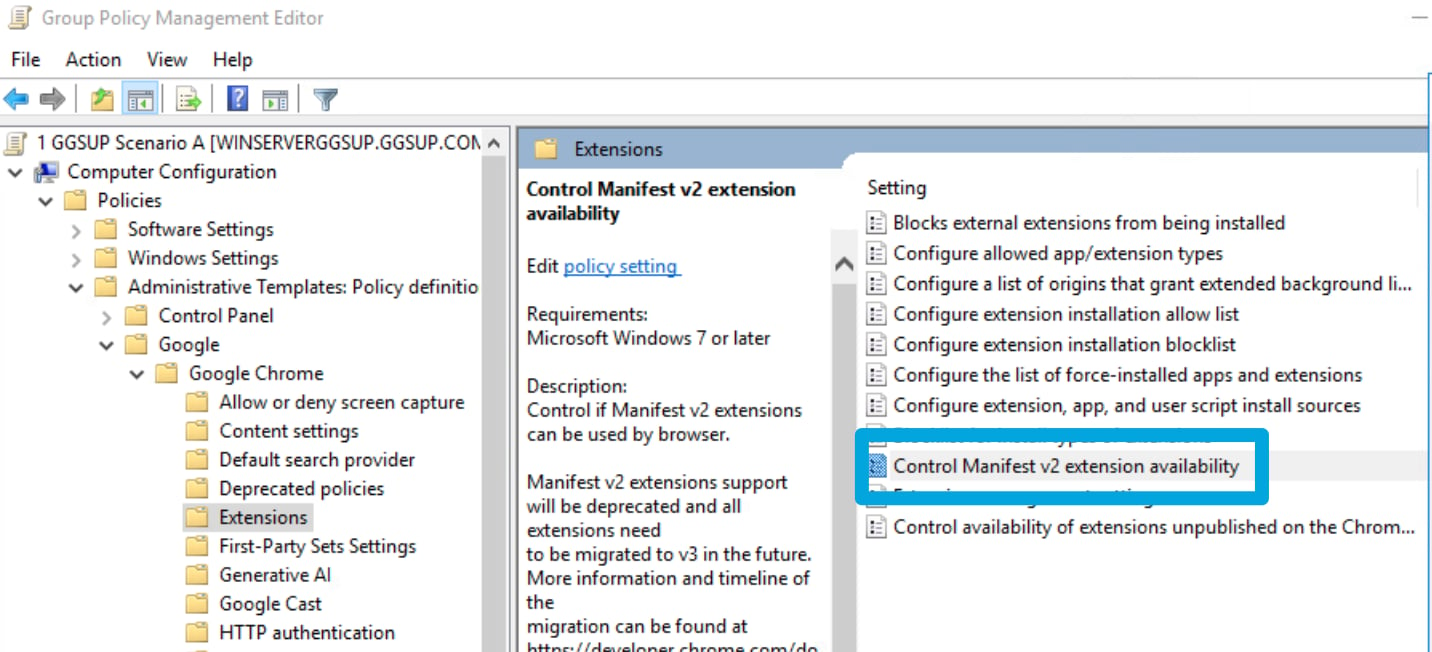
- Expand Computer Configuration > Policies > Administrative Templates > Google > Google Chrome > Extensions.
- Double-click Control Manifest V2 Extension Availability and select Enabled.
- Under Options, select Manifest V2 is enabled and click OK.
Download Edge Policy Files (Microsoft Edge)
Skip this section if Edge policy templates have already been updated.- Open Server Manager and click Tools > Group Policy Management.
- Right-click your GPO and click Edit.
- Expand User Configuration > Policies > Administrative Templates.
- Confirm three Microsoft Edge folders exist. If they do not, download the Edge policy files and follow the same process described above for Chrome.
Enable Manifest V2 (Microsoft Edge)
- Right-click the GPO that deploys GoGuardian extensions and click Edit.
- Expand Computer Configuration > Policies > Administrative Templates > Microsoft Edge > Extensions.
- Double-click Control Manifest V2 Extension Availability and select Enabled.
- Under Options, select Manifest V2 is enabled and click OK.

Enable Manifest V2 in Microsoft Intune
Enable Manifest V2 (Microsoft Edge)
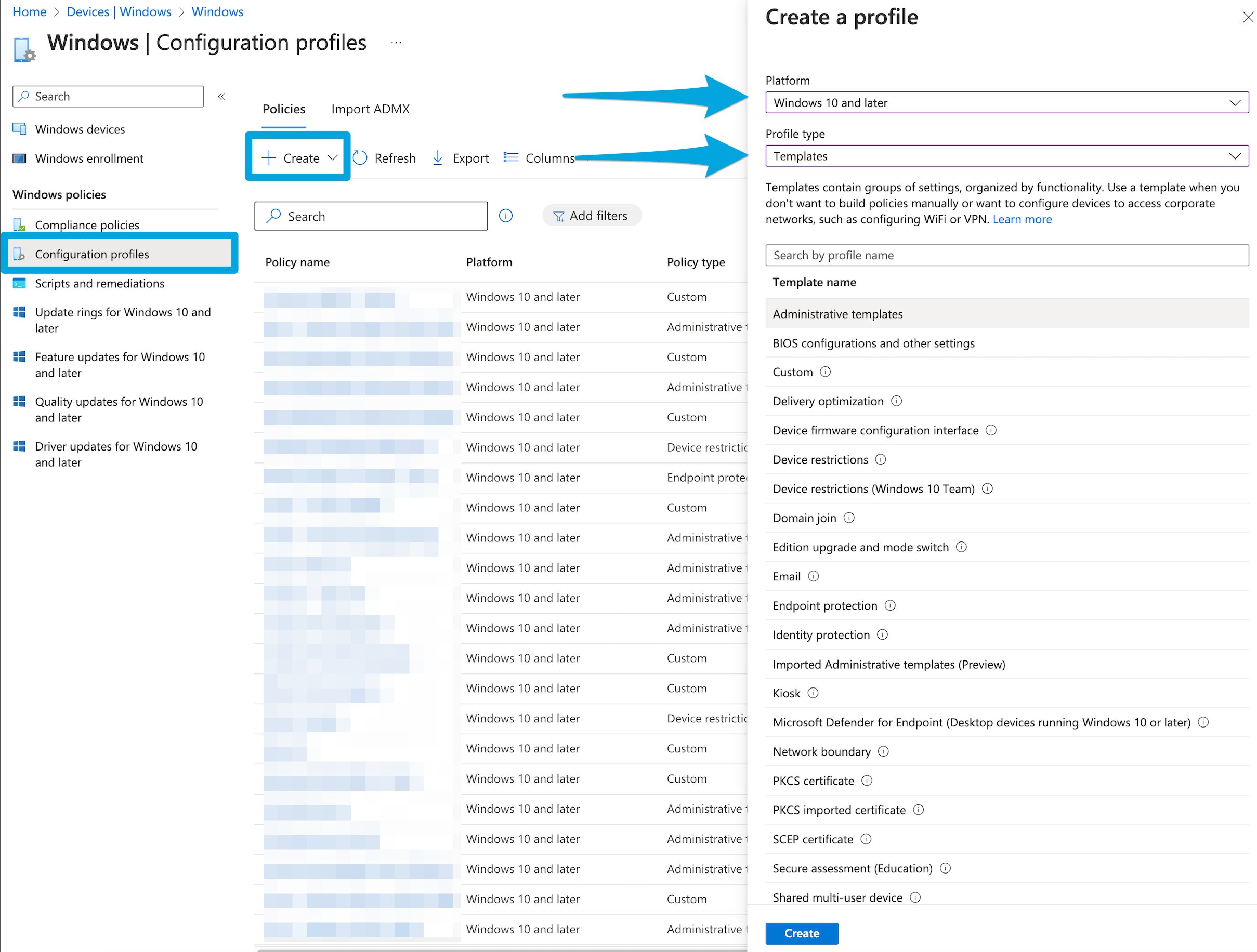
- In Intune, click Devices > Configuration Profiles.
- Click Create > New Policy.
- For Platform, select Windows 10 or later.
- For Profile type, select Templates > Administrative Templates and click Create.
- Enter a profile name (for example,
Edge Manifest V2) and click Next. - Select Computer Configuration or User Configuration based on how GoGuardian Extensions are installed.
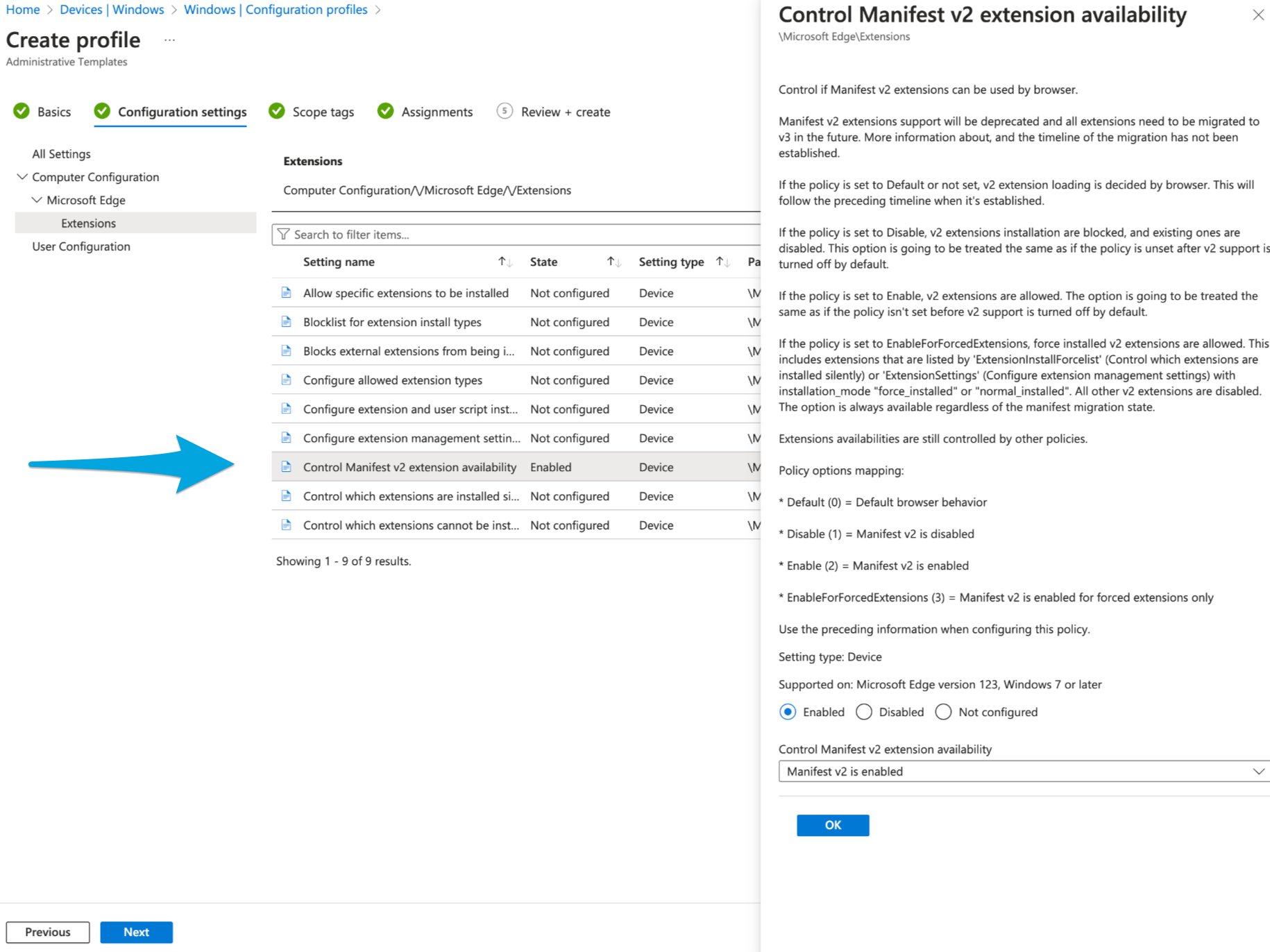
- Click Microsoft Edge > Extensions.
- Select Control Manifest V2 extension availability, click Enable, select Manifest v2 is enabled, and click OK.
- Click Next through to Assignments, select the appropriate groups, and click Create.
Enable Manifest V2 (Google Chrome)
First, add the Google ADMX templates:- In Intune, click Devices > Configuration Profiles.
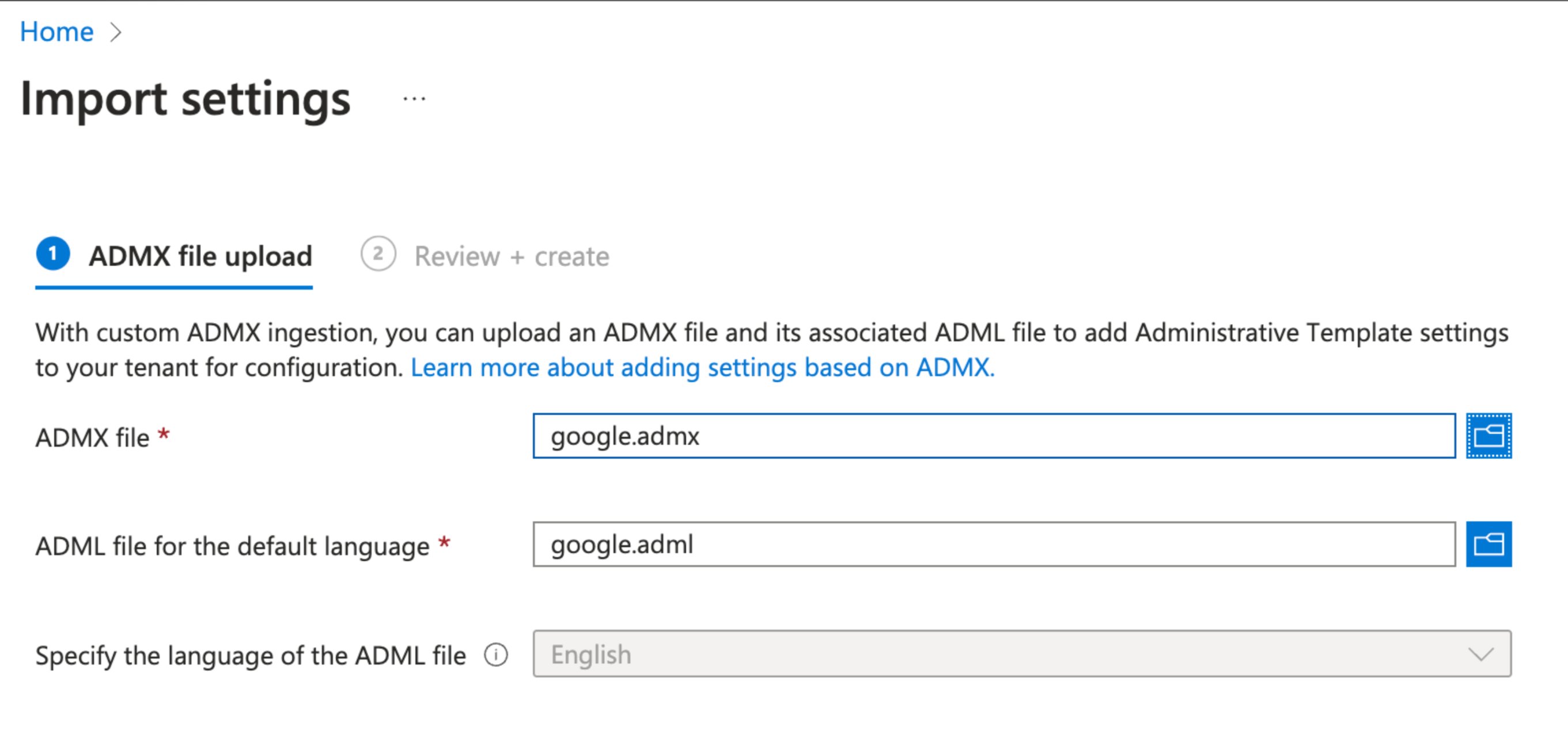
- Click Import ADMX > Import.
- Upload
google.admxfromGoogleChromeEnterpriseBundle64 > Configuration > admx. - Upload
google.admlfromGoogleChromeEnterpriseBundle64 > Configuration > admx > en-US. - Click Next and then Create.
- Repeat to import
chrome.admxandchrome.adml.
- Click Devices > Configuration Profiles > Create > New Policy.
- Select Platform Windows 10 or later and Profile type Templates > Imported Administrative templates (Preview).
- Enter a profile name (for example,
Chrome Manifest V2) and click Next. - Select Computer Configuration or User Configuration based on how extensions are installed.
- Click Google > Google Chrome > Extensions.
- Select Control Manifest V2 extension availability, click Enable, select Manifest v2 is enabled, and click OK.
- Click Next through to Assignments, select groups, and click Create.