

- District Admin
- Teacher
- Student
- A department lead or instructional coach who holds both a Teacher and an Admin role
- A District Admin who needs to create a class from the Teacher view
- A facilitator previewing how Pear Assessment works from a student perspective
Before You Start
The secondary account must already exist in Pear Assessment before you can add it. District Admins create admin and teacher accounts. See Create Administrator Accounts or Manage User Accounts for instructions.Add an Account
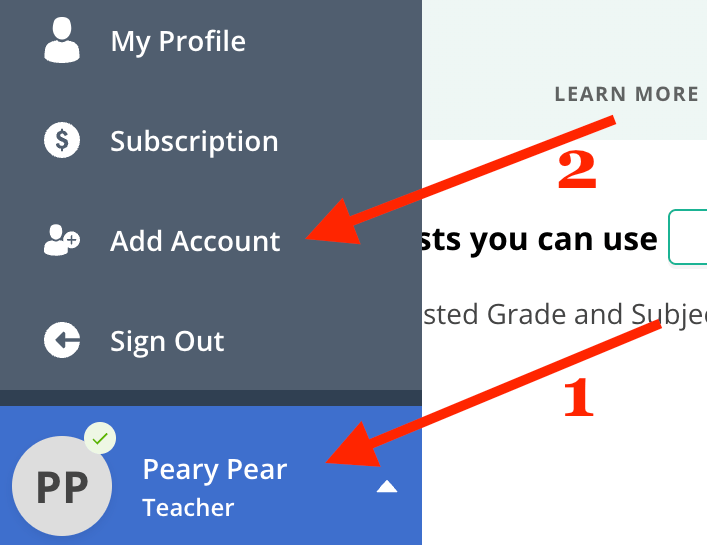
- Click your avatar in the lower-left corner to open the menu.
- Click Add Account.
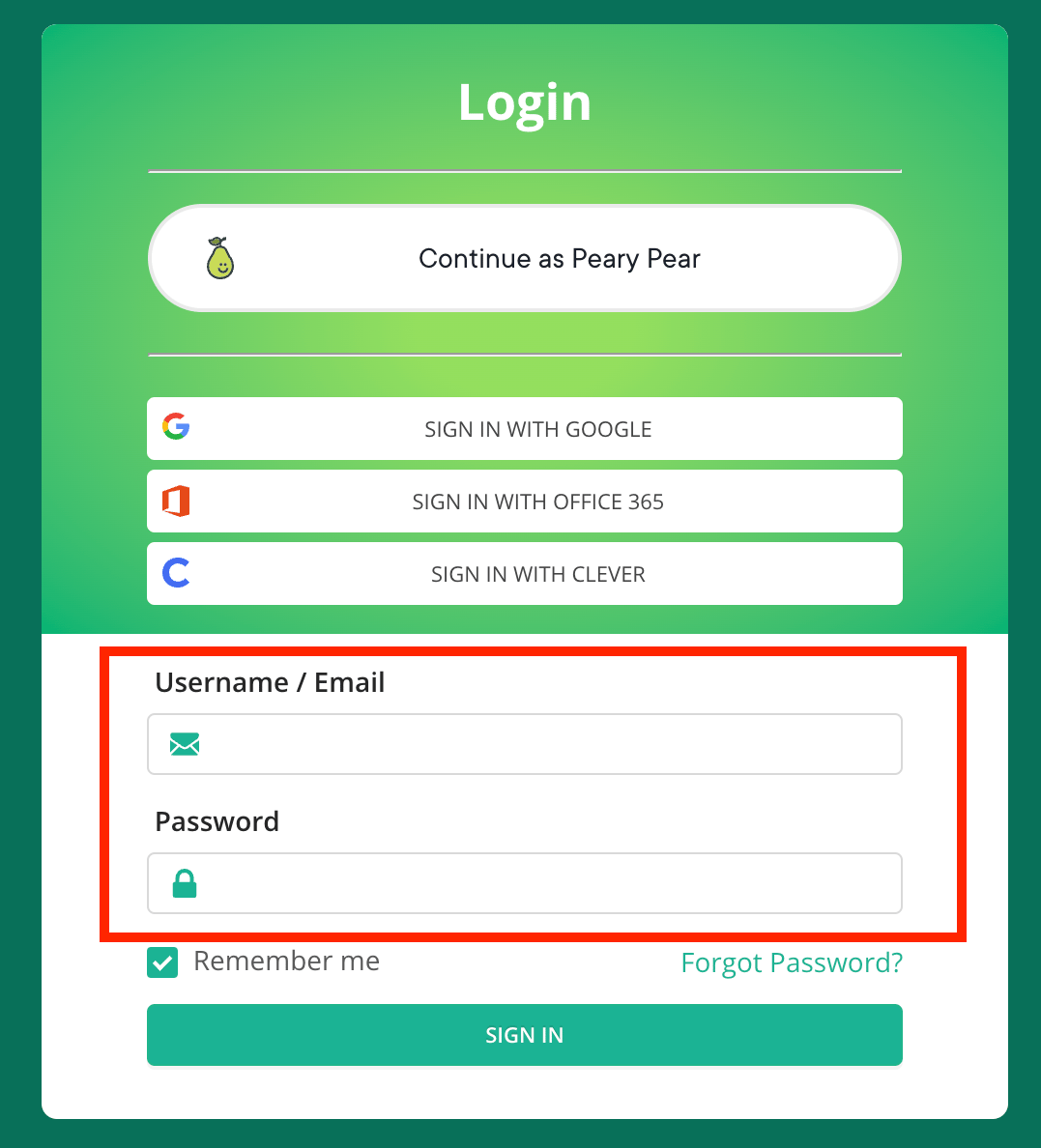
- Enter the secondary account’s username or email address in the Username / Email field.
- Enter the account password in the Password field.
- Click Sign In.
After you add your first secondary account, the menu option changes from Add Account to Add Another Account. Use Add Another Account to link additional roles.
Switch Between Accounts
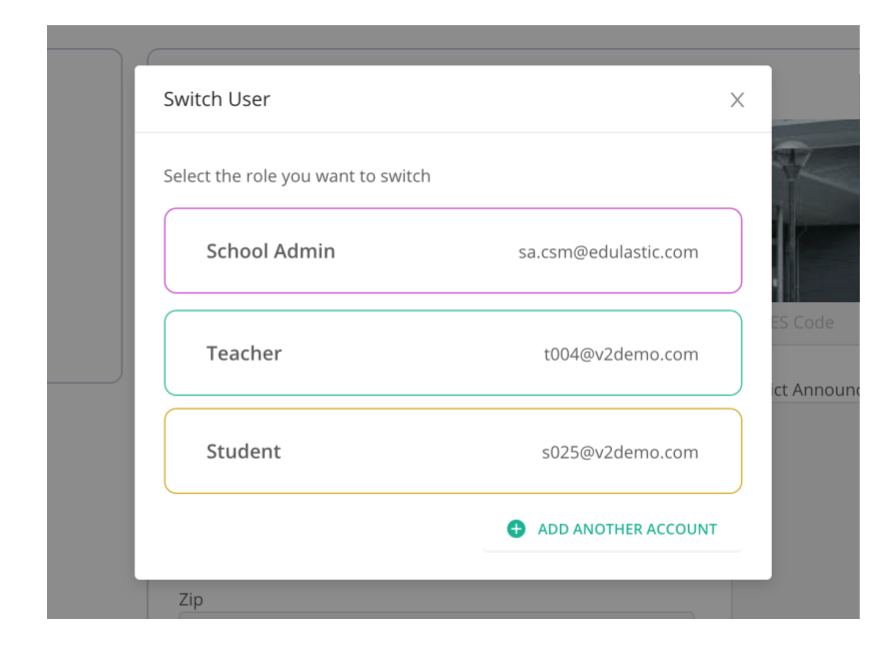
Once you have added a secondary account, you can switch between roles at any time.- Click your avatar in the lower-left corner to open the menu.
- Click Switch Account.
- Select the account name to open it.
The account you switch to opens immediately. To return, repeat these steps and select your original account.
Add a Test Student Account
To preview the student experience, create a test student account from the Pear Assessment Get Started page. This account is separate from any real student classroom accounts in your district.- Open assessment.peardeck.com/getStarted in your browser.
- Follow the prompts to create a test student account.
- Return to your teacher or admin account, click your avatar, and select Add Account.
- Sign in with the test student account credentials.
A test student account created from the Get Started page does not give access to real student classroom accounts. It is for previewing the student experience only.