

Administrator Account Types
The accounts you can create depend on your own role. A District Admin can create the following accounts:- Other district admins
- School admins
- Teachers
- Students
- Other school admins
- Teachers
- Students
Create a School Administrator Account
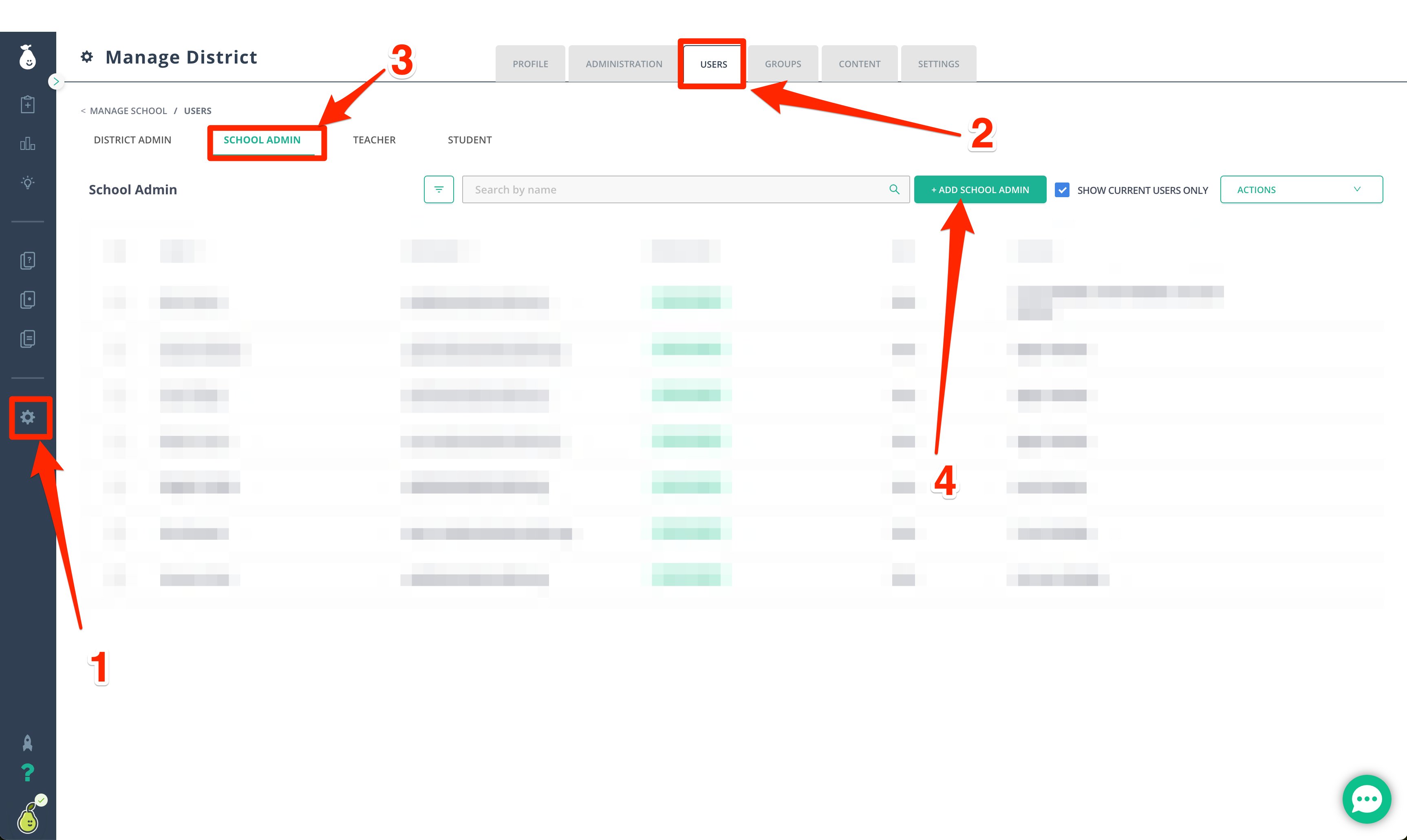
- In the navigation menu, go to Manage District or Manage School.
- Click Users.
- Click the District Admin, School Admin, Teachers, or Students sub-tab.
- Click Add School Admin.
- Fill out the required information.

Create a District Administrator Account
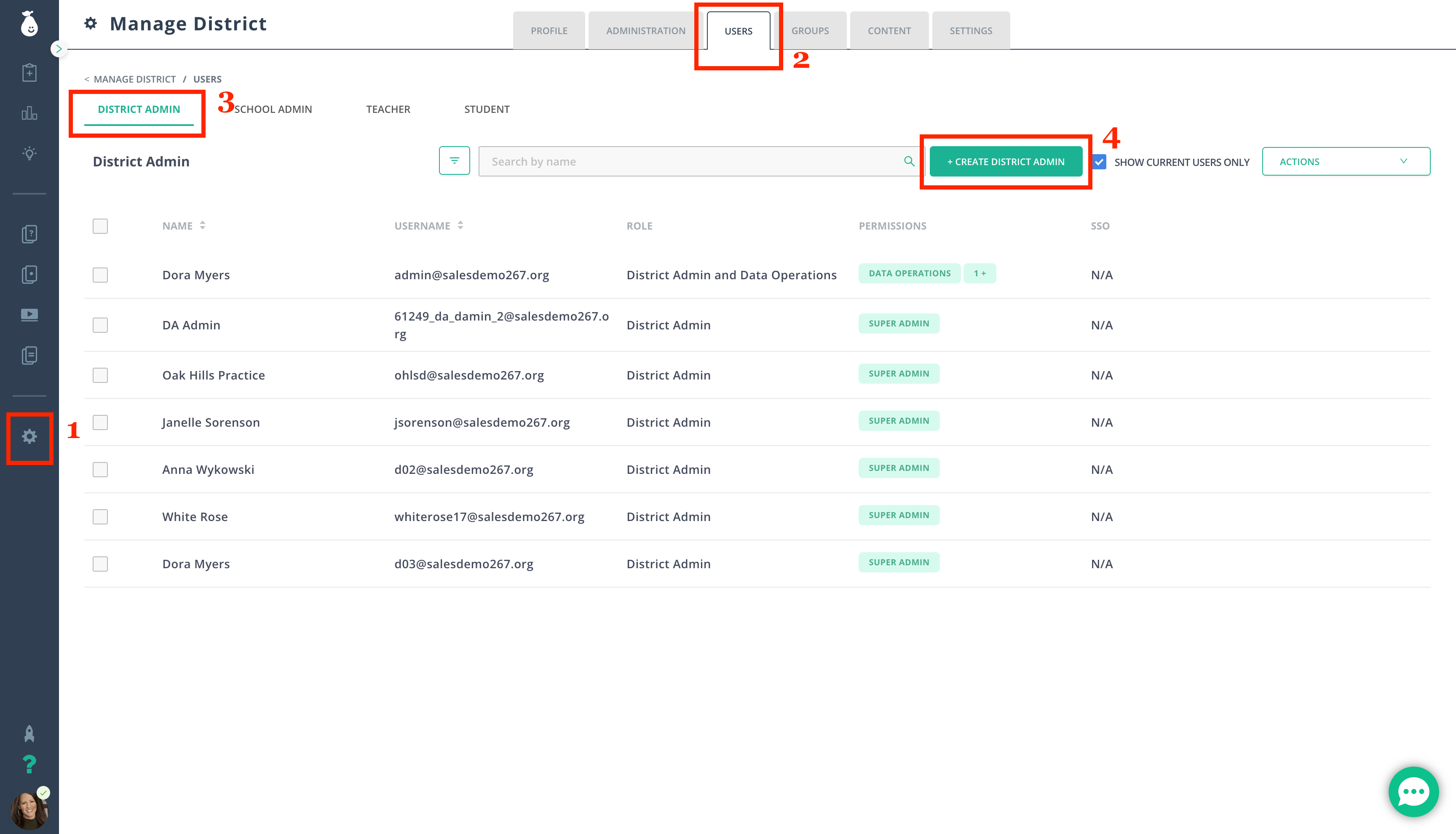
- Click Manage District.
- Click Users.
- Click the District Admin sub-tab.
- Click Add District Admin.
- Fill out the required information.
-
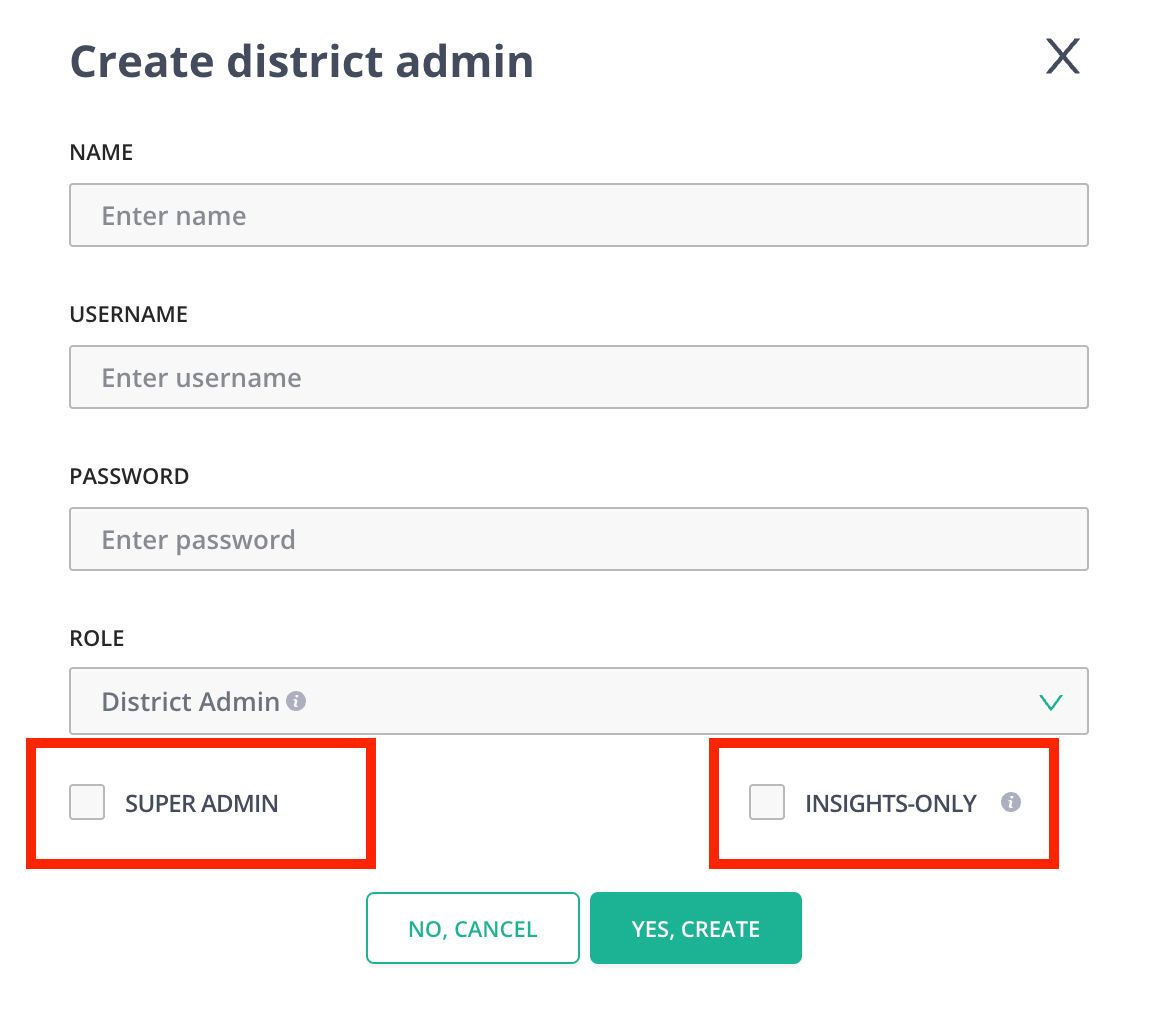
Select the role type:
- Super Admin: Grants access to district or school settings.
- Insights-Only Role: Grants access to insights and assessment data for the district only. These users cannot access user information, assignments, or district settings.
-
Dual Role Admin and Teacher Account: Use the Add/Switch Account feature when a teacher also serves as an admin, such as a team lead or instructional coach.
Use a different email address or username for the admin account to avoid duplicate account conflicts. The email address used in Pear Assessment does not need to be an active email. For example, use
jsmith@district.k12.usfor the teacher account andadminjsmith@district.k12.usfor the admin account.
Change a Teacher Account to an Admin Account
If a user already has a teacher account and needs to be added as an admin, deactivate the existing account before creating the new admin account.- On the Users tab, select the teacher account by placing a checkmark next to the name.
- In the drop-down menu on the right, select Deactivate.
- Follow the steps in Create a District Administrator Account to add the user in their new role.
Resources
Add/Switch Account
Switch between admin and teacher accounts using the Add/Switch Account feature.
Add/Deactivate Users
Add, modify, or deactivate user accounts in Pear Assessment.