

GoGuardian DNS and AdDeflect access are included with GoGuardian Admin at no additional cost and are automatically provisioned for your organization. Complete the network setup below before using DNS filtering. To use AdDeflect, turn on its toggle for each network where you want to block ads.
GoGuardian DNS requires public IP addresses for each network. Request them from your ISP if you do not have them. IP ranges are not currently supported — add individual IP addresses only.
Add a Network
-
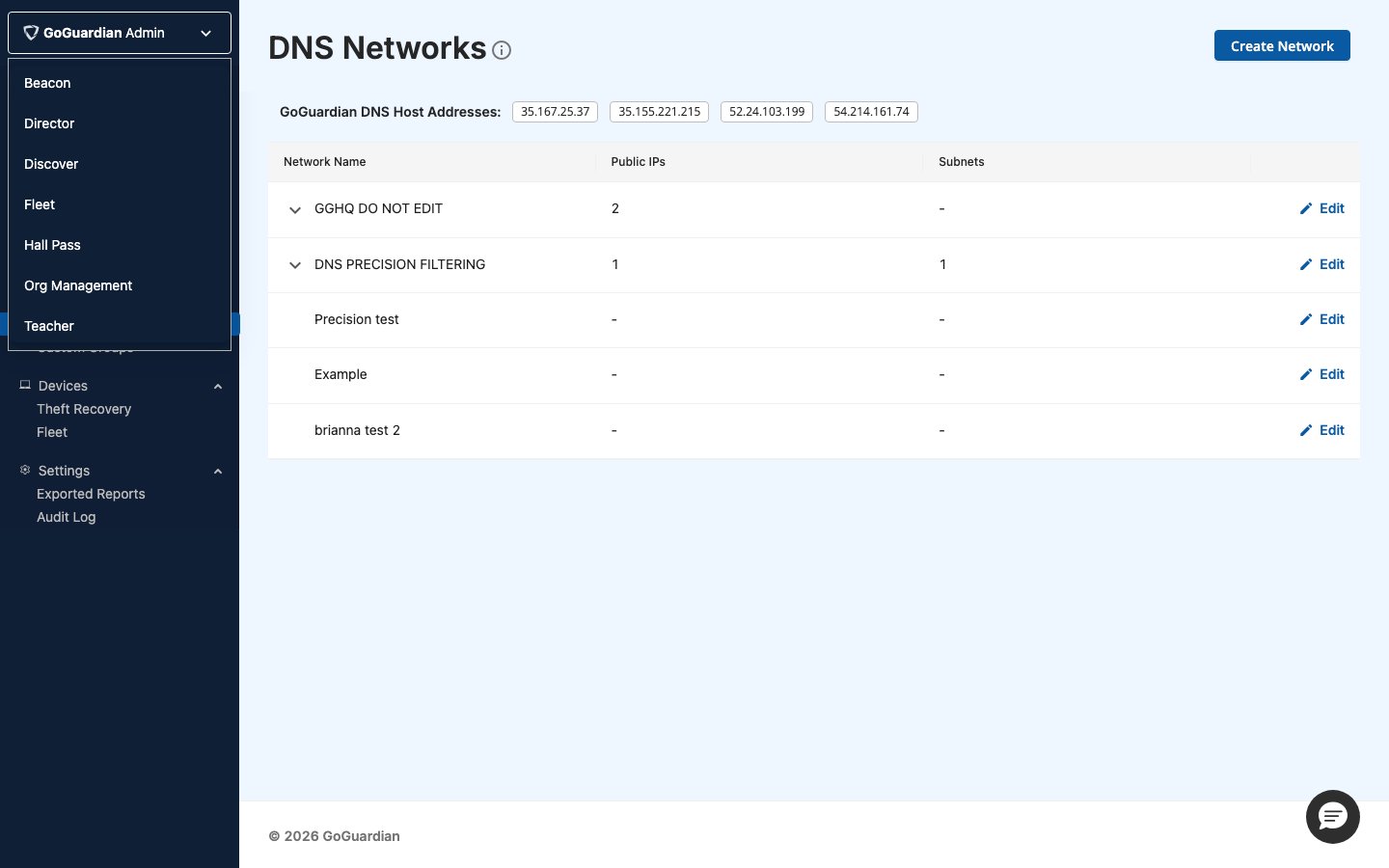
Go to GoGuardian Admin and select Filtering → DNS Networks.

- Click Create Network.
- Enter a name for the network.
- Click Add.
- Verify the result: The new network appears in your DNS Networks list.
Configure Network Settings
-
Click the pencil icon next to the network you created.
- Enter your network’s public IP address. Repeat for each additional IP address.
-
Optional: Configure the following settings:
- Logs and Statistics — turn on to collect DNS traffic data for reporting. If turned off, no activity appears on the DNS Traffic page.
- Block Suspicious Responses — when turned on, blocks DNS responses that return RFC 1918 private IP addresses. Prevents DNS rebinding attacks.
- AdDeflect — when turned on, blocks ads and pop-ups network-wide. AdDeflect access is automatically provisioned with GoGuardian Admin, but you must turn on this toggle for the network. See Enable AdDeflect.
- Verify the result: Settings save and the network updates in your DNS Networks list.
Assign a Filtering Policy
- Click + Add next to the network to assign a filtering policy.
- Select an existing policy from your GoGuardian Admin policies, or create a new one.
- Verify the result: The policy appears under the network.
GoGuardian recommends creating a dedicated policy for DNS filtering rather than reusing a policy built for extension-based filtering. DNS filtering does not support URL path rules, YouTube rules, or Apps and Extensions rules. Existing policies can be copied and edited for DNS use. See Understand GoGuardian DNS for a full list of supported and unsupported filtering features.
Point Your Network’s DNS at GoGuardian Resolvers
Direct your network traffic to GoGuardian DNS by updating your DNS settings on your network’s firewall, router, or DHCP server to the following resolver addresses:- Verify the result: Run
nslookup goguardian.com [resolver IP]in a terminal to confirm connectivity to each resolver. A successful response confirms the resolver is reachable.