

- OU assignment applies a role to everyone in a directory path (Organizational Unit). This is the primary method for most users.
- Individual user assignment applies a role to a specific person, regardless of their OU. Individual assignment overrides OU assignment for that person and is intended for exceptions. You can assign individual users one at a time. For the Admins and Staff roles, you can also upload a CSV of email addresses to assign many users at once.
Add Organizational Units to a Site
Use OU assignment to give an entire student population or staff group access to a site.- Go to manage.goguardian.com and sign in with your district administrator account.
- Navigate to Product Settings → Hall Pass → Sites.
- Click Edit on the site you are configuring.
-
Select the tab for the role you’re assigning: Admins, Staff, or Students.
-
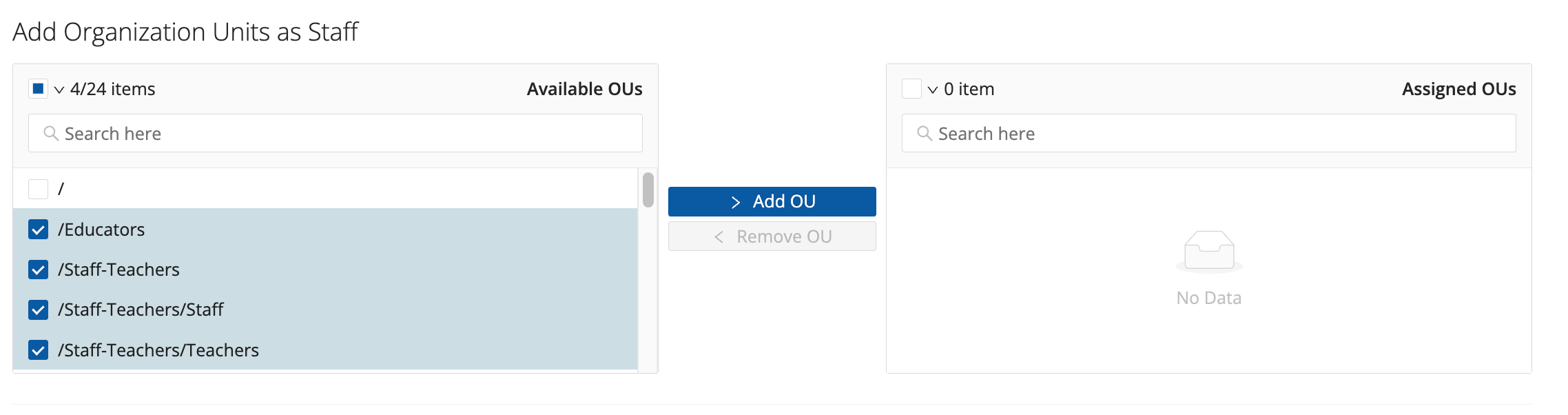
In the Available OUs list, search for the OU path and select its checkbox. For example:
/school_a/studentsor/district/staff/east_high. - Click Add OU. The OU moves to Assigned OUs.
- Click Save Site.
- Verify the result: users in that OU can sign in to Hall Pass and see the correct site and role without a “no sites” error.
Add Individual Users to a Site
Use individual user assignment for exceptions: a staff member who supports multiple sites, an administrator whose OU would assign the wrong role, or a temporary staff member who needs access for a specific building.- Go to manage.goguardian.com and sign in with your district administrator account.
- Navigate to Product Settings → Hall Pass → Sites.
- Click Edit on the site you are configuring.
-
Select the tab for the role you’re assigning: Admins, Staff, or Students.
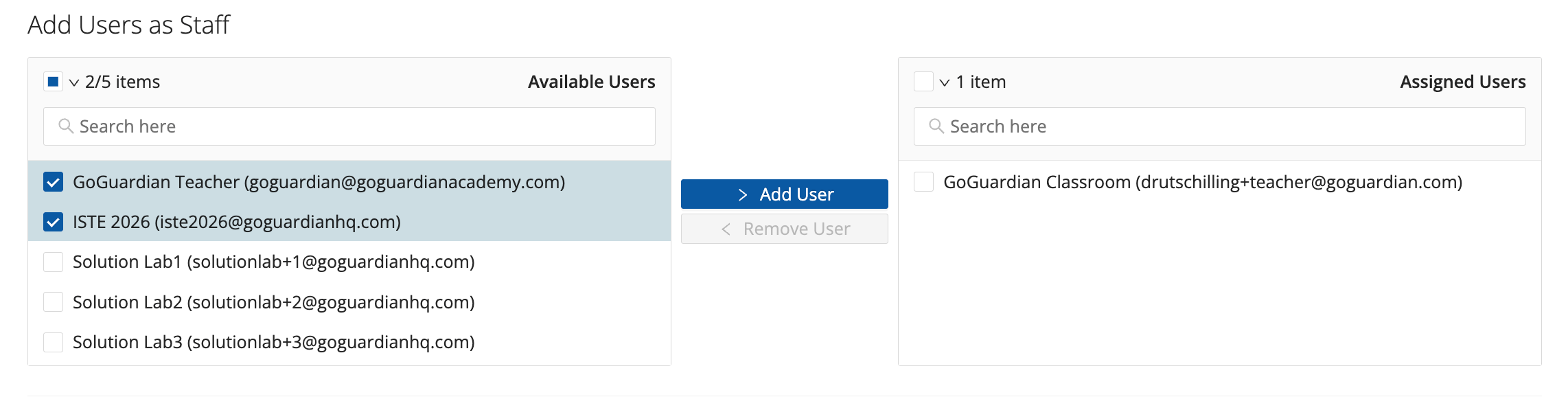
- In the Available Users list, search for the user and select their checkbox.
- Click Add User. The user moves to Assigned Users.
- Click Save Site.
- Verify the result: the user can sign in to Hall Pass with the assigned role at the assigned site, regardless of their OU placement.
Upload Admins or Staff via CSV
To assign many individual users to the Admins or Staff role at once, upload a CSV of email addresses instead of adding them one at a time. CSV upload is not available on the Students tab. Assign students through an OU or by selecting individual users.- Go to manage.goguardian.com and sign in with your district administrator account.
- Navigate to Product Settings → Hall Pass → Sites.
- Click Edit on the site you are configuring.
- Select Admins or Staff.
-
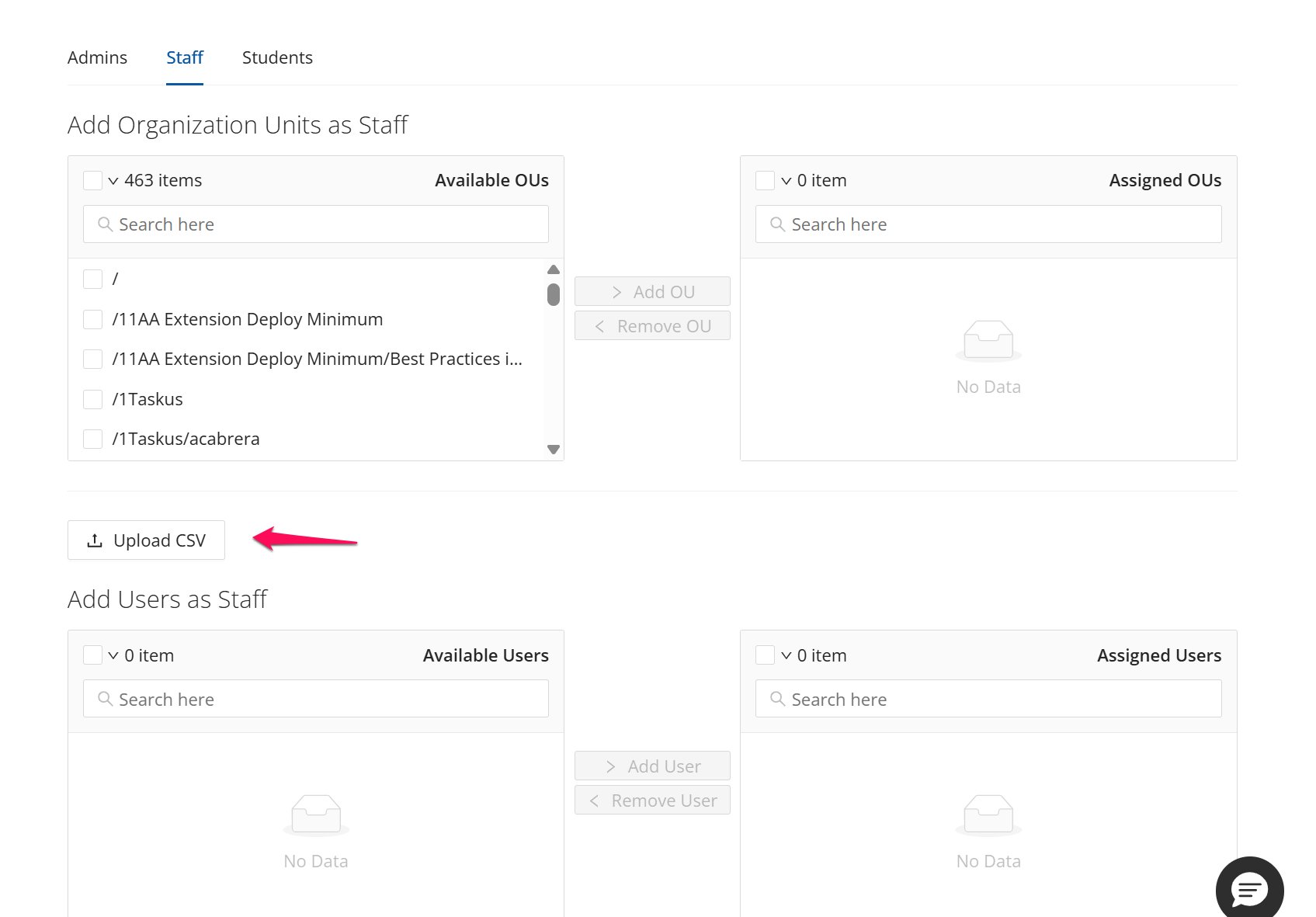
Click Upload CSV, then click or drag your CSV file into the upload field.
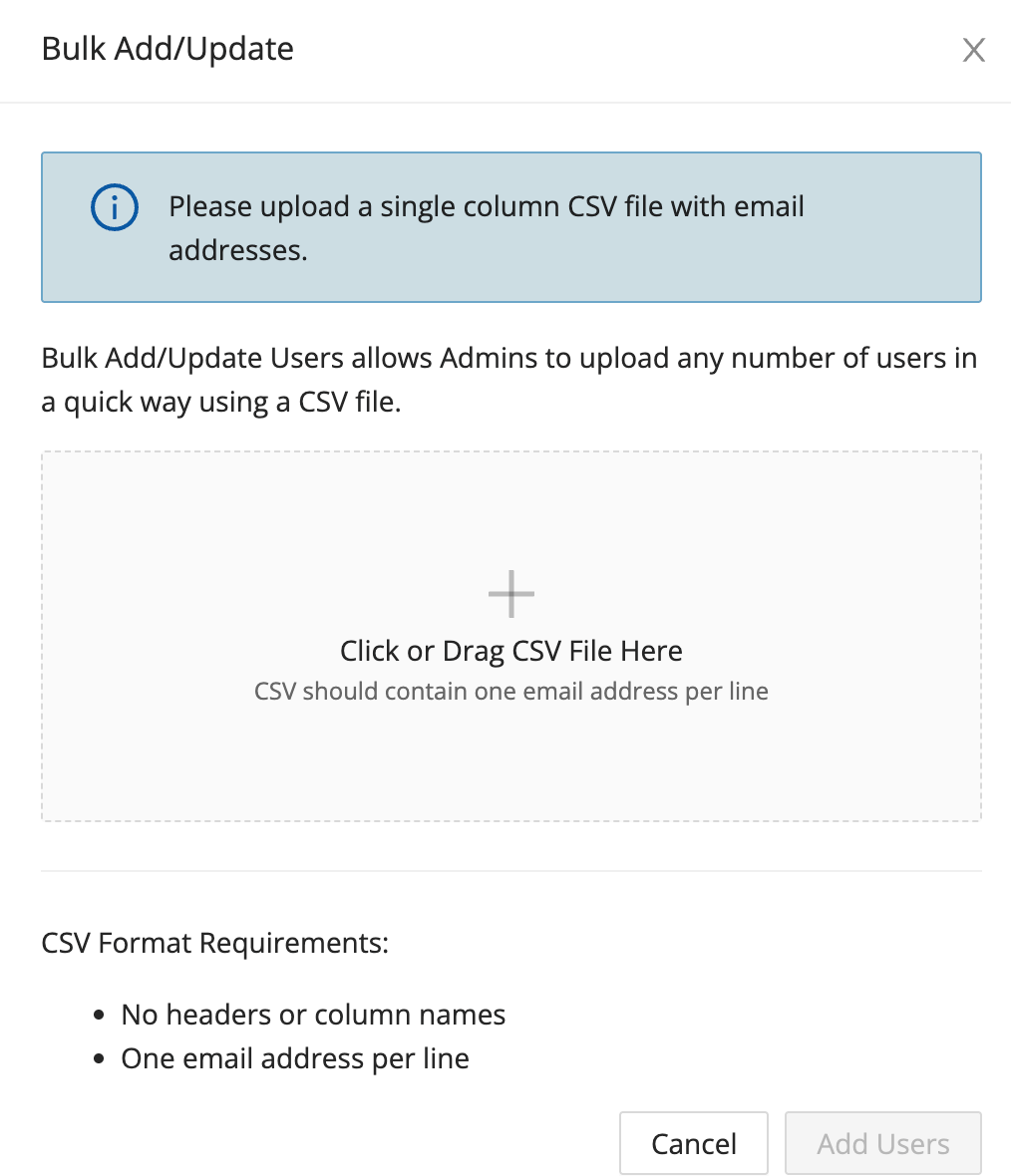
- Click Add Users.
- Click Save Site.
- Verify the result: each user in the CSV can sign in to Hall Pass with the assigned role at the assigned site.
The CSV must be a single column of email addresses, one per line, with no header row or column names.
Troubleshoot Common Access Issues
”No Sites” Error on Sign-In
This error means Hall Pass found no OU assignment or individual user assignment that matches the user for any role. To resolve it:- Confirm the user’s OU path in your directory (Google Admin Console or Active Directory).
- In Org Management, go to Product Settings → Hall Pass → Sites, click Edit on the site, and check the Admins, Staff, and Students tabs for an OU assignment matching that path.
- If no assignment exists, add one. If an assignment exists, confirm the OU path matches the user’s actual OU path exactly.
- If the match looks correct and the error persists, add the user individually as an override.
Exact OU Path Matching
OU assignment uses exact path matching. If your assignment is/school_a/students but a student’s OU path is /school_a/students/grade_9, the assignment may not apply. Use the OU path level your district standardizes on, and confirm that every user in scope falls within that path.
Unexpected Role Assignments
If a user’s role in Hall Pass does not match what their OU assignment would assign, check whether that person is also individually assigned to a different role. Individual assignment takes precedence over OU assignment. A stale individual assignment from a previous school year or role change can override the current OU assignment unexpectedly. To resolve it, find and remove the individual assignment from the relevant role tab in Org Management.Multi-Site Staff
Staff who support more than one school need a separate assignment for each site. Without an explicit assignment for each site, the user sees only one building (or none at all) when they sign in. Add them as an individual user on each additional site.A User Is Missing from Hall Pass Entirely
If a teacher or student doesn’t appear in Hall Pass at all — not just the wrong role or site — there are two possible causes:- They aren’t assigned. Hall Pass shows only users covered by an OU assignment or individual user assignment. Confirm an assignment covers their OU (or add them individually), as described under No Sites Error on Sign-In.
- They aren’t in Org Management yet. Because Hall Pass has no roster of its own, a user who was never provisioned into Org Management can’t be assigned. Confirm the account exists in Org Management first. If it’s missing, resolve the underlying directory sync — see Troubleshoot Rostering and Sync Issues Across GoGuardian — or add the account manually in Manage User Accounts. Once the account exists, your assignments apply on the user’s next sign-in.
Remove or Deactivate a User
- Remove Hall Pass access only: On the site’s Admins, Staff, or Students tab, remove the OU or individual user assignment that grants the user access, then click Save Site. The change takes effect on their next sign-in.
- Deactivate the account entirely: Archive the user in Org Management. An archived account can no longer sign in to any GoGuardian product until it’s reactivated.